Magic Tab is an AnythingLLM Pro feature with a free daily usage tier. It is available in AnythingLLM Desktop for macOS and Windows.
Magic Tab is only available on AnythingLLM Desktop v1.15.0 and later.
Magic Tab
Magic Tab suggests inline text completions that are context aware to what you are actively working on as you type in any application on your computer.
It is more than simple autocomplete based on what you type! As you write, Magic Tab predicts what comes next and shows a ghost-text suggestion — press Tab to accept, or just keep typing to ignore it.
How it works
- Start typing in any application — an email, a document, a chat app, a code editor, anything.
- Pause briefly — Magic Tab detects the pause and generates a suggestion based on what you've typed and the surrounding context.
- A ghost-text suggestion appears inline, styled as a subtle overlay near your cursor.
- Press Tab to accept the suggestion, or keep typing to dismiss it.
Magic Tab runs entirely on-device using a local model or the system provider and model of your choice. Suggestions are generated only when you pause typing, and only accepted completions count toward usage.
Suggestion Modes
Typeahead completions
As you type and pause, Magic Tab generates a suggestion that continues your current thought. The delay before a suggestion appears is configurable via the Typing Pause Delay setting.
On-Focus Suggestions
To save on compute or cloud costs for if you are using a cloud provider, this setting is disabled by default even though it is very cool!
When enabled, Magic Tab generates a suggestion as soon as you click into a text field — even before you start typing. This can feel proactive and helpful for starting a new paragraph or reply. The suggestion is dismissed as soon as you begin typing.
Suggestion Chaining
When enabled, accepting a suggestion immediately generates another one, so you can keep pressing Tab to continue writing a full passage. When disabled, Magic Tab waits until you start typing again before generating the next suggestion.
Settings & Configuration
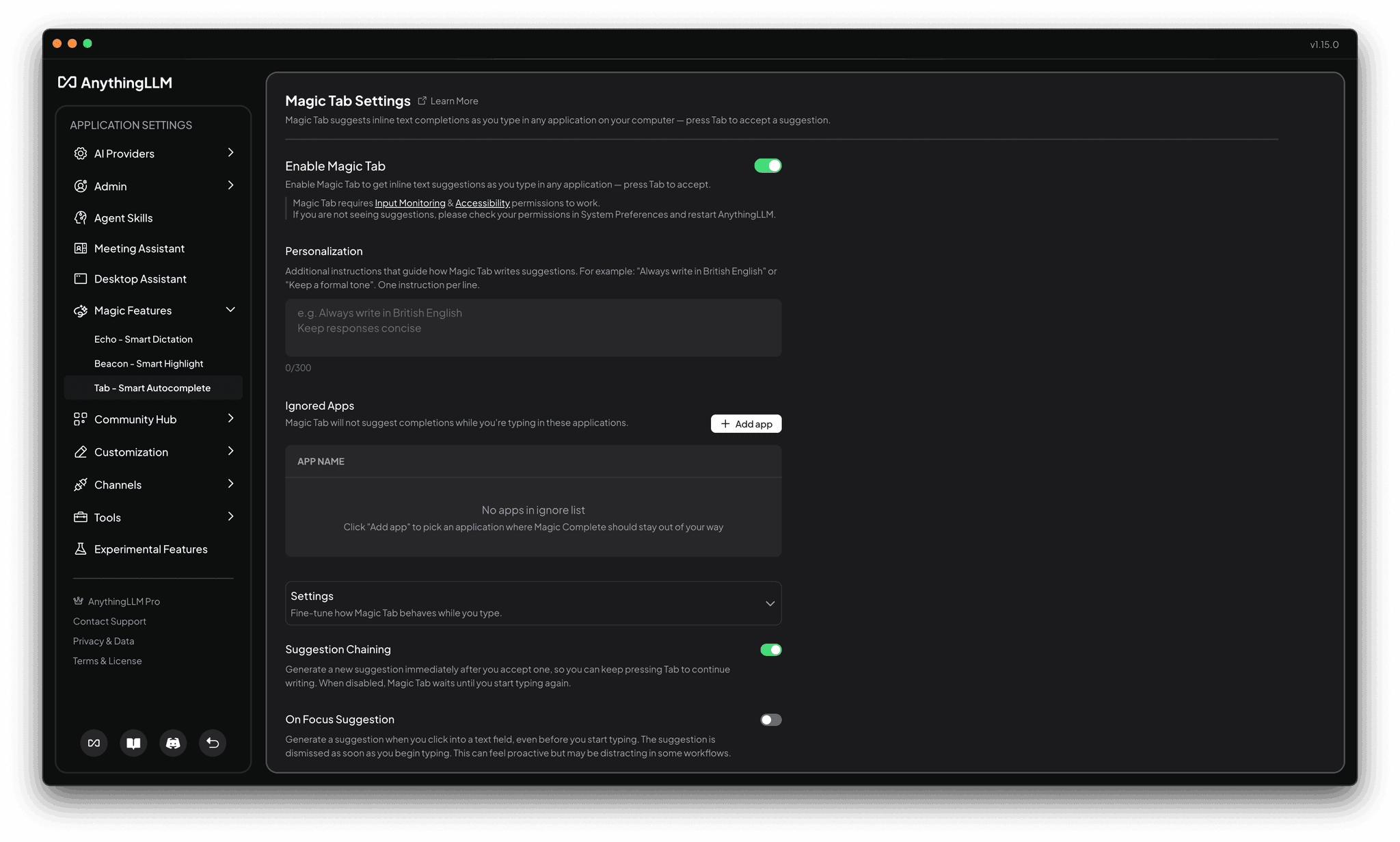
Navigate to Settings → Magic Tab to configure:
| Setting | Description |
|---|---|
| Enable Magic Tab | Toggle the feature on or off |
| Model | Choose the model for generating suggestions (see below) |
| Completion Suggestion Length | How much text to suggest at once — Short (faster), Medium, or Lengthy (full sentences) |
| Typing Pause Delay | How long you must pause typing before a suggestion appears. Lower values are more responsive but generate more unused suggestions |
| Suggestion Chaining | Automatically generate a new suggestion after accepting one |
| On Focus Suggestion | Generate a suggestion when clicking into a text field |
| Animated Border | Show a gradient border around the focused input while generating a suggestion |
| Personalization | Custom instructions that guide suggestion style (e.g., "Always write in British English" or "Keep a formal tone") |
| Ignored Apps | Applications where Magic Tab should not suggest completions |
Model Selection
Magic Tab can use different models for generating suggestions. You can choose based on your hardware and preference:
| Model Tier | Description |
|---|---|
| Default | Uses your system model — no extra download required |
| Lightweight | Fastest responses, lowest memory usage |
| Balanced | Better quality suggestions with moderate resource usage |
| Intelligent | Best quality suggestions, slower and more memory-intensive |
New models are downloaded automatically in the background when selected.
Tip: Start with your default system model to get a feel for Magic Tab, then move up to Balanced or Intelligent if you want higher-quality suggestions.
Personalization
Add custom instructions (one per line) that guide how Magic Tab writes suggestions. These instructions are included as context every time a suggestion is generated.
Examples:
Always write in British EnglishKeep a formal, professional toneUse technical language appropriate for a software engineering audiencePrefer short, concise sentences
Ignored Apps
If Magic Tab suggestions are distracting in certain applications (for example, a terminal or a game), add those apps to the ignore list in Settings → Magic Tab → Ignored Apps.
Typing Pause Delay
The typing pause delay controls how responsive Magic Tab is. A shorter delay (e.g., 500ms) means suggestions appear quickly after you stop typing, but may generate many suggestions you don't use — wasting GPU compute and draining battery. A longer delay (e.g., 1500ms) feels more natural but may slow down the suggestion flow.
Very low delay values will generate many suggestions that go unused, wasting GPU compute and draining battery. 750ms is recommended for most users.
Platform Requirements
- macOS: Requires Input Monitoring and Accessibility permissions to detect keystrokes and insert text. You'll be prompted to grant these on first use. A restart of AnythingLLM may be needed after granting permissions. See MacOS permissions & Troubleshooting for more details.
- Windows: No special permissions required.
- Linux: Not currently supported.
Privacy
All suggestion generation is done on device using your configured LLM provider and model. The text context around your cursor is processed by your provider to generate suggestions — nothing is sent to the cloud (unless you've explicitly configured a cloud LLM provider).
Free Tier & Pro
Magic Tab suggestions are always generated for free. Only accepted completions (when you press Tab) count toward your daily free-tier limit.
With AnythingLLM Pro, accepted completions become unlimited. Get your Pro key to remove all daily limits.
MacOS permissions & Troubleshooting
Due to how MacOS stores permissions, sometimes just flicking the switch on the Privacy & Security settings window seems to not take effect. In this case, you can try the following:
- Quit AnythingLLM fully.
- Open the Privacy & Security settings window and add an entry for AnythingLLM for
Accessibility,Input Monitoring, andScreen Recordingpermissions. - Restart AnythingLLM.
- Go to Magic Tab settings, disable the feature and re-enable it.
- Now open an application and start typing. If the feature is working, you should see a suggestion appear within a few milliseconds (depending on your hardware, model, provider, etc.)
An easy way to really test is to enable "On Focus Suggestion" with Animated Border enabled and go to a website or app and click into a text field. If the field border highlights, then Magic Tab is working and will do typeahead suggestions as you type.
Permissions required
Accessibilitypermission is required to grab context from the active application.Input Monitoringpermission is required to insert text into the active application as well as detect when you stop typing.Screen Recordingpermission is required only if you have On-Focus Suggestions enabled.