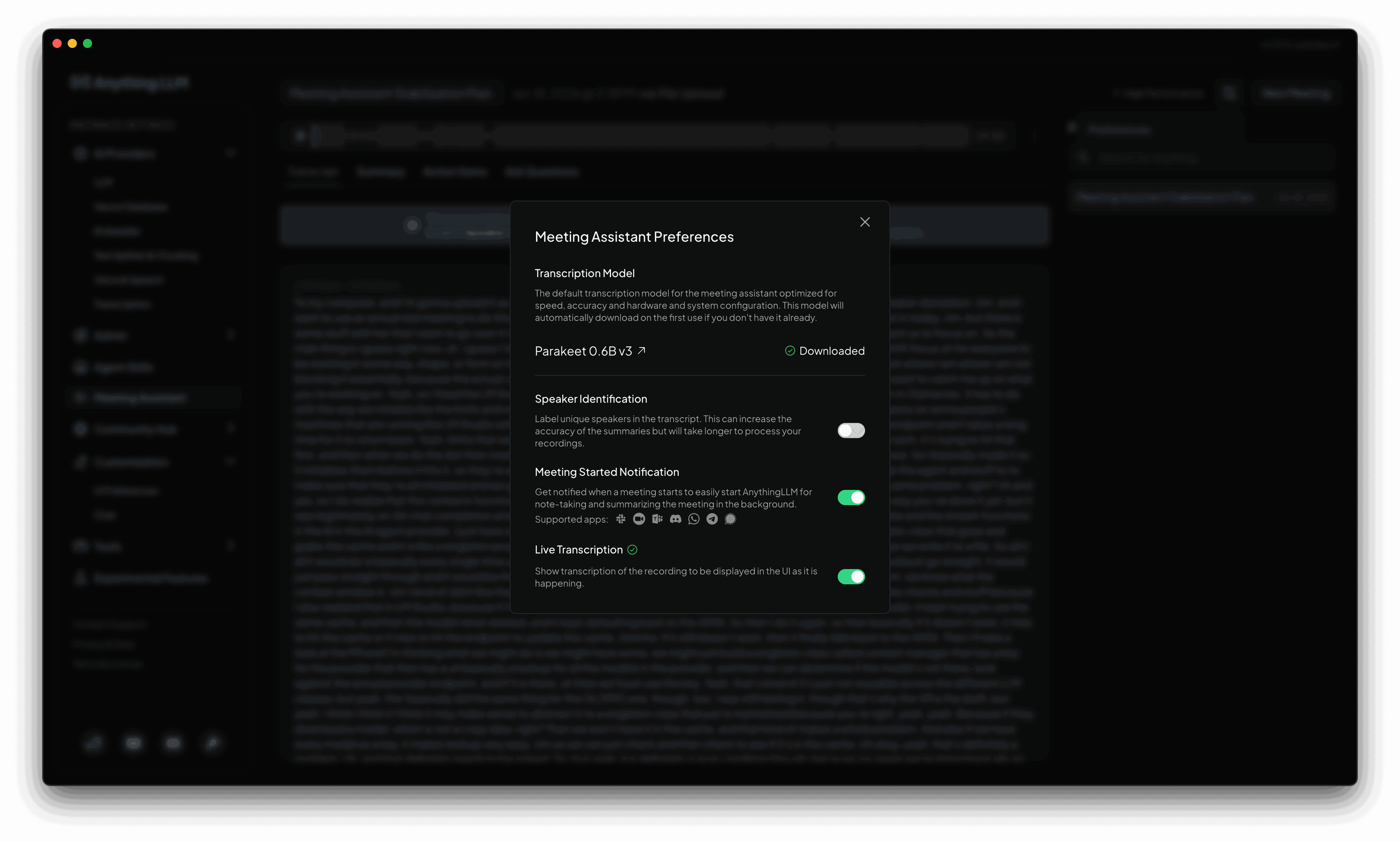
The Meeting Assistant is only available in AnythingLLM Desktop v1.10.0 and later for supported platforms.
Coming soon to Linux: The Meeting Assistant is not yet available on Linux (both x64 and ARM64). None of the features described on this page are available on Linux today.
Record and transcribe meetings
The Meeting Assistant is not limited to just recording and transcribing meetings. You can also upload meetings, audio files, or recordings that you have already have.
You can also just start a recording in AnythingLLM and speak to your computer if you want!
By default, the Meeting Assistant is able to record and transcribe meetings you join on any software like Zoom, Google Meet, Microsoft Teams, etc. You can also upload meetings, audio files, or recordings that you have already have.
Speaker identification
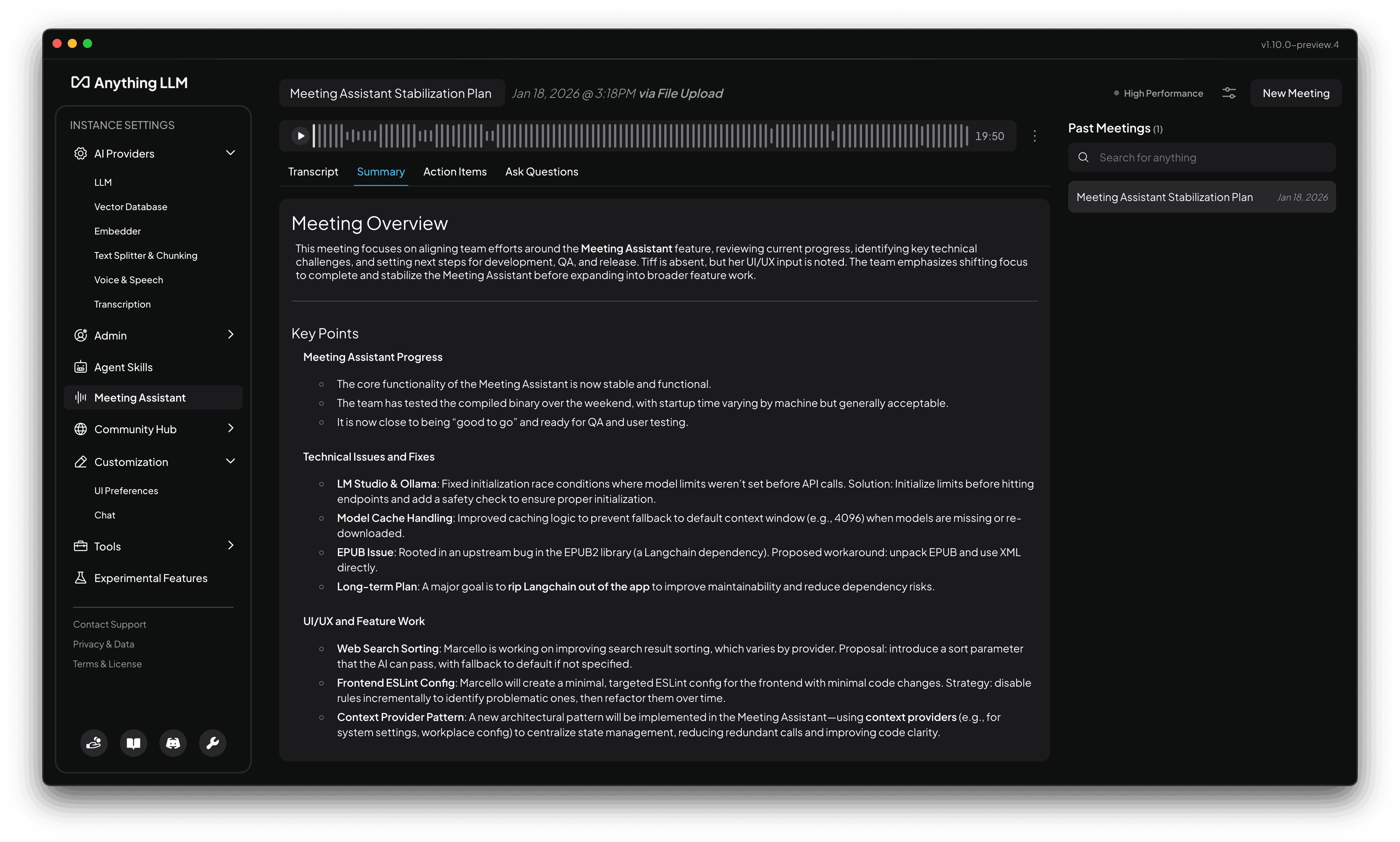
The Meeting Assistant is able to identify unique speakers in the transcript. It does not rename the speakers in the transcript based on your meeting, it simply identifies them by their unique voice characteristics. This process is done using a combination of LLM-based speaker identification and speaker diarization. That being said, it is not perfect and may not always be able to identify speakers correctly.
Types of speaker identification
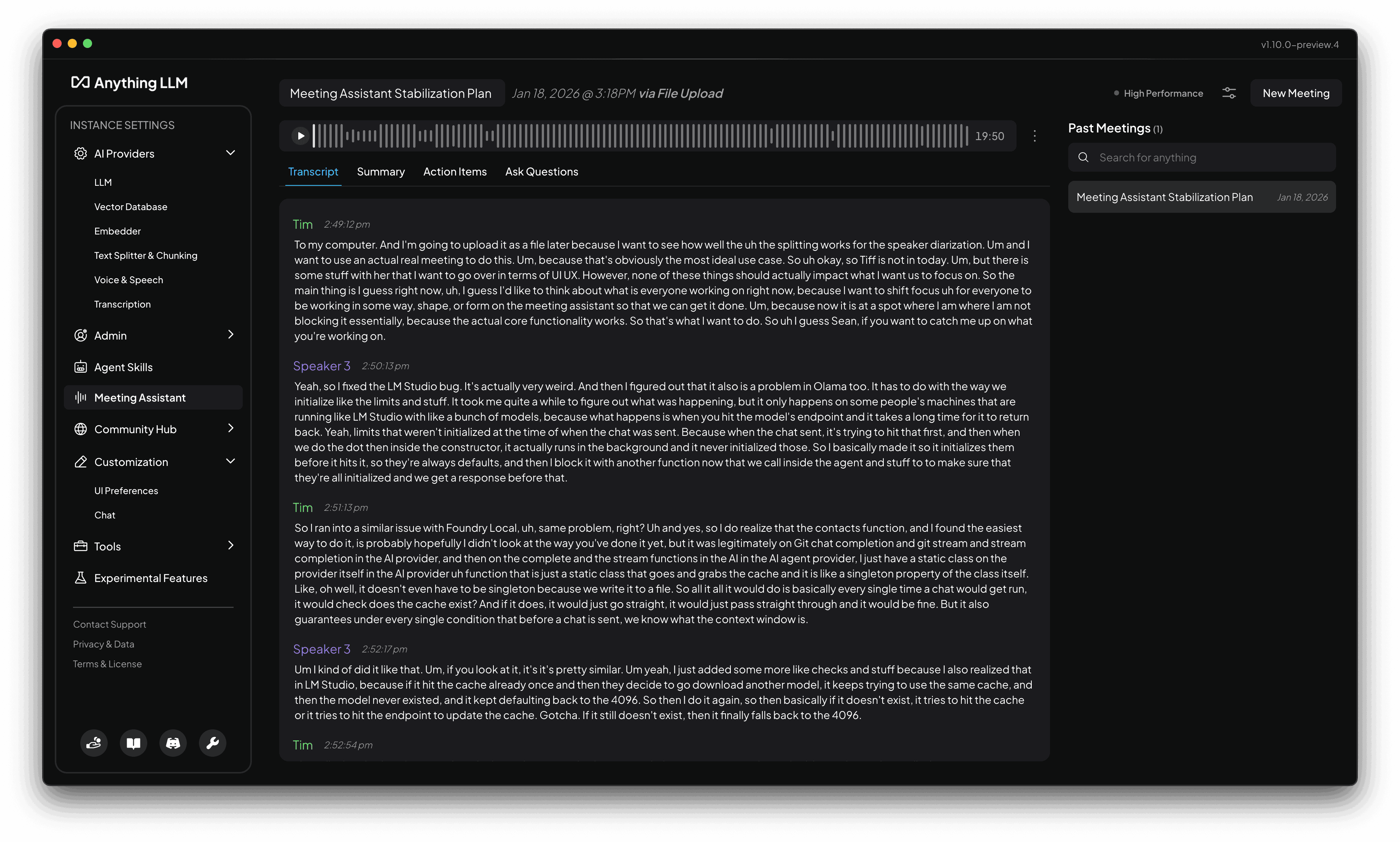
There are three types of speaker identification available - each with their own unique benefits and trade-offs.
No Diarization
If you dont care about speaker identification, you can disable it entirely but you will not be able to see speaker names in the transcript. This can lead to worse summaries since the models will be unable to identify even you from other speakers.
Basic Diarization
This is the default mode and is the most basic form of speaker identification. It is able to identity what you are saying from other speakers. However, the "Other" speaker will be used for any audio that is not you. This takes a minimal amount of additional processing power or time to run and is the fastest way to get speaker identification and yeilds great results for most meetings since you will at least be able to identify yourself from other speakers and the summary will reflect that.
Full Diarization
This is the most advanced form of speaker identification and is able to identify speakers based on their unique voice characteristics. It is also able to identify speakers based on their unique voice characteristics. This takes more processing power and time to run and is not recommended for most meetings. However, it is the most accurate way to get speaker identification and will yield the best results for most meetings.
This can lead to a 20-40% increase in processing time depending on your hardware and the length of the meeting. GPU hardware is recommended for this mode for optimal performance.
Edit speaker names
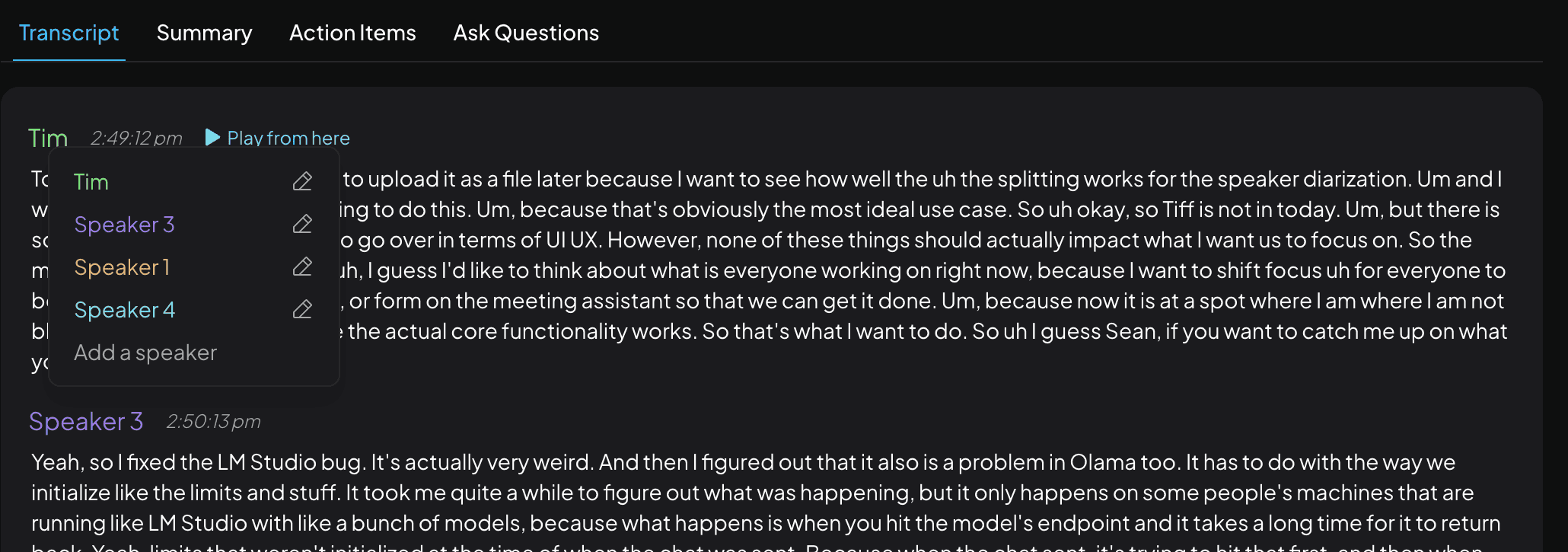
For any transcript with speaker identification enabled, you can click on a speaker to rename them across the entire transcript as well as correct any mis-identifications.
After editing, any speakers who are no longer mentioned will be removed from the speaker list.
Edit transcript text
For any transcript, you can double-click on a piece of text to edit it. This will allow you to correct any mis-transcriptions or add any additional context that was not captured by the transcription.
After editing, the transcript will be updated. However, you may want to re-summarize the meeting to apply the changes to the meeting summary.
Play from a specific time
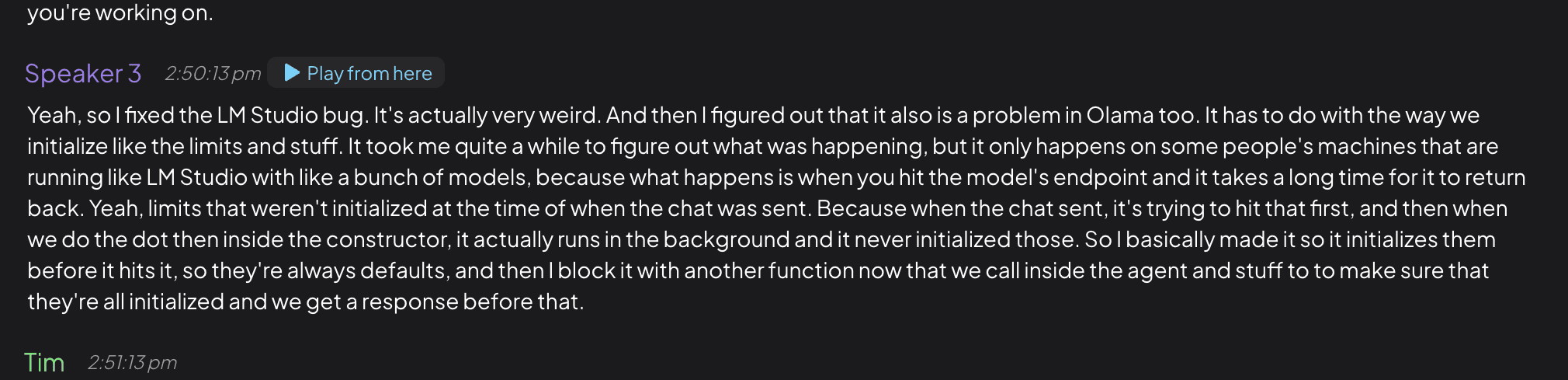
For any transcript, you can replay the audio from the top recording player as well as click to jump to a specific time in the transcript. If you have speaker identification enabled, you can also click on a speaker segment to jump to that exact time in the audio.
Real-time transcription
This feature is only available when recording a meeting and is disabled by default. It is purely for convenience and to help you follow along with the meeting if you wish and we only recommend enabling it if you are on high-end hardware.
The Meeting Assistant is able show a rolling transcript of the meeting as it is happening. This can be helpful to follow along with the meeting if you wish and is purely for convenience.
Joined meeting Notification
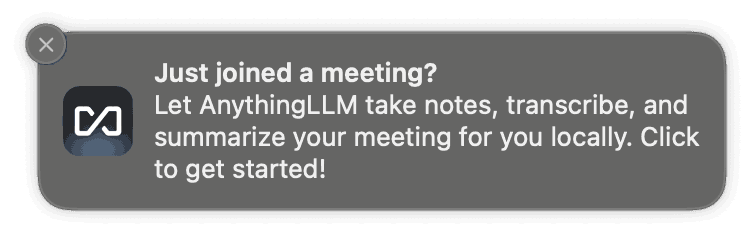
The Meeting Assistant is able to send you a desktop notification when you join a meeting. Clicking the notification will open the Meeting Assistant and start recording the meeting in the background.
When you stop or leave a meeting, the Meeting Assistant will automatically stop recording and save the meeting to your local device. You will be notified about the summary processing as it completes.
Meeting summary
The Meeting Assistant is able to summarize your meetings using your LLM provider and model of choice (Cloud or Local). By default, this is using whatever model you have configured as the "system" model in the AnythingLLM Settings > AI Providers > LLM.
Meeting summary templates
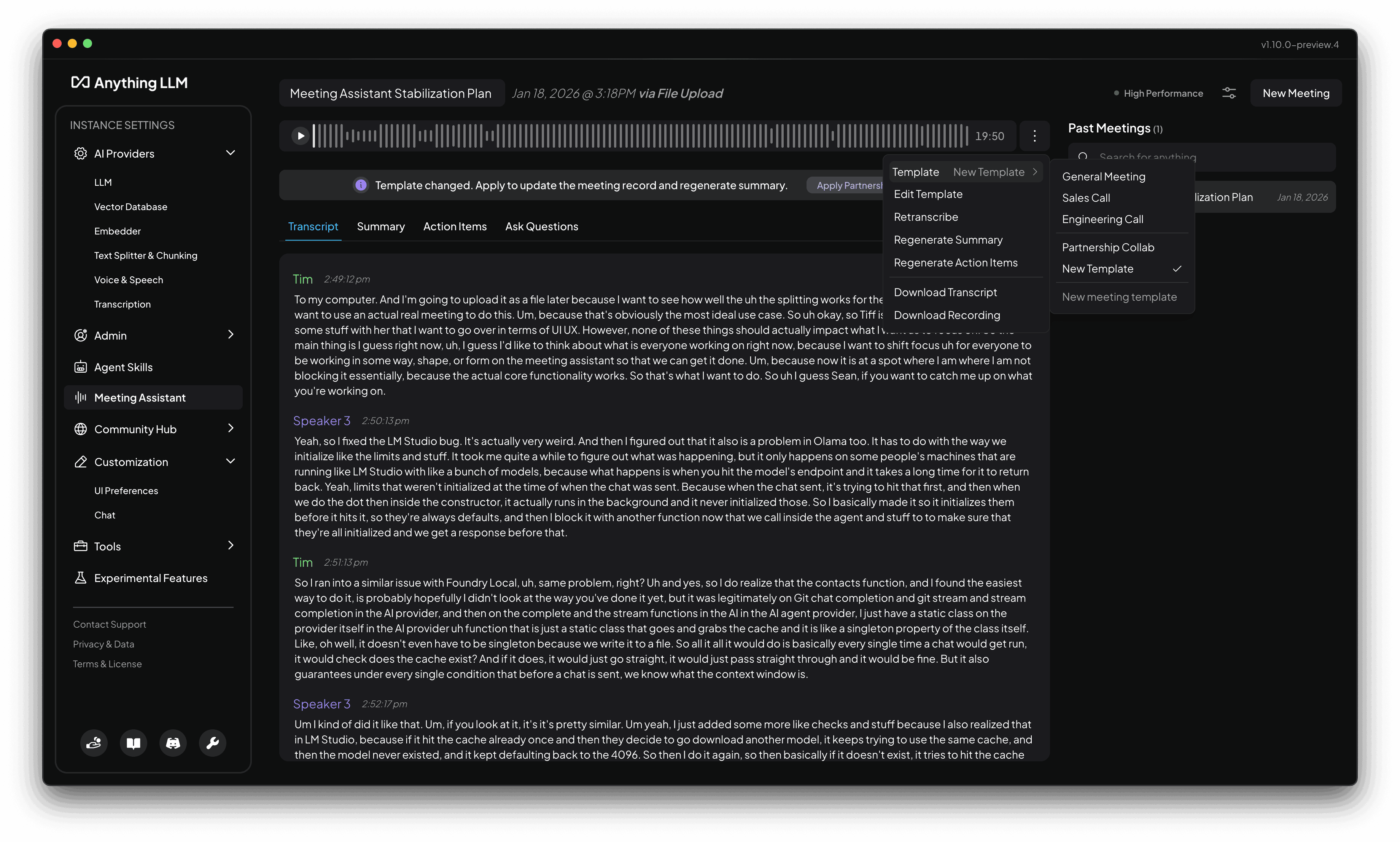
By default, the Meeting Assistant will use a generic summary template that is designed to be a good starting point for most meetings. AnythingLLM provides 3 pre-built summary templates for you to choose from:
- General Meeting: This is a basic summary template that is designed to be a good starting point for most meetings.
- Sales Call: This is a summary template that is designed to be a good starting point for sales calls.
- Engineering Meeting: This is a summary template that is designed to be a good starting point for engineering meetings.
You can change the summary template you want to use by clicking on the 3-dot menu icon next to the meeting recording and selecting the summary template you want to use.
Custom summary templates
On any meeting recording, you can also click on the 3-dot menu icon next to the meeting recording and create a custom summary template for that specific meeting or re-use an existing summary template.
If you change the summary template for a meeting you can instantly apply it to the meeting summary by clicking the "Apply Summary Template" action at the top of the meeting summary. This will apply the summary template to the meeting summary that will be sent to your LLM for processing.
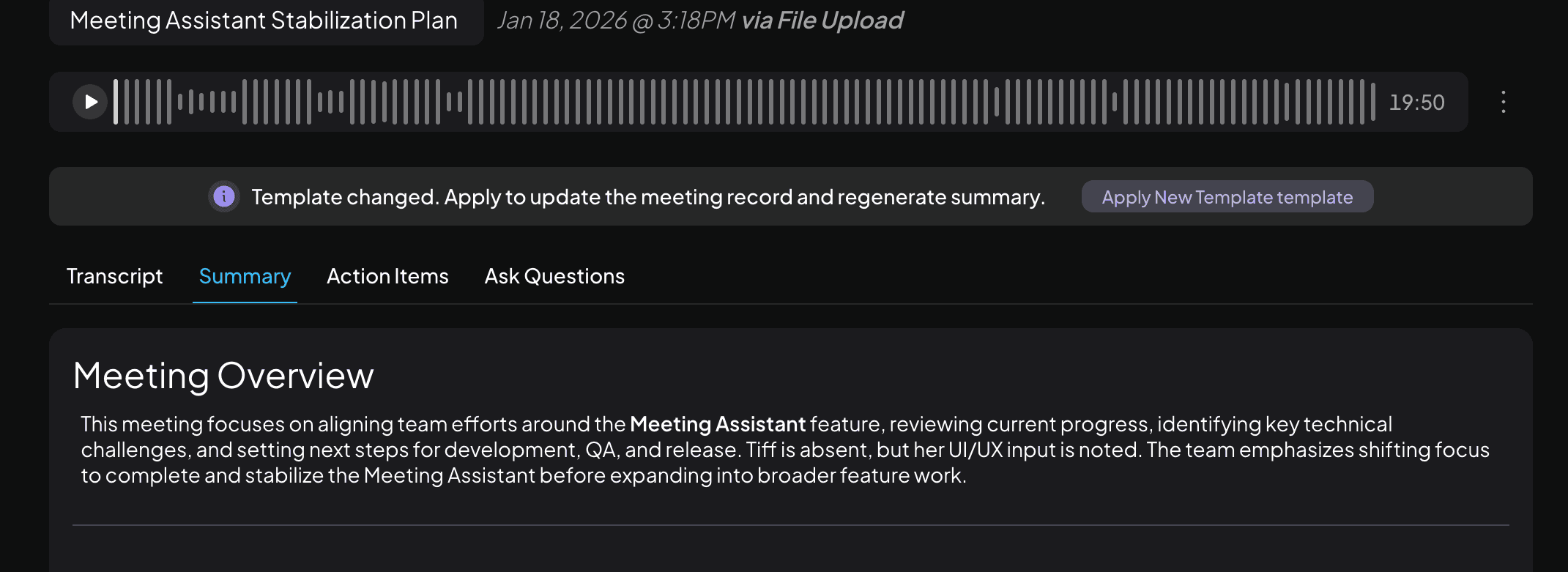
Regenerate meeting summary
By clicking the 3-dot menu next to the recording player, you can click Regenerate Summary to regenerate the meeting summary. This will regenerate the meeting summary available.
You may want to do this if you apply major changes to your summary template or transcript.
Agentic follow-up actions
The Meeting Assistant is able to propose agentic follow-up actions based on the meeting summary and transcript. No action is taken until you click the "Run" button.
Every "Agent Skill", including MCPs, Agent Flows, and anything else you can use in AnythingLLM, is instantly available to the Meeting Assistant as a possible follow-up action.
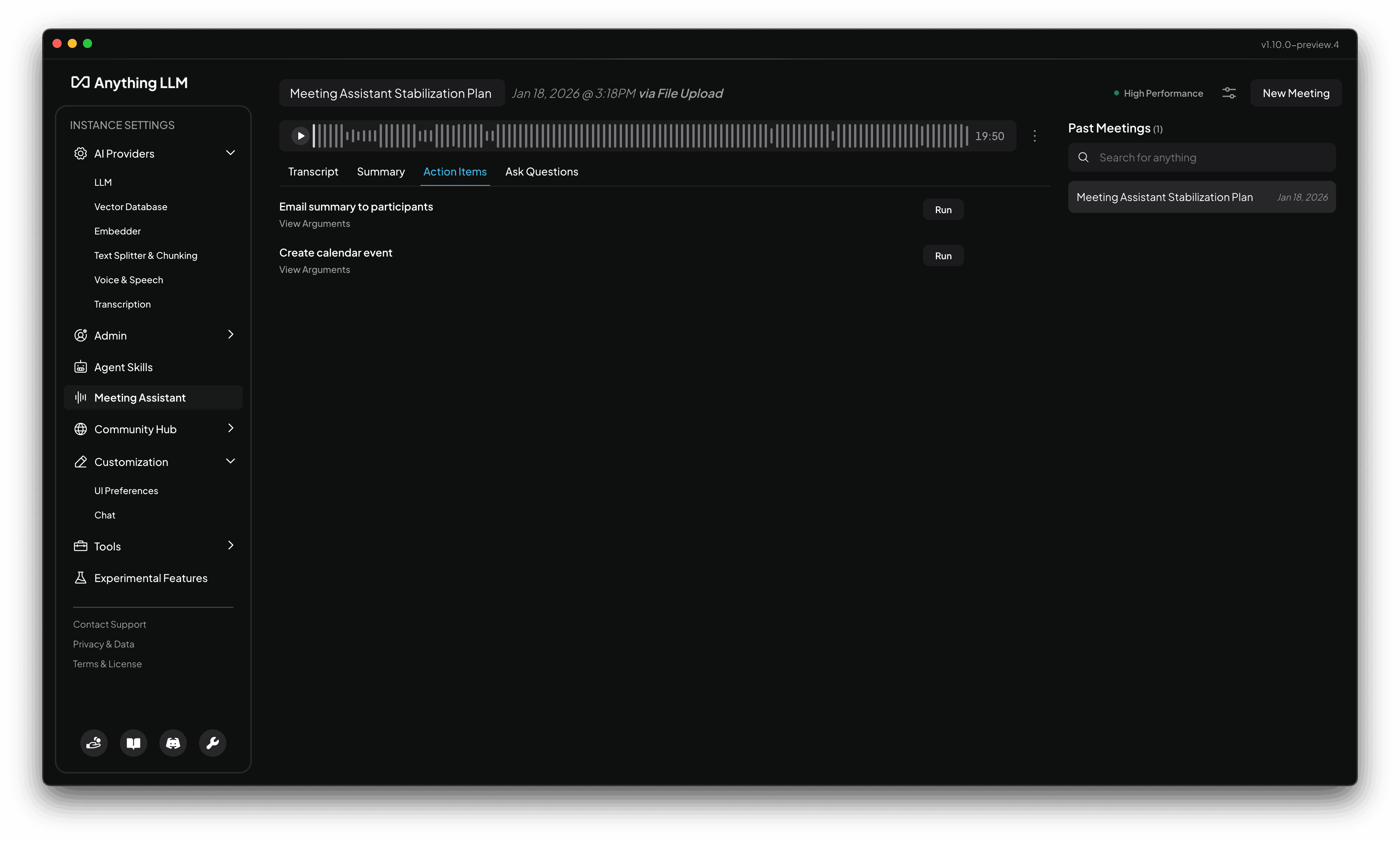
View action item details
For any action item, you can click on the View Arguments hint text to get a breakdown of the arguments that will be passed to the action item and how they will be used in the tool of choice.
Regenerate action items
By clicking the 3-dot menu next to the recording player, you can click Regenerate Action Items to regenerate the action items. This will regenerate the action items available.
You may want to do this if you apply major changes to your summary template or transcript.
Meeting title
On summary, we will automatically generate a title for the meeting based on the meeting summary. You can also manually edit the title by clicking on the title and typing in the new title.
Ask Questions
Clicking on the Ask Questions tab at the top of the meeting UI will open new workspace with the meeting transcript embedded in the workspace where you can ask questions about the meeting.
This is a great way to get quick answers to questions about the meeting without having to re-summarize the meeting.
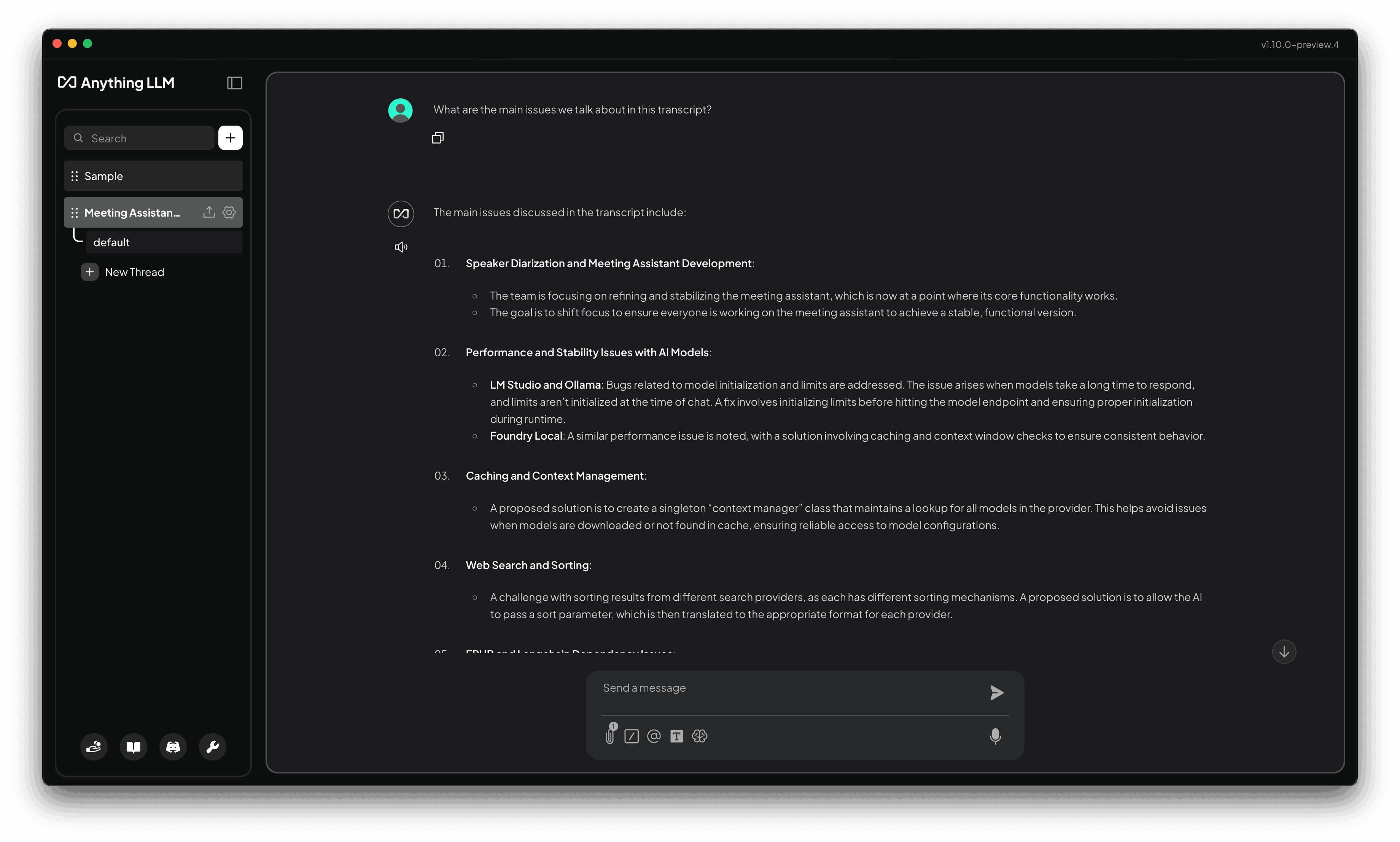
Meeting Search
Meeting search is run using a local on-device vector database and embedding model. No data is sent to the cloud.
On the right sidebar of the meeting UI, you will find every meeting you have recorded or uploaded in the Meeting Assistant.
You can use the search bar to find a specific meeting by name, date, or even semantically. Every transcript and summary for every meeting is indexed and searchable.
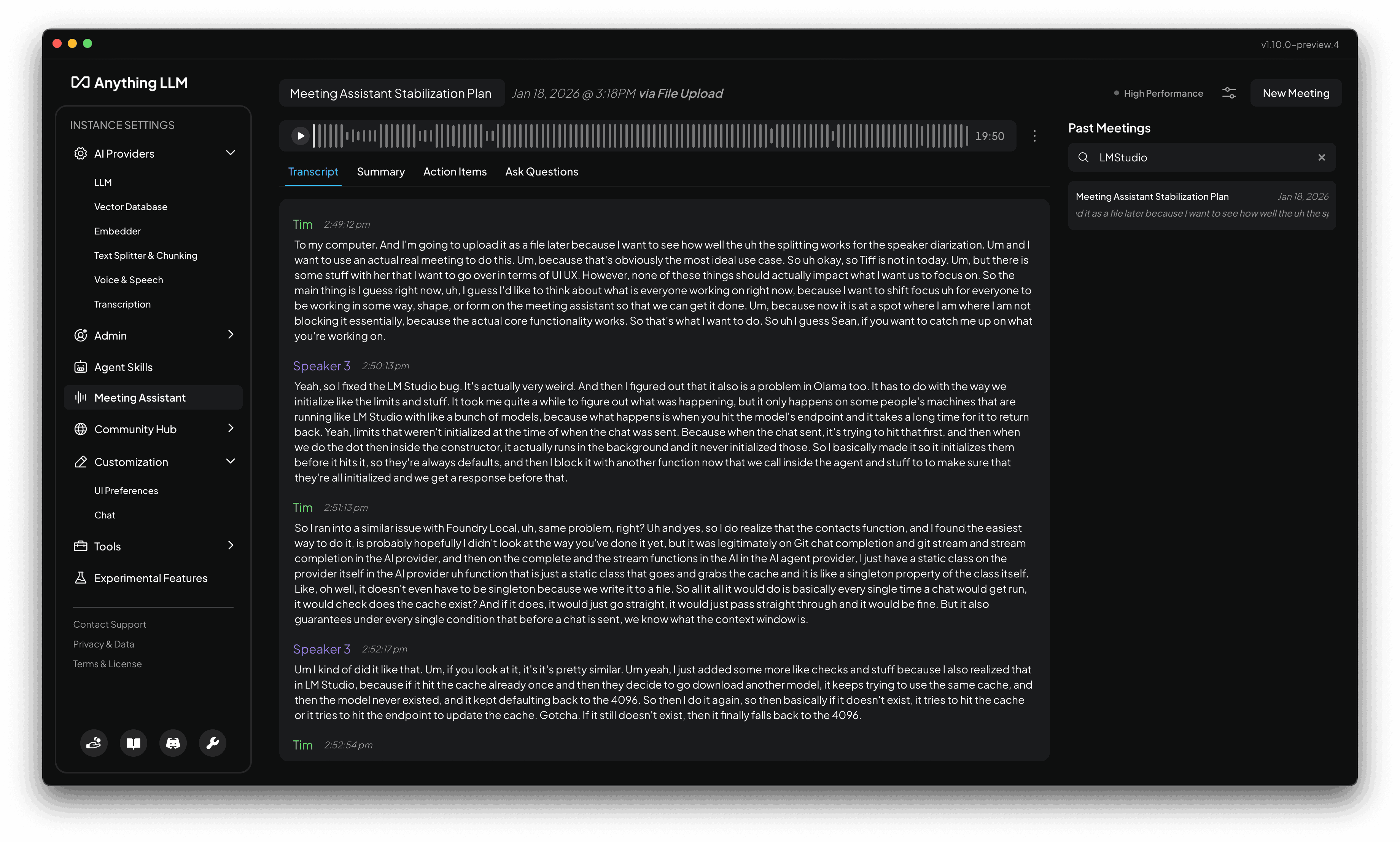
Preferences
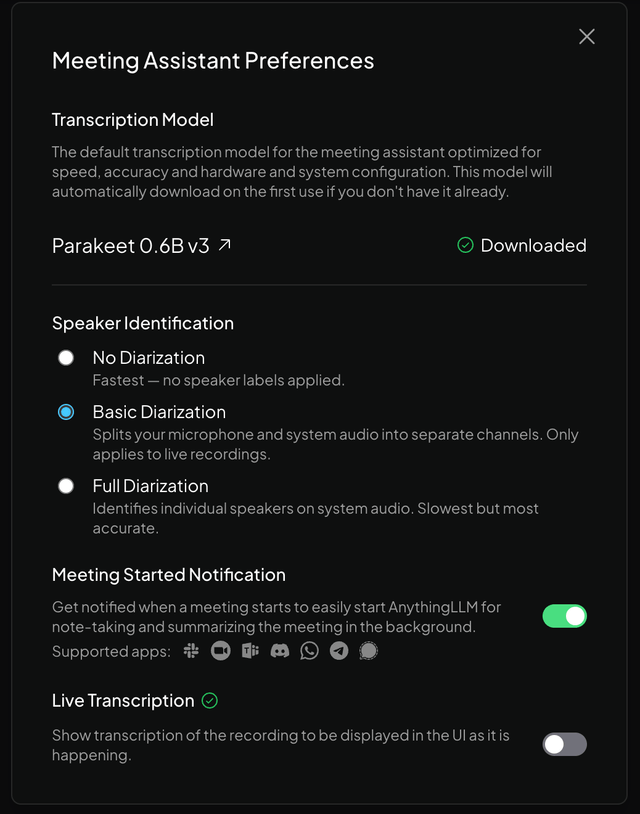
The Meeting Assistant has a set of preferences that you can configure to your liking. You can access them by click on the "Sliders" icon in the top right corner of the meeting UI.
Any changes you make to the preferences will be saved and applied to the Meeting Assistant and will be applied to all future meetings recorded or uploaded.