Viewing Runs & Results
Every time a scheduled job runs, AnythingLLM saves a complete record of what happened. This page covers where to find those records, how to read them, and what you can do with them afterward.
Run statuses
Each run moves through a small set of statuses:
| Status | Meaning |
|---|---|
| Queued | The run is waiting for a worker. This is usually brief. |
| Running | A worker has picked up the run and the agent is actively executing it. |
| Completed | The run finished successfully. A full result is available. |
| Failed | The run stopped because of an error. The error message is shown on the run detail page. |
| Timed out | The run exceeded the configured per-run time limit and was stopped. See Configuration & Limits. |
Run history
From the main Scheduled Jobs page, click View Runs on any job to open its run history.
Run history shows the 50 most recent runs, newest first, with:
- Status — one of the statuses above
- Start time — when the run actually began
- Duration — how long it took, once finished
- Error — a short message if the run failed
The page polls automatically, so new runs and status changes show up without a manual refresh. You can also click Run Now from this page to trigger a fresh run on demand.
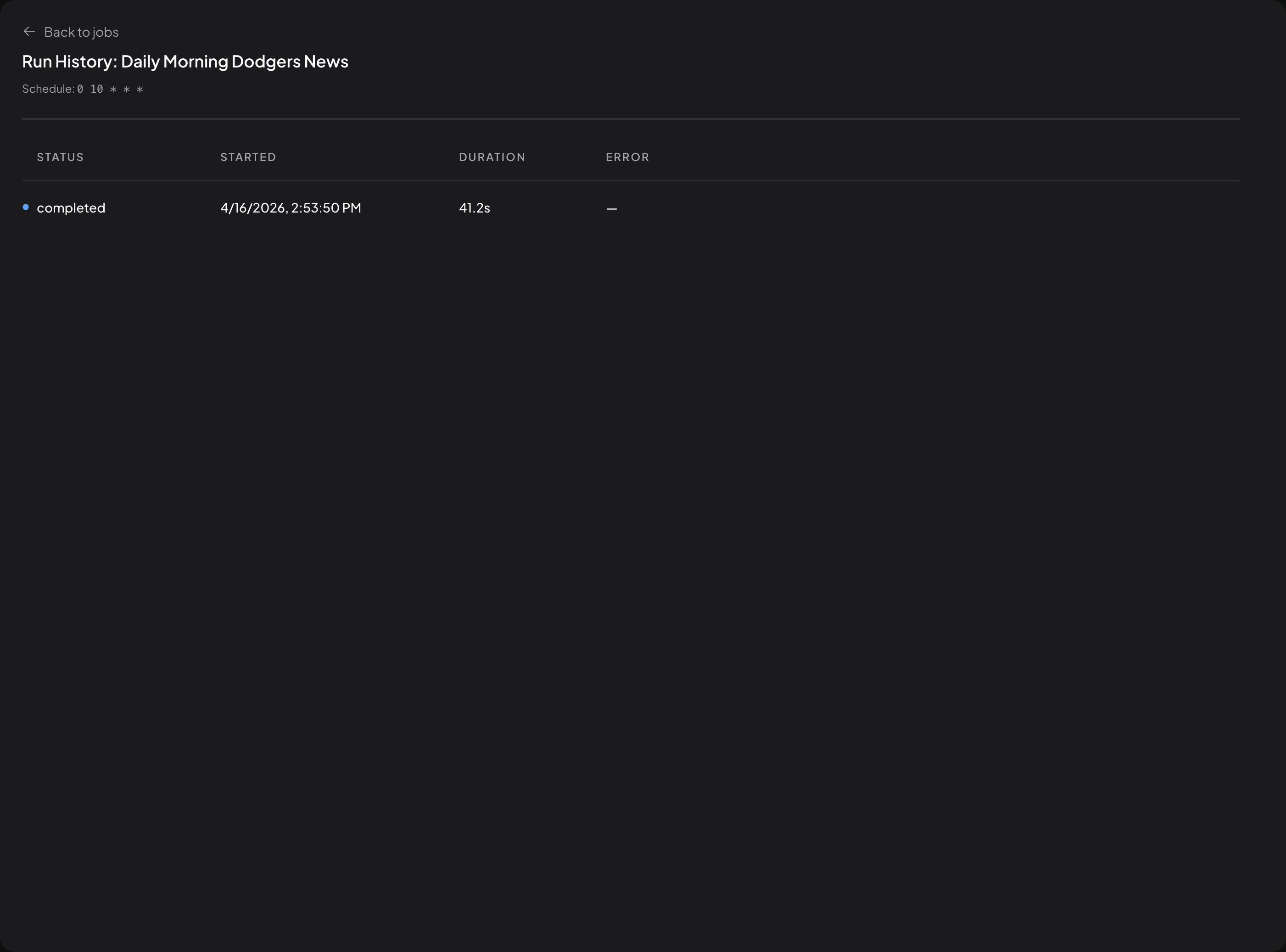
Click any row to open the run detail page.
Stopping a run
If a run is taking too long or doing the wrong thing, you can stop it before it finishes. Any run in Queued or Running status can be stopped — completed, failed, and timed-out runs cannot.
There are two places to do this.
From the run history list — click the small red stop icon next to the status badge on any in-flight row.

From the run detail page — click the red Stop Job button in the header. It only appears while the run is queued or running.

A stopped run is recorded as Failed with the error "Job killed by user" and is automatically marked as read, so it won't show up in your unread indicator. Any thoughts, tool calls, or output captured before the stop are preserved on the run detail page.
Run detail page
The run detail page is where you go to see exactly what the agent did. It's organized into collapsible sections so you can scan the parts you care about and ignore the rest.
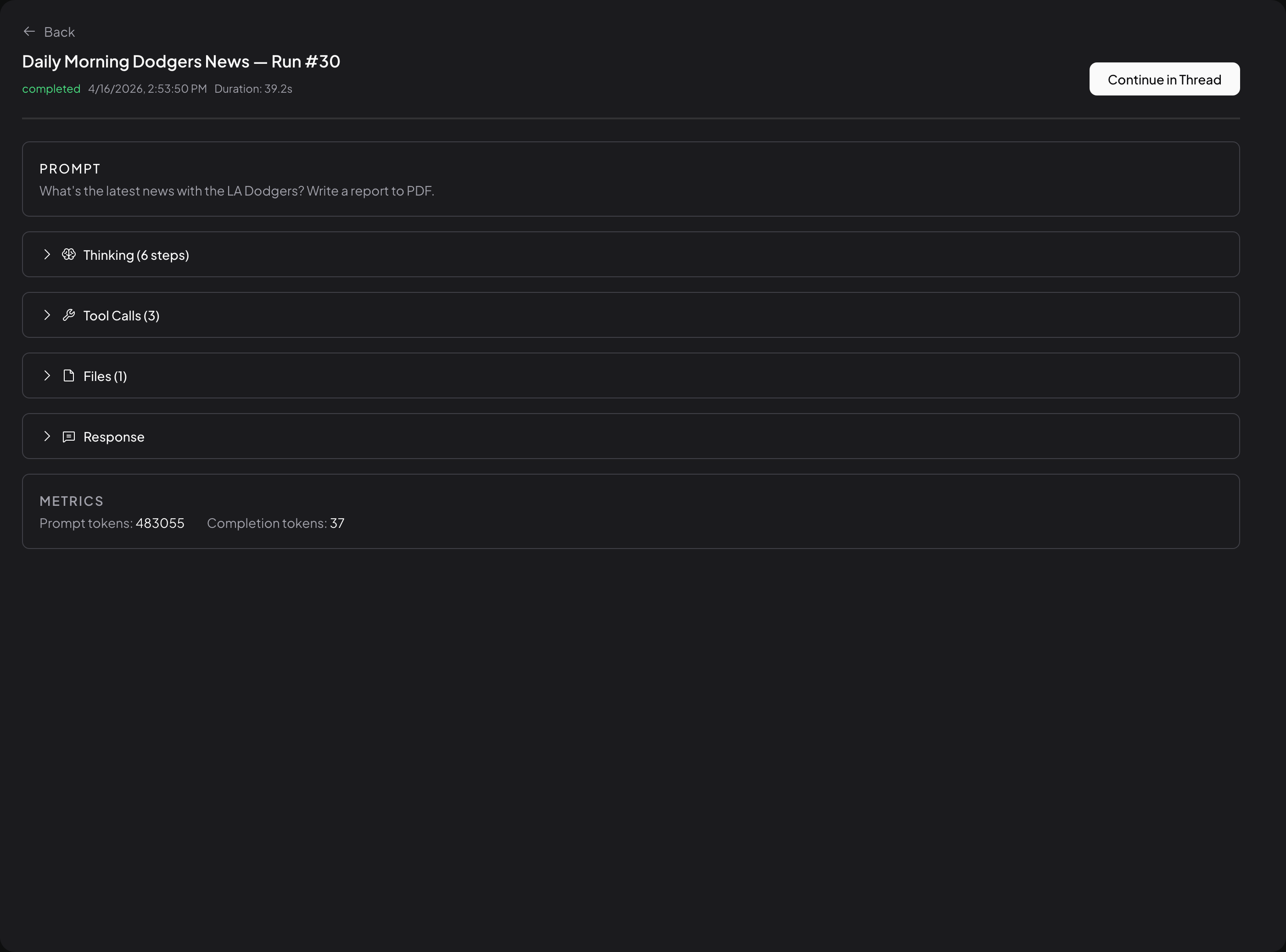
While a run is still in progress, the detail page updates live. Status, new thinking steps, and tool calls appear as they happen, so you can watch a run unfold in real time.
Prompt
The exact prompt the job was configured with at the time of this run. Handy for checking what the agent was told to do on this particular occurrence.

Thinking
A numbered, step-by-step record of what the agent did while working through the task — each entry is a short, narrated note from the agent (e.g. "Using DuckDuckGo to search for...", "Scraping the content of...", "Creating PDF document..."). The section header shows the total step count so you can tell at a glance how much work the agent did.

This section is useful for understanding why the agent did what it did — especially when the final response is unexpected.
Tool calls
Every tool the agent invoked during the run, in order. Each entry shows:
- The tool's name (for example,
web-browsing,web-scraping, or the name of a custom skill) - The time it was called
- The arguments the agent passed to it, displayed as JSON
- A "Show result" toggle that expands to reveal what the tool returned
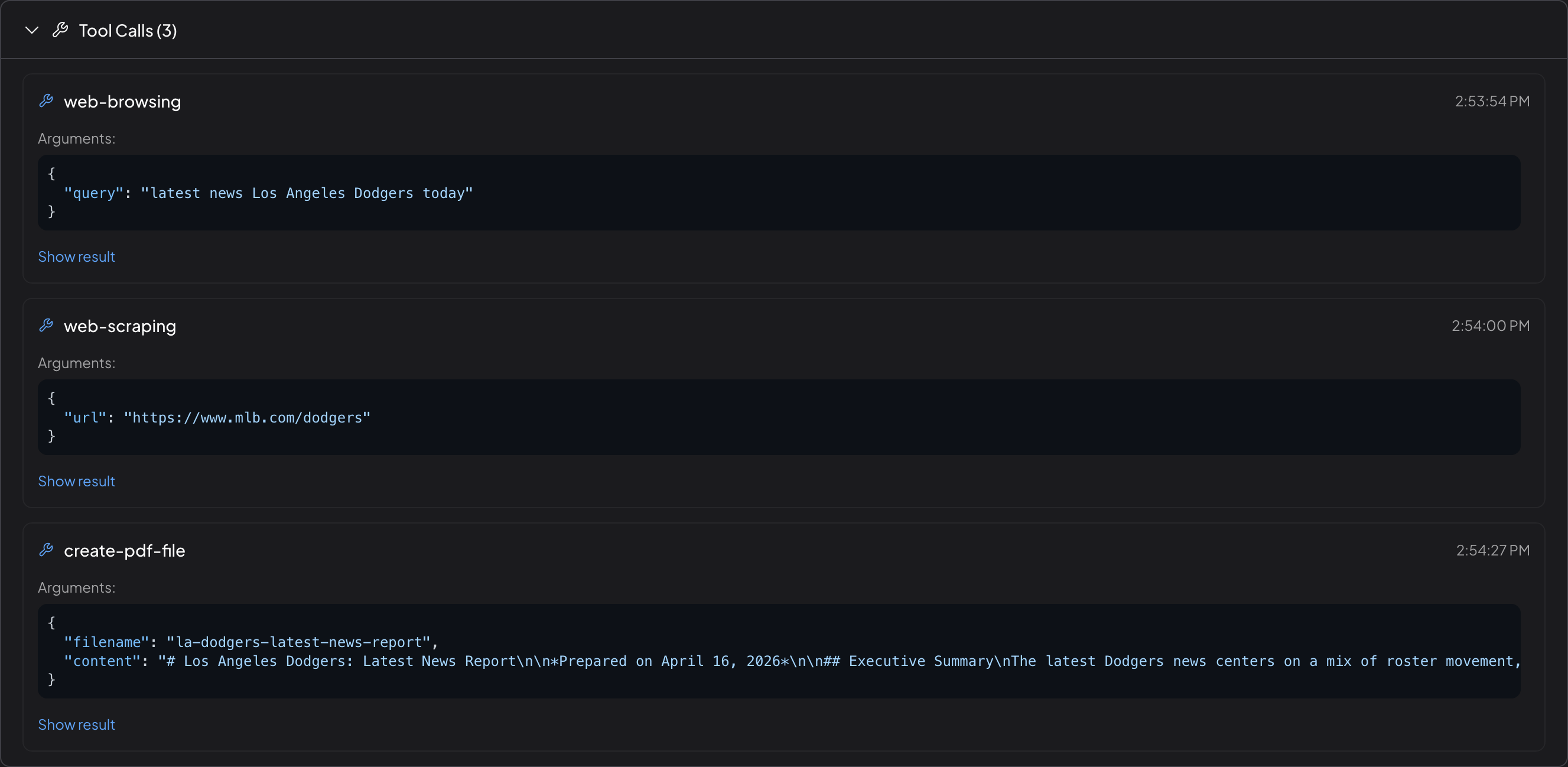
Tool calls are the most detailed view of what the agent actually did, as opposed to what it concluded.
Files
Any files the agent produced during the run — exports, charts, documents, reports — appear here with their filename, size, and type, ready to download. Files stay attached to the run for as long as the run itself exists.

Files generated by a scheduled job are only accessible from within scheduled jobs in single-user mode. If you switch an instance to multi-user mode, these files are no longer retrievable through AnythingLLM.
Response
The agent's final, human-readable answer — the same kind of message you'd see at the end of an agentic chat. This is rendered as markdown, so tables, code blocks, bullet lists, and links all display properly.

Metrics
Usage information for the run, including prompt and completion token counts. Useful for keeping an eye on cost, especially for jobs that run many times a day.

Continue in Thread
Scheduled jobs are one-shot by design — there's no back-and-forth inside a run. But once a run has completed, you can carry the conversation forward.
Click Continue in Thread on the run detail page and AnythingLLM:
- Opens the Scheduled Jobs workspace (creating it first if it doesn't exist yet)
- Starts a new thread pre-filled with the job's prompt and the agent's final response
- Drops you into that thread so you can reply, ask follow-up questions, or refine the output as a normal chat
From there, the thread behaves like any other workspace thread — same tools, same history, same agent capabilities.
The Scheduled Jobs workspace is created automatically the first time a job runs or the first time you continue a run in a thread. You can treat it like any other workspace — rename it, change its LLM provider, adjust its settings — but it's generally simplest to leave it as-is and use it as your archive of scheduled-job output.
Mark as read
New runs show up with an unread indicator. Opening a run's detail page marks it as read, so your run history doubles as a lightweight inbox for "things the agent did while you weren't looking".