Built-in LLM for Docker
AnythingLLM Docker can run local LLMs inside the container, so you do not need to run Ollama, LM Studio, or any other inference server next to it. It is the same kind of built-in engine that ships with AnythingLLM Desktop: Lemonade (opens in a new tab) running llama.cpp (opens in a new tab) on your CPU or GPU.
Availability: the built-in LLM is available on the latest Docker image and every AnythingLLM Docker release after v1.18.0.
The built-in LLM is off by default.
Turn it on by adding -e ENABLE_BUILT_IN_LLM=true to your docker run command (or environment in Docker Compose). It cannot be turned on from the UI or the .env file - it is only available when the container is started with this variable.
When it is enabled:
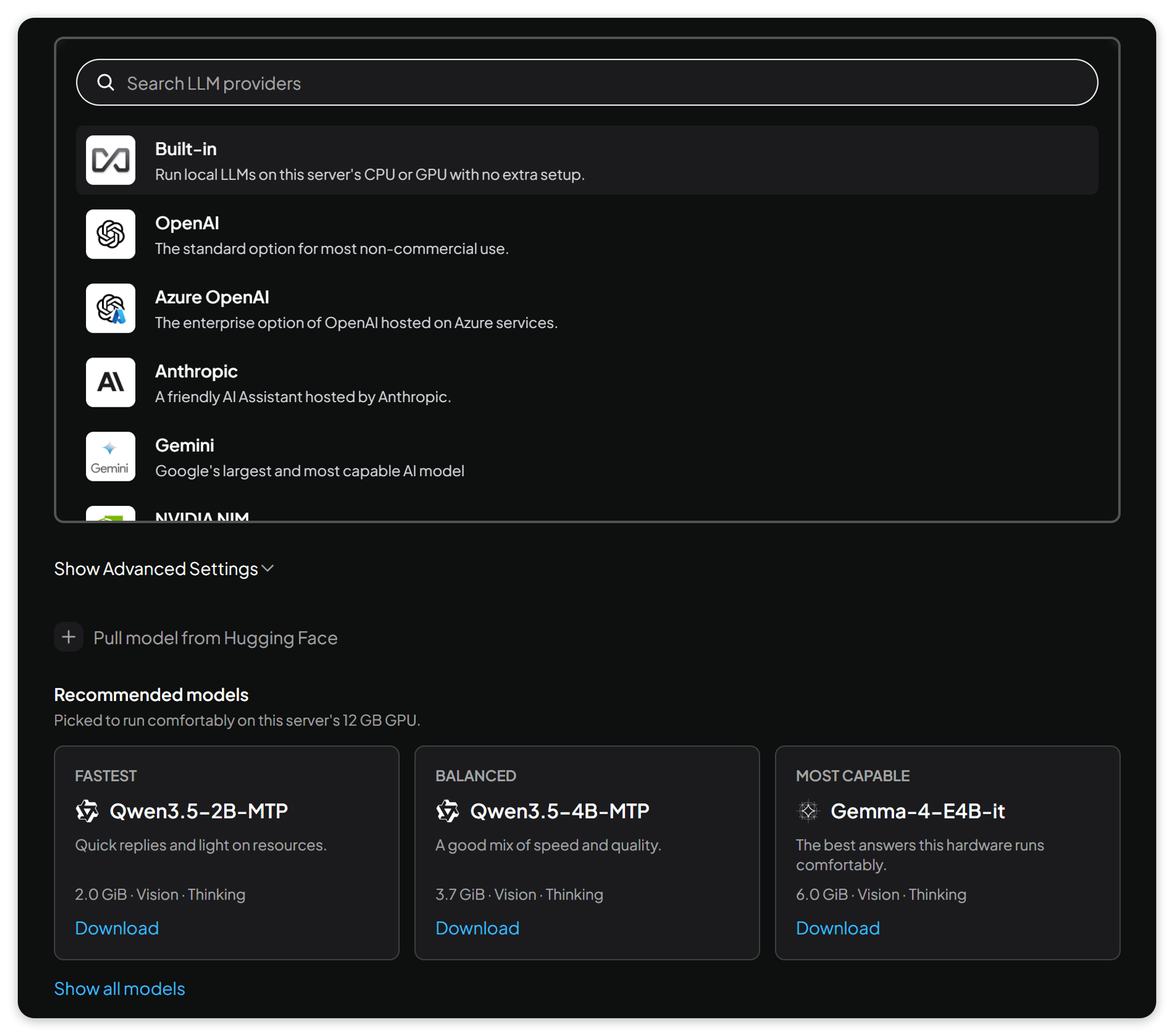
- Built-in becomes the default LLM provider during onboarding, with three models recommended for your hardware.
- You can download any model from the model table - or pull any GGUF model from Hugging Face.
- The engine picks the fastest backend for your hardware: CUDA for NVIDIA GPUs, Vulkan for AMD and Intel GPUs, or the CPU.
- It works everywhere a provider can be used: the system LLM, workspace and agent LLMs, the chat window model picker, and Model Router.
Start AnythingLLM with the built-in LLM
Pick the command for your hardware. Each one is the regular Docker install command with the built-in LLM turned on.
CPU only
Works on any amd64 or arm64 host, including Docker Desktop on Windows and macOS.
NVIDIA GPU
Add --gpus all. On Linux, install the NVIDIA Container Toolkit (opens in a new tab) first. Docker Desktop on Windows supports --gpus all out of the box.
CUDA needs an NVIDIA GPU from the Turing generation (GTX 16 / RTX 20 series) or newer. Older NVIDIA GPUs run models on the CPU.
AMD or Intel GPU (Linux)
Pass the GPU devices into the container and give the container user access to them:
export STORAGE_LOCATION=$HOME/anythingllm && \
mkdir -p $STORAGE_LOCATION && \
touch "$STORAGE_LOCATION/.env" && \
docker run -d -p 3001:3001 \
--cap-add SYS_ADMIN \
--device /dev/dri \
--group-add $(getent group render | cut -d: -f3) \
--name anythingllm \
-v ${STORAGE_LOCATION}:/app/server/storage \
-v ${STORAGE_LOCATION}/.env:/app/server/.env \
-e STORAGE_DIR="/app/server/storage" \
-e ENABLE_BUILT_IN_LLM=true \
mintplexlabs/anythingllmWithout --group-add, the container can see the GPU but cannot open it, and
models will silently run on the CPU.
GPU support by host
| Host | NVIDIA | AMD / Intel |
|---|---|---|
| Linux | ✅ CUDA | ✅ Vulkan |
| Windows (Docker Desktop) | ✅ CUDA | CPU only |
| macOS (Docker Desktop) | - | CPU only |
Docker on macOS cannot use the Apple GPU (Metal), so models run on the CPU. For GPU acceleration on a Mac, use AnythingLLM Desktop instead.
Docker Compose
services:
  anythingllm:
    image: mintplexlabs/anythingllm
    ports:
      - "3001:3001"
    cap_add:
      - SYS_ADMIN
    volumes:
      - ${STORAGE_LOCATION}:/app/server/storage
      - ${STORAGE_LOCATION}/.env:/app/server/.env
    environment:
      - STORAGE_DIR=/app/server/storage
      - ENABLE_BUILT_IN_LLM=true
    # AMD or Intel GPU
    devices:
      - /dev/dri:/dev/dri
    group_add:
      - "${RENDER_GID}" # getent group render | cut -d: -f3
    # NVIDIA GPU - use this instead of devices/group_add
    # deploy:
    #   resources:
    #     reservations:
    #       devices:
    #         - driver: nvidia
    #           count: all
    #           capabilities: [gpu]
Existing installations
You can turn on the built-in LLM for an AnythingLLM instance you already run - nothing is reset or migrated.
-
Pull the latest image:
docker pull mintplexlabs/anythingllm:latest -
Stop and remove your current container. Your data lives in your storage folder, so it is kept.
docker rm -f anythingllm -
Start it again with the same command you normally use, adding
-e ENABLE_BUILT_IN_LLM=true(and the GPU flags above, if you want GPU acceleration).
Pulling the image alone is not enough - the container has to be recreated with ENABLE_BUILT_IN_LLM=true, since it is only read when the container starts.
Your current LLM provider is not changed. Built-in is only selected for you during onboarding of a new instance. On an existing instance it simply becomes available in Settings > AI Providers > LLM, in workspace and agent settings, and in the chat window model picker - select it whenever you are ready.
First boot
On first boot the container downloads the engine (a few MB) into your storage folder. It is not part of the image, so the image stays small and the engine is kept across container updates. The first chat with a model also downloads the llama.cpp runtime for your hardware, so it takes a little longer than later chats.
Choosing a model
Recommended models
During onboarding, Built-in is selected for you and AnythingLLM recommends three models - Fastest, Balanced, and Most capable - based on your GPU's memory, or on the container's memory when there is no supported GPU. Click Download on a card to download and select it, or Show all models to browse the full model table.
Model table
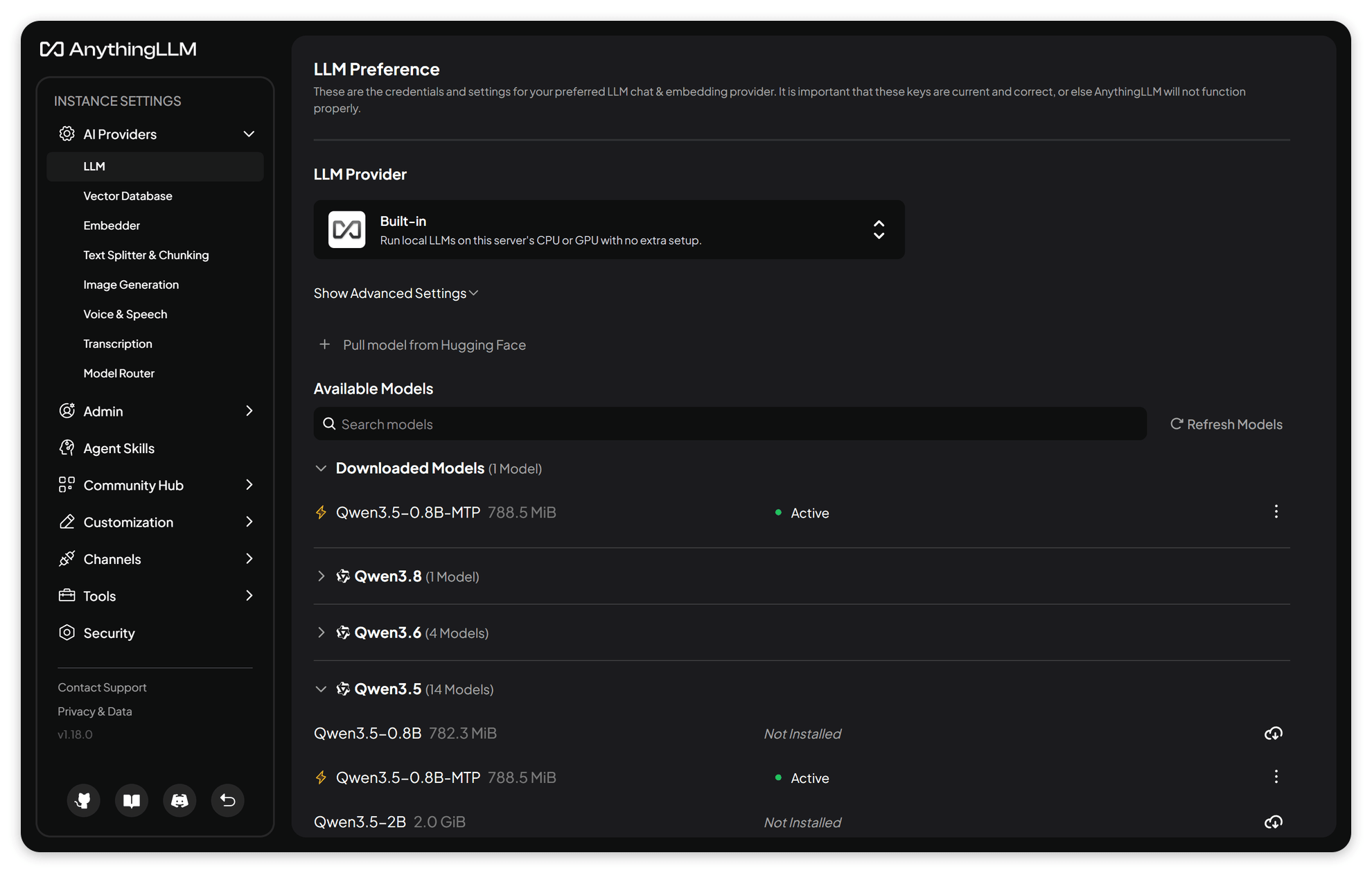
In Settings > AI Providers > LLM, select Built-in to see every available model, with its size and whether it supports vision and thinking. Download, select, or delete models from here. Only one model downloads at a time, and you can cancel a download from the progress bar or from the model table.
Models marked with a ⚡ use multi-token prediction (MTP), which generates several tokens at once for noticeably faster responses on the same hardware.
Pull any model from Hugging Face
Click Pull model from Hugging Face and enter any GGUF repo as owner/repo, optionally with a quantization: owner/repo:QUANT.
unsloth/Qwen3-4B-GGUF
unsloth/Qwen3-4B-GGUF:Q8_0
Without a quantization, Q4_K_M is used. Vision models download their vision projector automatically.
Context window
The context window is under Advanced Settings and is empty by default. When empty, AnythingLLM uses the model's own context length, capped at 16,384 tokens so a large model cannot accidentally run your GPU out of memory. If you set a value, it is used unless the model supports less, in which case the model's maximum is used.
Thinking
For models that can think (eg: Qwen 3.5), the chat window's reasoning control turns thinking on or off, just like other providers that support it.
Using it in workspaces, agents, and Model Router
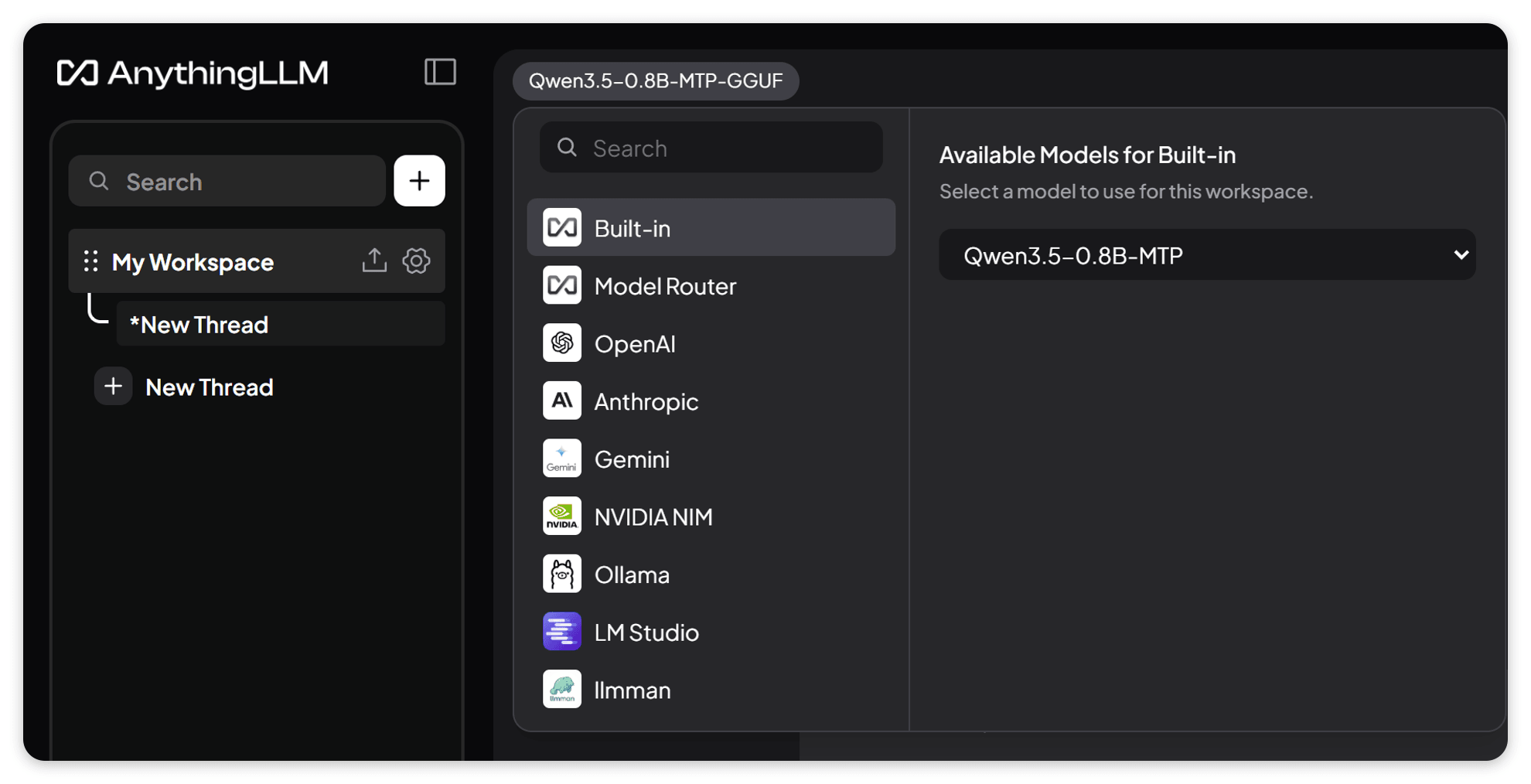
Built-in works like any other LLM provider. Besides the system LLM, you can select it as a workspace's chat LLM or agent LLM, from the model picker in the chat window, and as a target in Model Router rules. Only downloaded models are listed.
Memory and GPU usage
The engine starts with the container but loads nothing until a model is used, and keeps one model loaded at a time.
- When you change the system LLM to another provider, the engine unloads its models and stops, freeing the RAM and GPU memory they used.
- If a workspace, agent, or router rule still uses Built-in, the engine starts again the next time it is used.
Where things are stored
| Path | Contents |
|---|---|
<STORAGE_LOCATION>/engines/embedded-lemonade | The engine and its llama.cpp runtimes |
<STORAGE_LOCATION>/models/embedded-lemonade | Downloaded models |
Both are in your storage folder, so models and the engine are kept when you update or recreate the container. Cancelling a download or deleting a model removes its files.
Options
| ENV | Default | Description |
|---|---|---|
ENABLE_BUILT_IN_LLM | unset | Set to true to turn on the built-in LLM. Must be set when starting the container. |
EMBEDDED_LEMONADE_LLAMACPP_BACKEND | auto | Force a llama.cpp backend: cuda, vulkan, or cpu. Leave it unset unless the wrong backend is picked. |
EMBEDDED_LEMONADE_REGISTRY | auto | Where models download from: auto (Hugging Face, falling back to ModelScope), huggingface, or modelscope. |
EMBEDDED_LEMONADE_PORT | 13355 | Port the engine listens on inside the container. Only change it if something else in the container uses it. |
The selected model and context window are set in the UI and saved to your .env as EMBEDDED_LEMONADE_MODEL_PREF and EMBEDDED_LEMONADE_MODEL_TOKEN_LIMIT.
Security
- The engine listens on
127.0.0.1inside the container only. Nothing new is exposed on your network, and only AnythingLLM can talk to it. - The provider only exists when the container is started with
ENABLE_BUILT_IN_LLM=true. Setting it in the.envfile or from the UI does not turn it on.
Troubleshooting
Checking that your GPU is used
After your first chat, check which llama.cpp backend the model is loaded with:
docker exec anythingllm node -e 'fetch("http://127.0.0.1:13355/api/v1/health").then(r=>r.json()).then(h=>h.all_models_loaded.forEach(m=>console.log(m.model_name, m.recipe_options?.llamacpp_backend)))'- NVIDIA - it should say
cuda. If it does not, make sure the container was started with--gpus all, and on Linux that the NVIDIA Container Toolkit is installed. Runningdocker exec anythingllm nvidia-smishould list your GPU. If it does and the backend is still notcuda, add-e EMBEDDED_LEMONADE_LLAMACPP_BACKEND=cuda. - AMD / Intel - it should say
vulkan. Vulkan also runs on the CPU when the container cannot open the GPU, so make sure the container was started with both--device /dev/driand--group-add. - Windows with an AMD or Intel GPU - Docker Desktop cannot pass these GPUs to containers, so models run on the CPU.
The device field of the same output says gpu for any Vulkan backend, even when Vulkan is running on the CPU - check the backend instead.
Models run out of memory
Pick a smaller model or a smaller quantization, or lower the context window in Advanced Settings. The onboarding recommendations are a good guide to what fits your hardware.
The provider is not listed
Built-in only appears when the container was started with -e ENABLE_BUILT_IN_LLM=true. Recreate the container with the variable - your storage folder and data are kept.