Image Generation
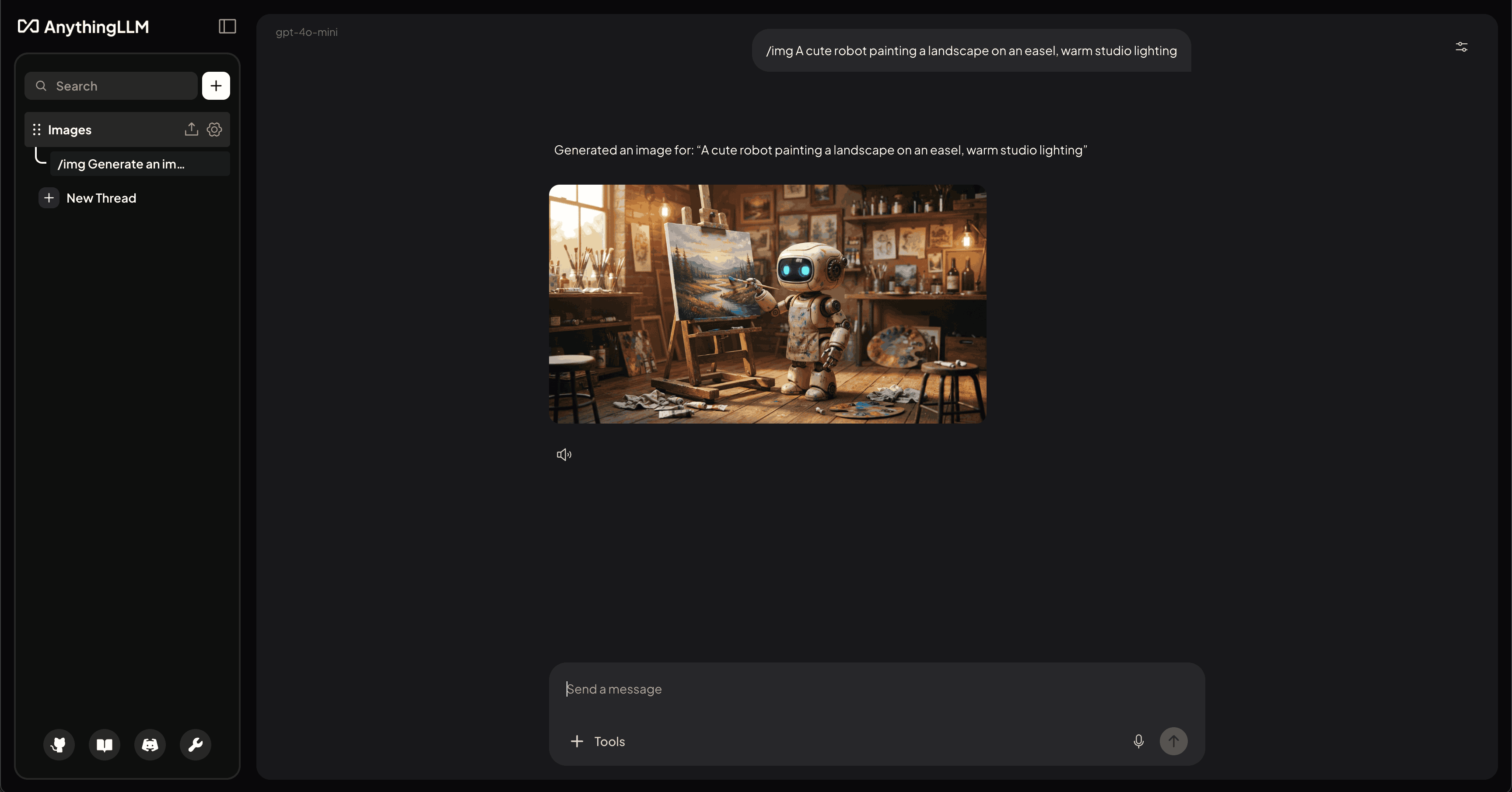
AnythingLLM can generate images directly inside your workspace and thread chats using the /img command. Type /img followed by a description and AnythingLLM sends the prompt to your configured image generation provider, then renders the result inline in the conversation.
Generated images are saved with your chat history, persist across page reloads, and can be referenced as context in follow-up messages.
Image generation must be configured by an admin before the /img command can be used.
For a generated image to be used as context in follow-up messages, your workspace's chat model must support image (vision) input.
Setting Up Image Generation
- Navigate to Settings → AI Providers → Image Generation.
- Click the provider selector and choose your Image Generation Provider.
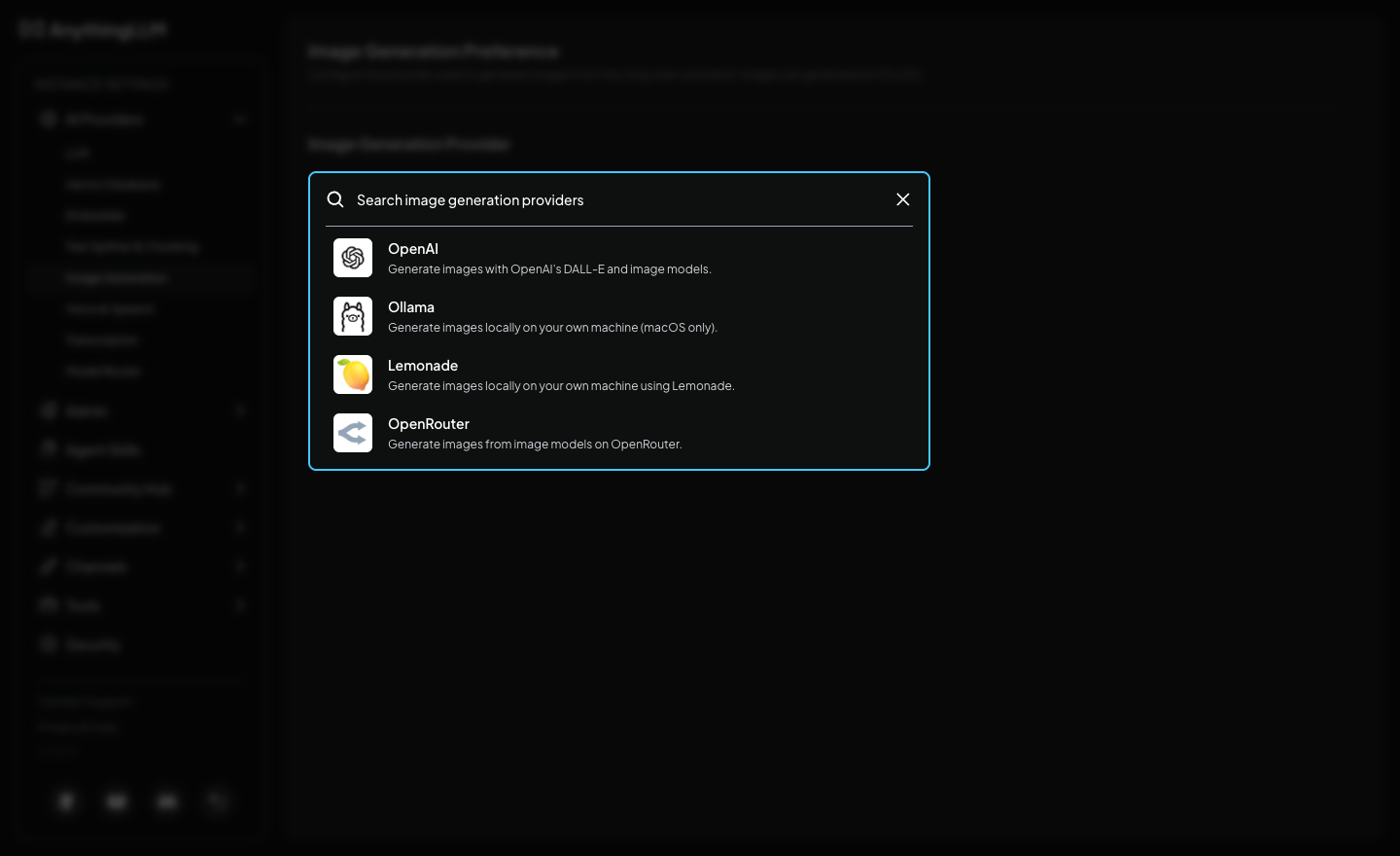
- Enter the API Key for the provider (this reuses the same credentials as your other configured providers) and select a Model. If a provider does not support listing models, you can enter the model name manually.
- Click Save changes.
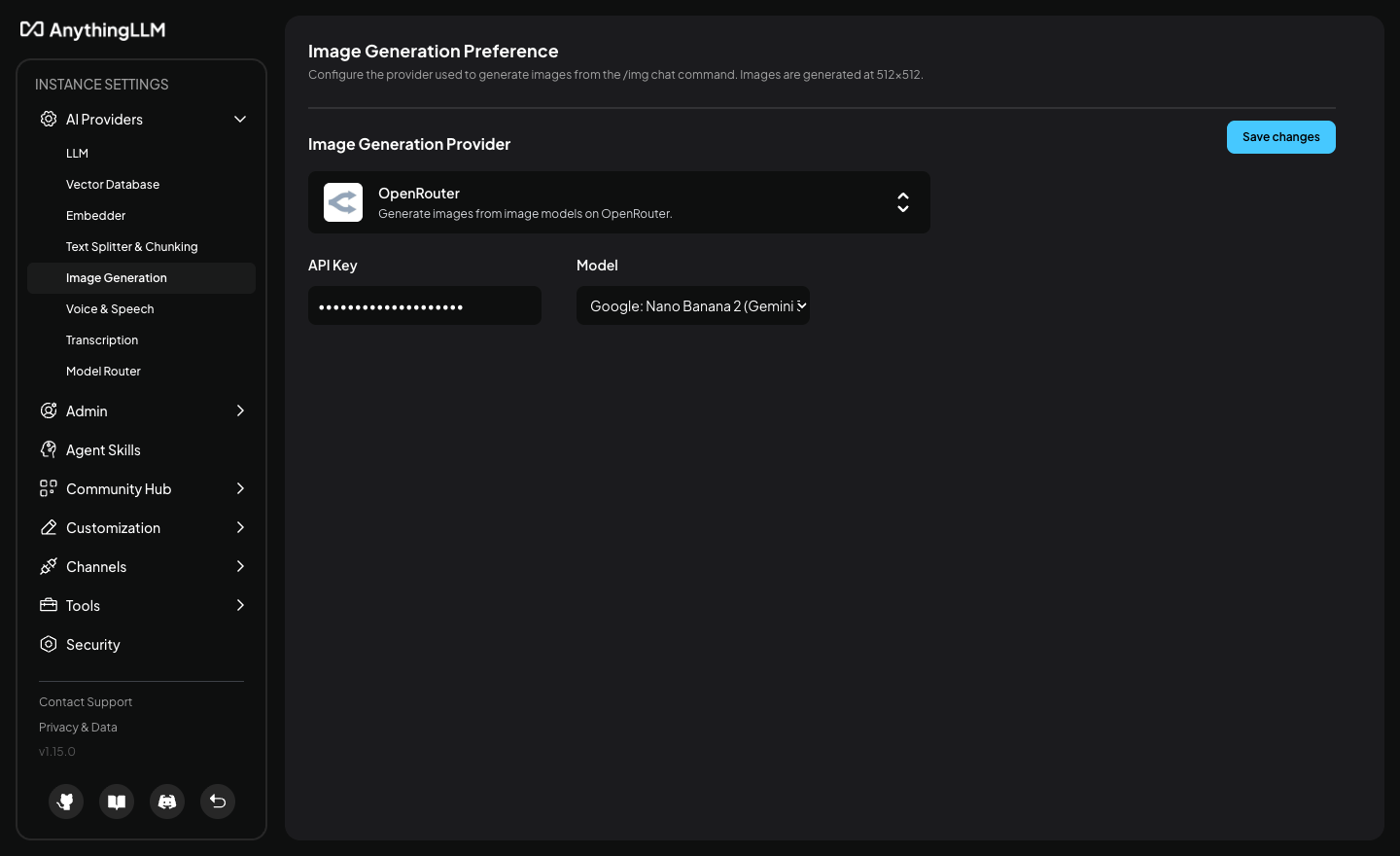
Supported Providers
| Provider | Generation | Editing (image references) |
|---|---|---|
| OpenAI | ✅ | ✅ via /v1/images/edits |
| OpenRouter | ✅ | ✅ via chat completions with image inputs |
| Ollama | ✅ | ❌ — gracefully falls back to generation from prompt only |
| Lemonade | ✅ | ✅ via /v1/images/edits (model-dependent, see note below) |
Lemonade image editing depends on the model. Some models served by Lemonade (e.g. SD-Turbo) accept the edit endpoint but do not meaningfully transform reference images — they generate a new image loosely based on the prompt instead. For better editing results, use a model that explicitly supports img2img pipelines such as SDXL.
Generating Images
Open the Tools menu in the chat input and select the /img slash command, or simply type /img followed by your prompt.
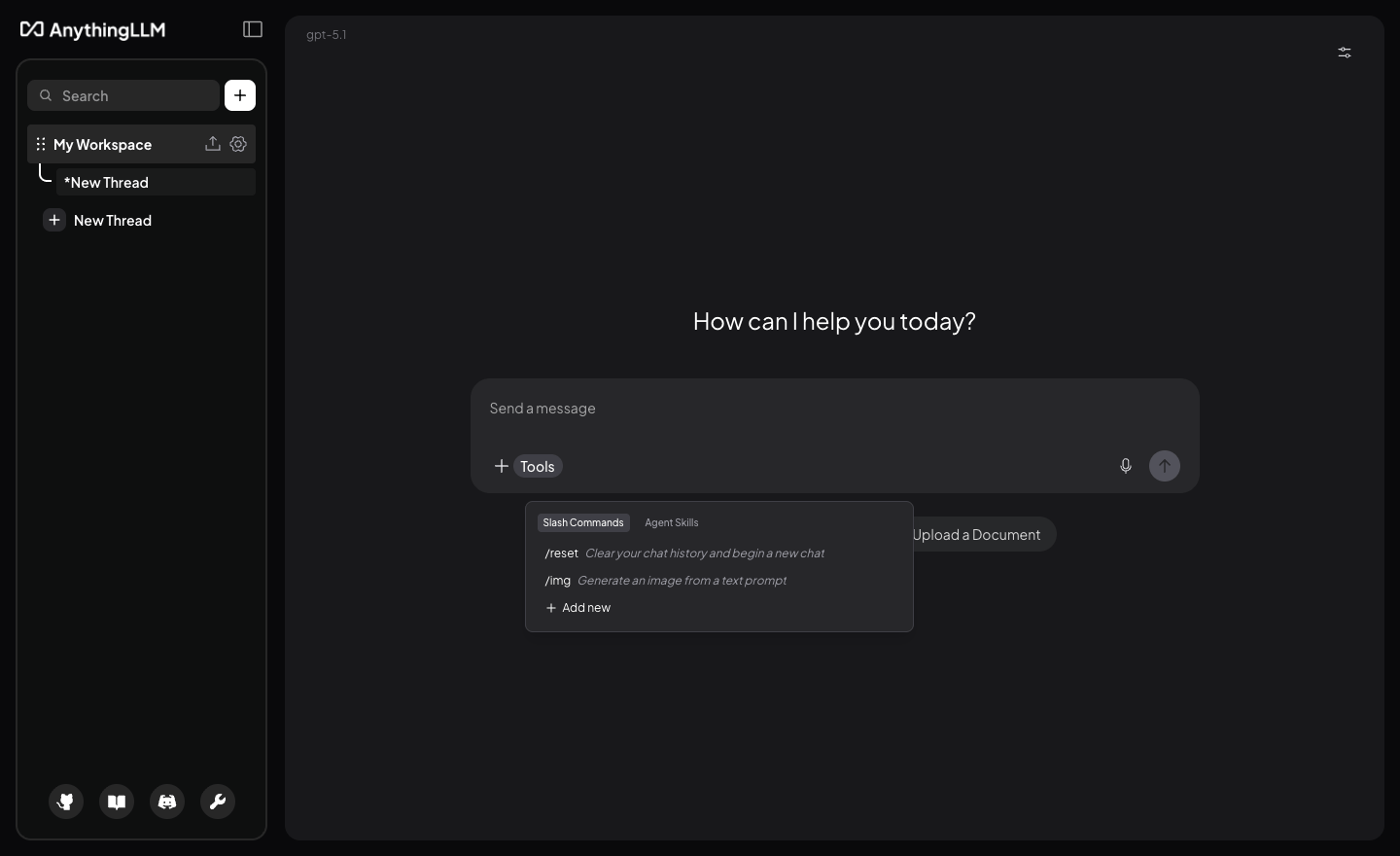
Send a message like:
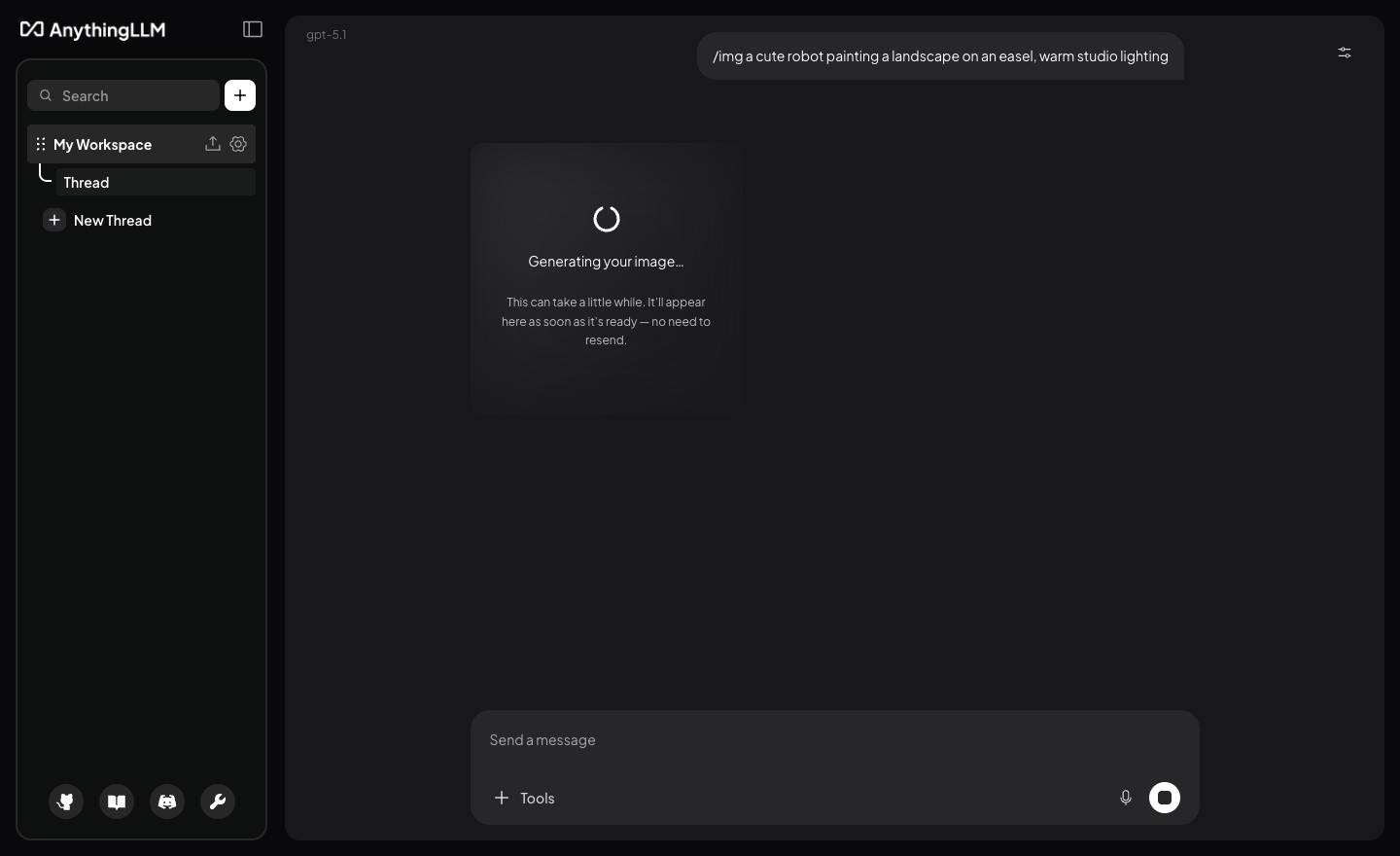
/img a cute robot painting a landscape on an easel, warm studio lightingWhile the image is being created, a placeholder card appears in the chat. You do not need to resend the prompt — the image replaces the placeholder as soon as it is ready.
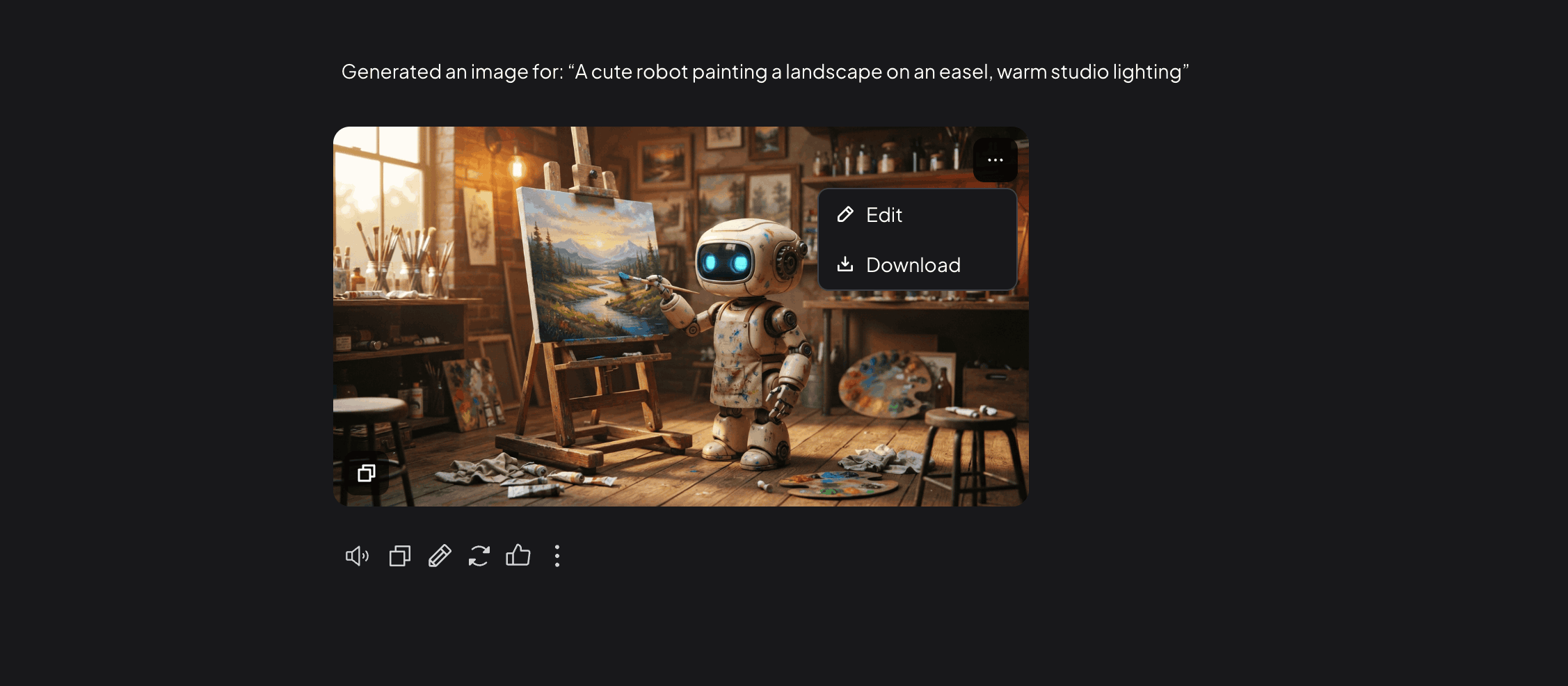
The finished image renders as a card in the conversation. Hover over it to reveal actions:
- Copy (bottom-left) — copies the image to your clipboard.
- ⋯ menu (top-right) — opens a popover with Edit and Download options.
- Click the image to view the full-size version.
Editing Images with References
If your provider supports image editing, you can attach one or more images to your /img prompt to use them as references. AnythingLLM automatically detects image attachments and routes the request to the provider's edit endpoint instead of the generation endpoint.
There are two ways to start an image edit:
- From an existing generated image — hover over the image card, click the ⋯ menu, and select Edit. This attaches the image to the prompt input and prefills
/imgso you can type your edit instructions. - From scratch — drag, drop, or paste one or more images into the chat input, then type
/imgfollowed by your prompt describing what you want.
/img change the background to a sunset over mountainsThe edited image is saved as a new image in your chat history — the original is not modified.
All image attachments that pass an image MIME type check are sent to the provider. If the provider or model does not support the number or format of images you attached, the provider's error will be surfaced directly.
Ollama users: If you attach reference images with /img while using Ollama, AnythingLLM will generate a new image from the prompt only and display a notice that Ollama does not support image editing. Your images are silently dropped — no crash or error will occur.