Magic Echo is an AnythingLLM Pro feature with a free daily usage tier. It is available in AnythingLLM Desktop for macOS and Windows.
It is available in AnythingLLM Desktop v1.15.0 and later.
Magic Echo
Magic Echo is voice-to-text dictation that works in any application on your computer. Speak naturally and your words are transcribed, cleaned up, and inserted right where your cursor is — no copy-pasting, no switching apps. It even uses on-screen context to improve accuracy.
How it works
- Press the activation shortcut (default:
Option+Zon macOS,Alt+Zon Windows/Linux) to start dictating. - Speak naturally — Magic Echo listens and transcribes your speech in real-time.
- When you stop speaking (or press the shortcut again), the transcribed text is automatically inserted at your cursor position in whatever app you're using.
Magic Echo runs entirely on-device using a local transcription model that is downloaded automatically when you first enable the feature.
Two modes of dictation
Quick dictation
A short press-and-speak interaction. Magic Echo listens until it detects a pause in your speech, then auto-submits the transcription. The Silence Detection setting lets you control how aggressively it detects pauses.
You can press
Escwhile in quick dictation mode to cancel a quick dictation session.You can press
Enterwhile in quick dictation mode to submit a quick dictation session - useful if you have a loud background keeping the microphone open.
Extended dictation
Hold the shortcut for a longer dictation session. This mode is useful for longer-form content where you want to keep speaking without auto-submission interrupting your flow.
You can press
Escwhile in extended dictation mode to cancel the session without submitting.You must manually click the "Stop" button in the widget to submit the extended dictation session.
Smart Transcription vs. Raw Transcription
Magic Echo offers two processing modes:
- Smart Transcription — Your speech is transcribed and then processed by your configured LLM to clean up grammar, add punctuation, fix formatting, and apply context-aware corrections. Smart transcriptions count toward your daily free-tier limit (unlimited with Pro).
- Raw Transcription — Your speech is transcribed directly without any LLM processing. This is faster and does not count toward any usage limits, but the output may include filler words and lack proper punctuation.
You can set your Default Processing Mode in settings and use the alternate keybind to quickly switch between modes.
If you are doing a smart transcription and for whatever reason it fails to process, we will automatically fall back to the raw transcription and use that instead.
This way, you dont lose what you said and can still review it in the past echoes section.
On-Screen Awareness
When enabled, Magic Echo can see what's currently on your screen and use that visual context to improve transcription accuracy. For example, if you're looking at a PDF on your screen and dictating a comment into a Microsoft Teams chat, Magic Echo can use the visible PDF to better understand the context of the comment you're saying if you mention it in your dictation.
On-Screen Awareness requires your LLM provider to support vision/multi-modal models. If your provider doesn't report vision capabilities, this setting will be unavailable.
We know that some providers do support vision/multi-modal models, but they don't report it properly. If you're using a provider that is not reporting vision capabilities, you can still use Magic Echo with on-screen awareness disabled. We are working on a solution to this.
Voice Commands
Define trigger phrases that instantly paste a predefined snippet when spoken. Voice commands bypass smart processing entirely and don't count toward Pro invocations.
For example, you could set up:
- "PRD Template" → pastes a markdown template into whatever application you're using
- "sign off" → pastes
Best regards,\nYour Name - "boilerplate header" → pastes a code template
Voice commands are configured in Settings → Magic Echo → Voice Commands.
You can have as many voice commands as you want, and they will all be available to you when you speak. Keep in mind, voice commands should have very clear and distinct names to avoid confusion they must also be the exact phrase you speak to trigger them. AnythingLLM Magic Echo will do some basic fuzzy matching to help you out when it comes to dialect, punctuation, and other variations.
Custom Vocabulary
Custom vocabulary is only applied to Smart Transcriptions. Raw Transcriptions will not use custom vocabulary.
Add words to help with transcription accuracy — names, technical terms, brand names, or jargon specific to your use case. This is especially useful for uncommon words that the transcription model might not recognize.
Examples: AnythingLLM, GPT-4, Kubernetes, your company name, etc.
Settings & Configuration
Navigate to Settings → Magic Echo to configure:
| Setting | Description |
|---|---|
| Activation Key | The key used with Option (macOS) / Alt (Windows/Linux) to activate dictation. Default: Z |
| Default Processing Mode | Choose Smart or Raw transcription as default |
| On-Screen Awareness | Let Magic Echo use visual screen context for better accuracy |
| Preferred Microphone | Select which microphone to use for dictation |
| Silence Detection | How quickly Magic Echo auto-submits after you stop speaking (Aggressive / Average / Relaxed) |
| Widget Size | Adjust the on-screen widget size (Default / Large / Huge / Max) |
| Voice Commands | Define trigger phrases that paste predefined snippets |
| Custom Vocabulary | Add words to improve transcription accuracy |
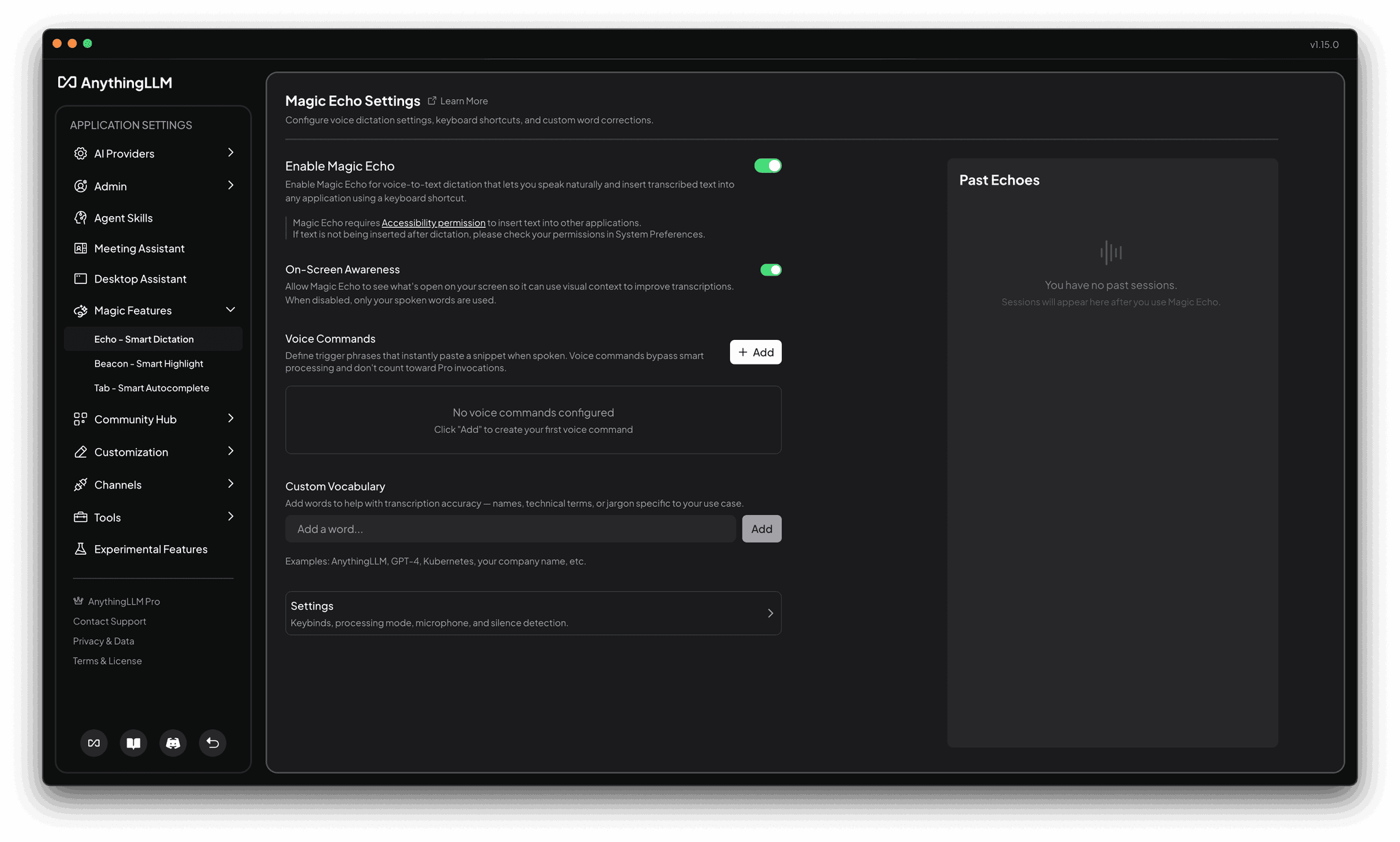
Past Echoes
Every dictation session is saved and can be reviewed in the Past Echoes panel on the settings page. Each session shows:
- The raw transcription
- The processed output (for Smart sessions)
- Any context screenshots used (if On-Screen Awareness was active)
- Which model processed the transcription
Platform Requirements
- macOS: Requires Accessibility permission to insert text into other applications. You'll be prompted to grant this on first use. See MacOS permissions & Troubleshooting for more details.
- Windows: No special permissions required.
- Linux: Not currently supported.
Tips for Magic Echo
On screen awareness
When using on screen awareness, you should mention the app name in your dictation. For example, if you're dictating a comment into a Microsoft Teams chat, you should say "Microsoft Teams, comment". This will help Magic Echo understand the context of the comment you're saying.
Speeding up dictation
- Usually your first dictation session will slightly slower than subsequent sessions. AnythingLLM keeps the model warm for you so subsequent sessions are much faster but unloads it after a few minutes of inactivity.
- Disabling on screen awareness will speed up dictation significantly since you do not need to process any image data which takes a lot of time compared to raw-text processing.
- Change you default processing mode to Raw Transcription for faster dictation. You lose the "intelligence" of the transcription, but you gain speed and get your raw transcription back faster.
Privacy
For Raw Dictations, all processing is done on device using our internal transcription pipeline - the same one used for the Meeting Assistant. Nothing is sent to the cloud.
When using Smart Transcriptions, the transcribed text and screenshots are sent to your provider for processing — if you're using a local model, nothing ever leaves your machine. If you're using a cloud provider, the text and screenshots are sent under the terms of that provider's privacy policy.
Free Tier & Pro
Magic Echo includes a daily allowance of free Smart Transcriptions. Raw transcriptions and Voice Commands are always free and unlimited.
With AnythingLLM Pro, Smart Transcriptions become unlimited. Get your Pro key to remove all daily limits.
MacOS permissions & Troubleshooting
Due to how MacOS stores permissions, sometimes just flicking the switch on the Privacy & Security settings window seems to not take effect. In this case, you can try the following:
- Quit AnythingLLM fully.
- Open the Privacy & Security settings window and add an entry for AnythingLLM for
AccessibilityandScreen Recordingpermissions. - Restart AnythingLLM.
- Go to Magic Echo settings, disable the feature and re-enable it.
- Now open an application and start a dictation session. If the feature is working, you should see a transcription appear within a few milliseconds (depending on your hardware, model, provider, etc.)