Creating Your First Job
This page walks through creating a scheduled job from scratch. Everything is done from Settings > Scheduled Jobs.
Prefer to just ask? You can also create a job by talking to the agent with the Create Scheduled Jobs agent skill — describe the task and schedule in plain language and the agent fills out this form for you.
1. Open the Scheduled Jobs page
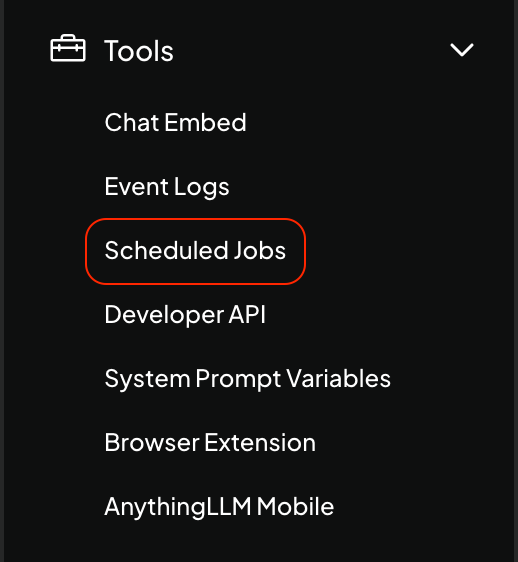
Click the wrench icon to open Settings, expand the Tools section in the sidebar, and click Scheduled Jobs.
You'll land on a list of your existing jobs (empty the first time) along with a New Job button.
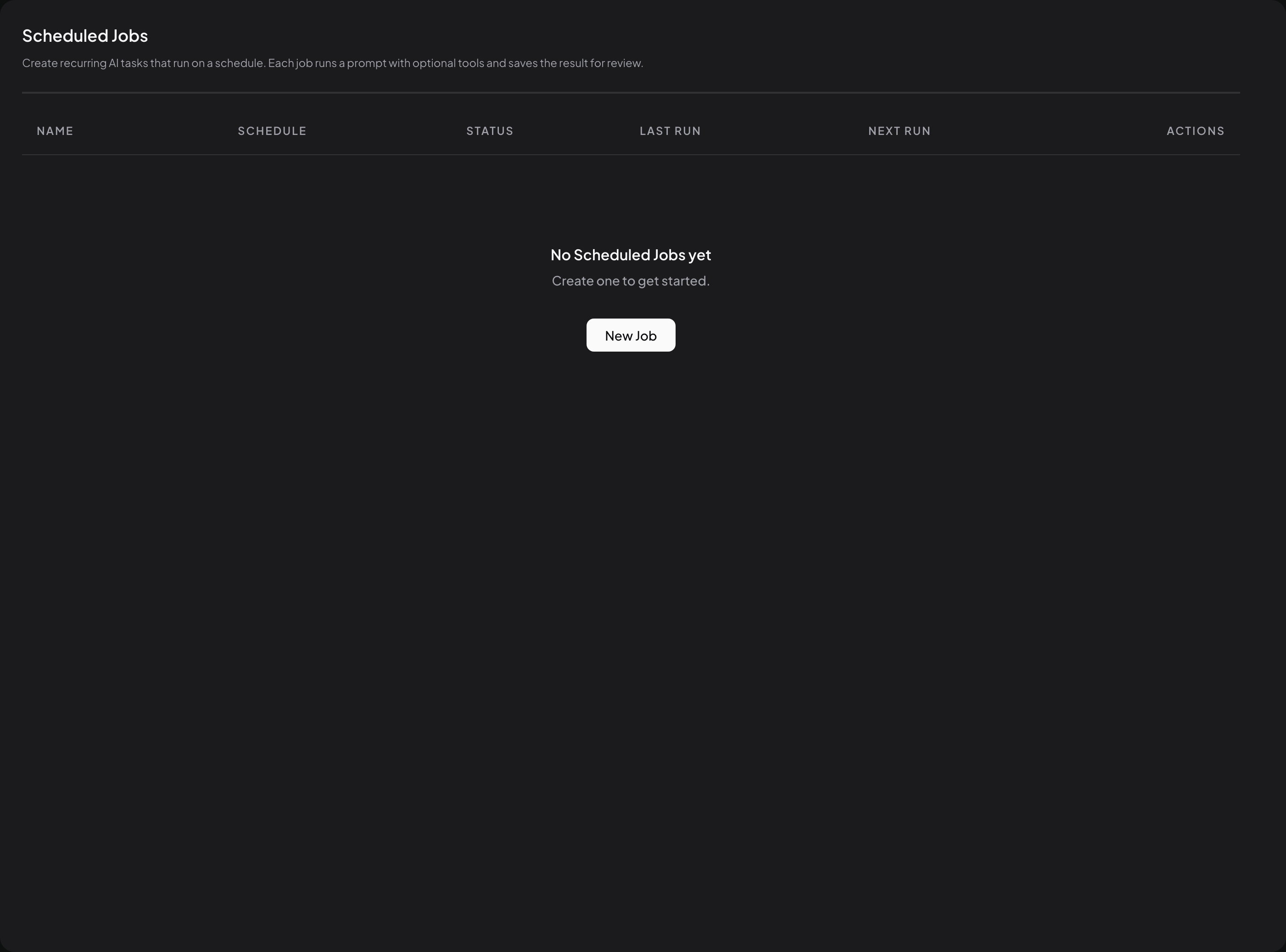
2. Click "New Job"
Clicking New Job opens a form with four things to fill out:
- Name — what you want to call the job
- Prompt — the instruction sent to the agent each time it runs
- Schedule — when the job should run
- Tools — which agent tools the job is allowed to use
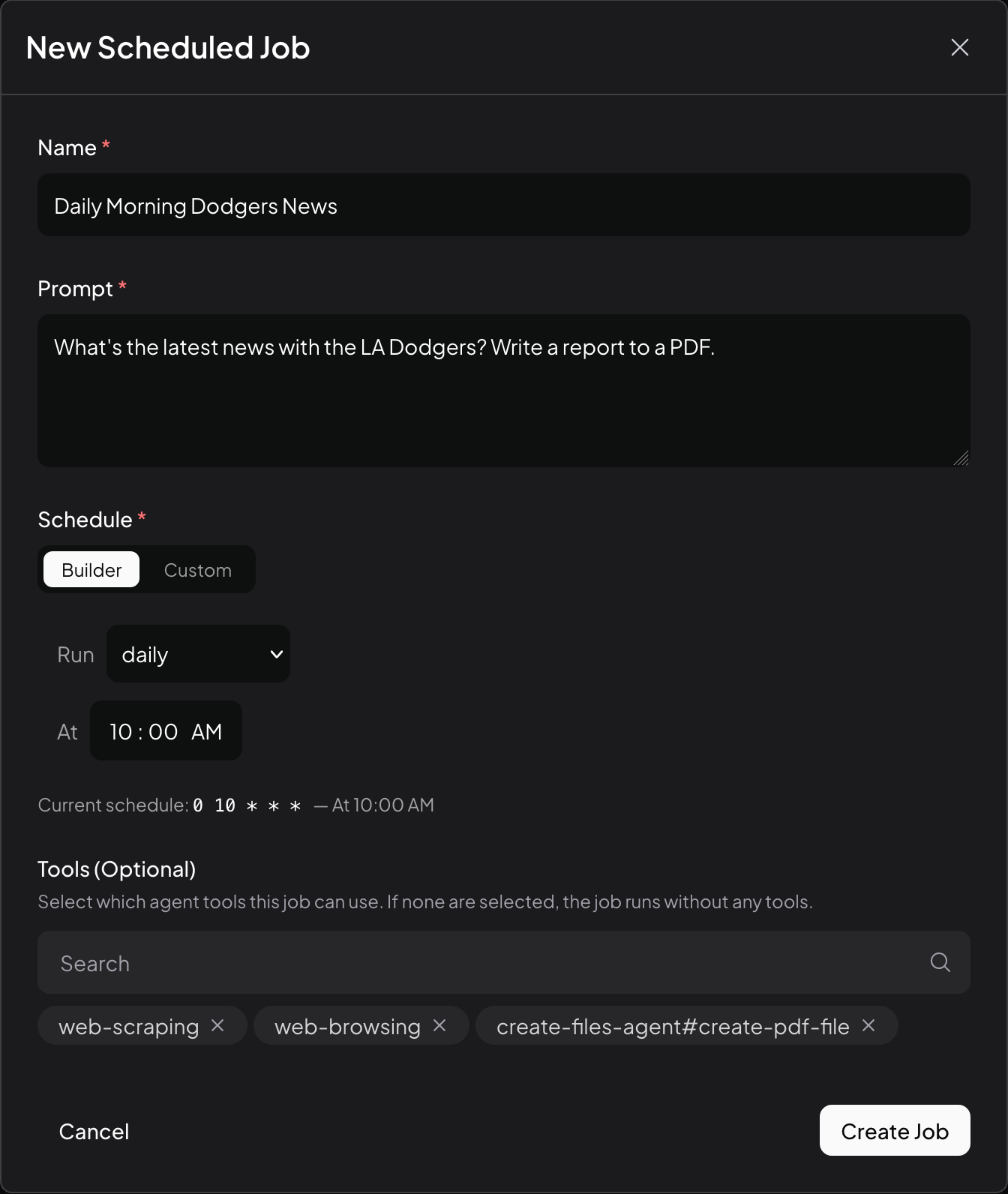
New jobs are enabled by default as soon as they're created — there's no toggle in the modal itself. If you want to pause a job after creating it, use the enable/disable toggle on its row in the main jobs list.
3. Give the job a name and prompt
Name
Pick something descriptive — you'll see this in the jobs list and in notifications. Examples: "Morning inbox digest", "Weekly sales report", "Competitor news check".
Prompt
The prompt is the message the agent receives every time the job runs. Treat it exactly like the first message you would send in an agentic chat. Be specific about:
- What the agent should do — the task itself
- What format you want — summary, bullet list, table, etc.
- Any constraints — date ranges, sources to use, things to ignore
A scheduled job starts with a clean slate each run — there is no back-and-forth. Write the prompt as a complete, self-contained instruction the agent can act on without any follow-up questions.
Example prompt:
Search my inbox for emails received in the last 24 hours that appear to require a response. For each one, list: sender, subject, a one-sentence summary, and a suggested reply. Ignore newsletters and automated notifications.
4. Pick a schedule
The schedule is a standard cron expression that tells AnythingLLM when to run the job.
You have two ways to set it:
- Cron Builder — a visual editor with dropdowns for frequency, time, and day selection. Recommended for most people.
- Custom cron — type a cron expression directly if you know exactly what you want.
Either way, the form shows a live, human-readable description below your schedule (for example, "At 09:00 AM, only on Monday") so you can confirm it matches your intent before saving.
For a deep dive on cron expressions and the builder, see Scheduling & The Cron Builder.
5. Choose tools
The Tools picker controls which agent capabilities are available when the job runs. This includes:
- Built-in agent skills (web search, web scraping, document search, chart generation, etc.)
- Imported plugins
- Agent flows you have built
- MCP servers you have connected
Use the search box at the top to filter. Click a category header to toggle every tool inside it at once, or check individual tools.
If you leave the tool list empty, the job will run without any tools — the agent will only be able to produce a response from the LLM alone. Be sure to select at least the tools your prompt needs (for example, web search if you're asking it to look things up online).
6. Create the job
Click Create. The job is registered with the scheduler immediately and will fire on its next scheduled time. New jobs are enabled by default; if you'd rather not have it run right away, flip the enable/disable toggle off on its row in the jobs list after creating it.
Managing existing jobs
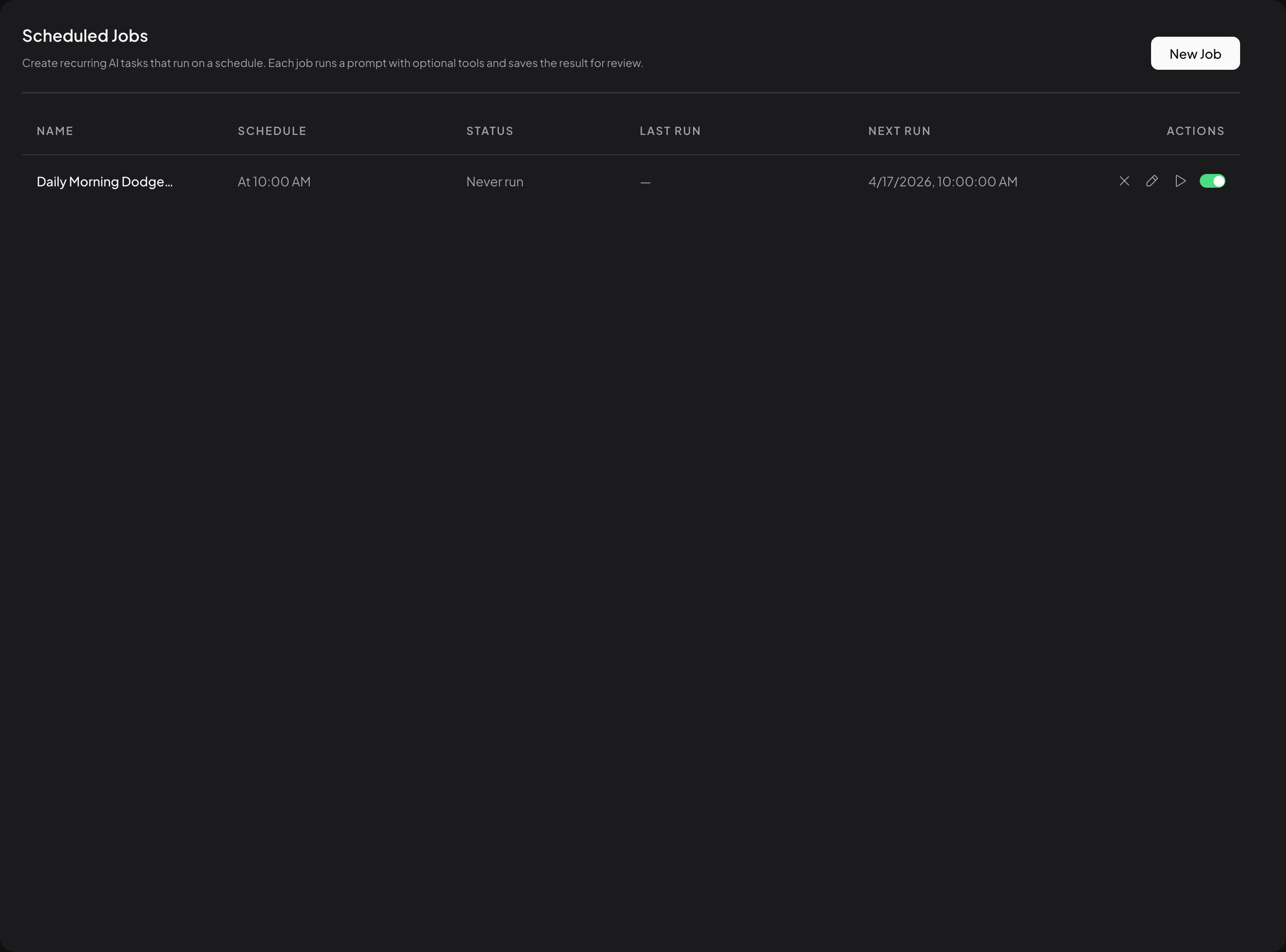
From the main Scheduled Jobs page, each job row shows:
- Name
- Schedule — a human-readable description of the cron (e.g. "At 10:00 AM", "Every 6 hours")
- Status — the status of the most recent run, or "Never run" for brand-new jobs
- Last run — timestamp of the most recent run (or
—if it hasn't run yet) - Next run — timestamp of the next scheduled run (or
—if the job is disabled)
Clicking anywhere on the row opens the job's run history. The icons on the right side of the row are where you act on the job itself:
| Icon | Action | Description |
|---|---|---|
 | Delete | Permanently remove the job and all of its run history. |
 | Edit | Open the job in the same form you used to create it, letting you change the name, prompt, schedule, or tools. |
 | Run Now | Trigger an immediate run, bypassing the schedule. Greyed out while a run is already queued or running for this job. |
 | Enable/disable | Flip it off to pause the job without deleting it; flip it back on to resume scheduling. |
Run Now still respects the one-run-at-a-time rule. If a run is already in progress for that job, a second one won't start until the first finishes.
What happens next
Once the job is enabled, AnythingLLM runs it on schedule in the background. Every run is saved — see Viewing Runs & Results to learn how to review them, download generated files, and continue a run as a workspace thread.