Scheduling & The Cron Builder
Every scheduled job needs a schedule — a rule that tells AnythingLLM when to run it. Schedules use standard cron expressions, and you have two ways to set one.
The Cron Builder
The Cron Builder is the default view on the schedule field. It's a visual editor with dropdowns and controls that let you describe a schedule in plain terms and then converts it into the right cron expression for you.
You'll pick a frequency first, and the builder shows the relevant options for that frequency.
Every minute
Runs the job every N minutes. You choose the interval (1, 5, 15, 30, etc.).
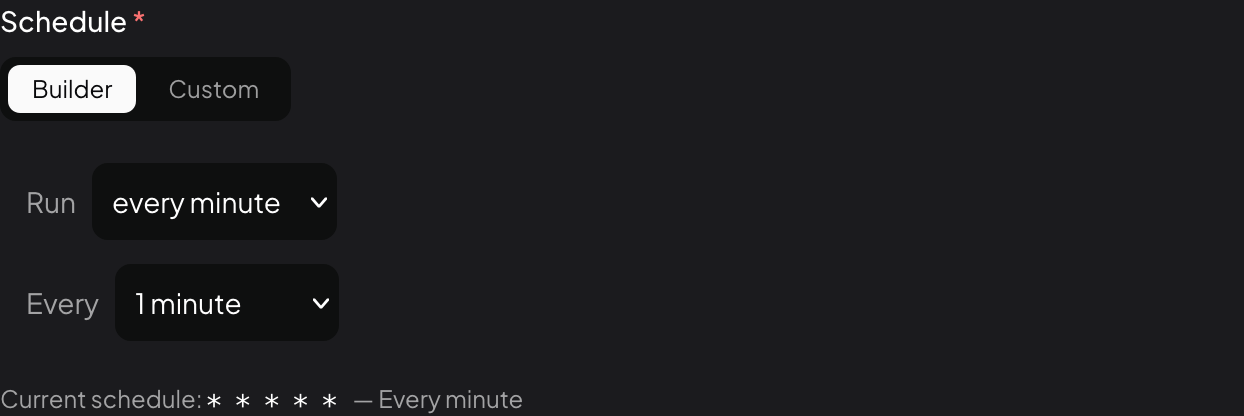
Use case: a very fast polling job. Most jobs don't need this frequency — it can produce a lot of runs quickly.
Hourly
Runs at a chosen minute-offset every hour. For example, "at minute 15 of every hour" means 12:15, 1:15, 2:15, and so on.
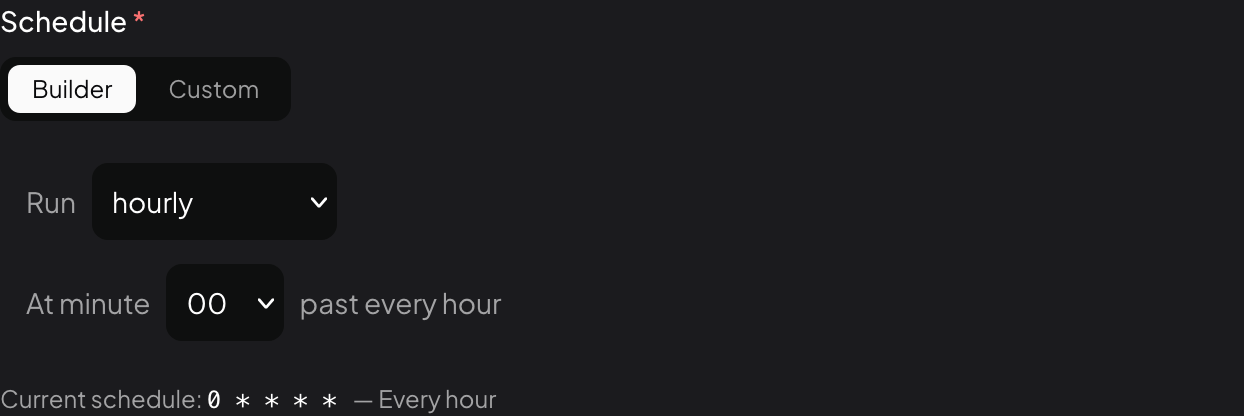
Use case: hourly checks, periodic scrapes.
Daily
Runs once a day at a time you choose using a time picker.
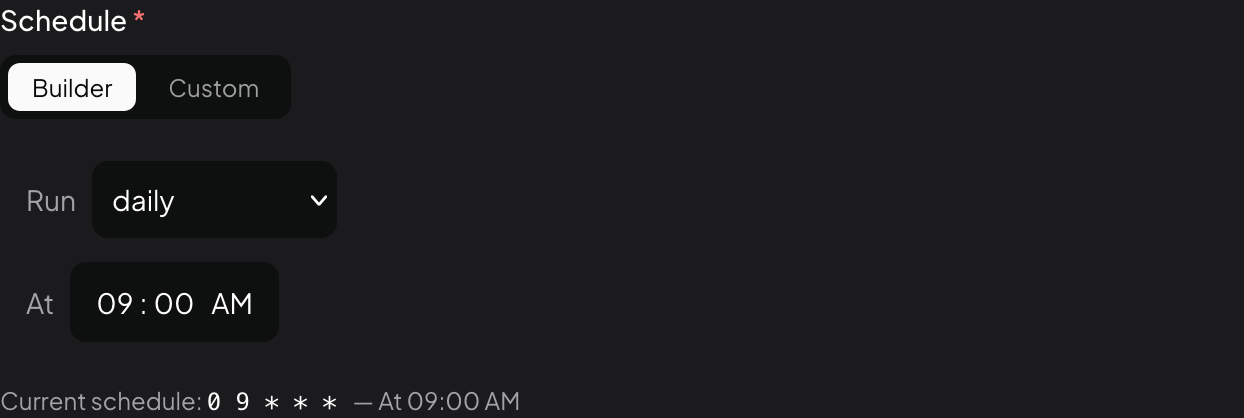
Use case: a morning digest, an end-of-day recap, a nightly backup summary.
Weekly
Runs on one or more selected days of the week at a chosen time. Click the day pills (Mon, Tue, Wed…) to toggle which days are included.
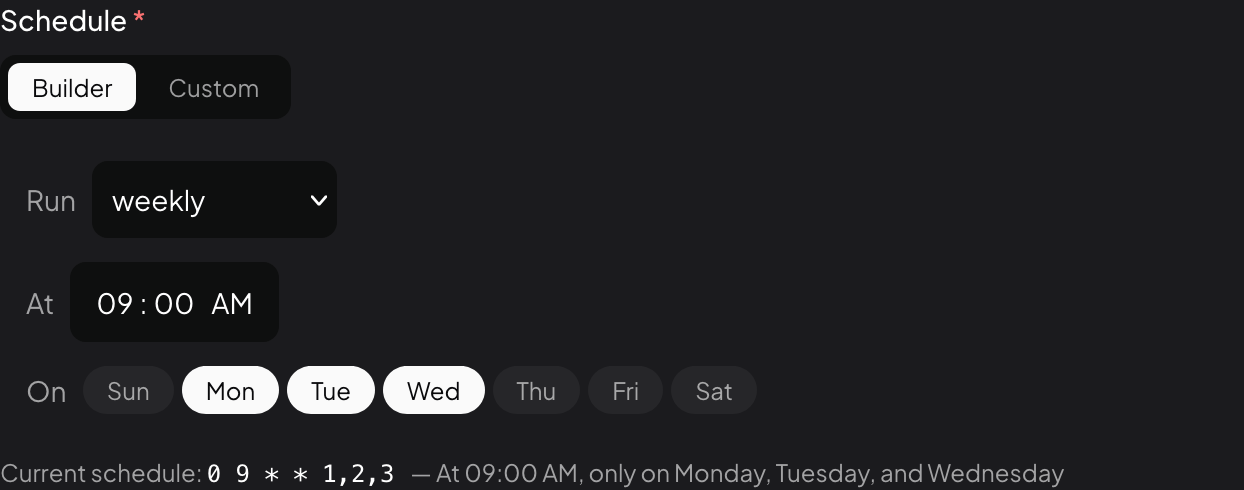
Use case: Monday planning summary, Friday recap, weekday-only checks.
Monthly
Runs once a month on a day number you pick, at a chosen time.
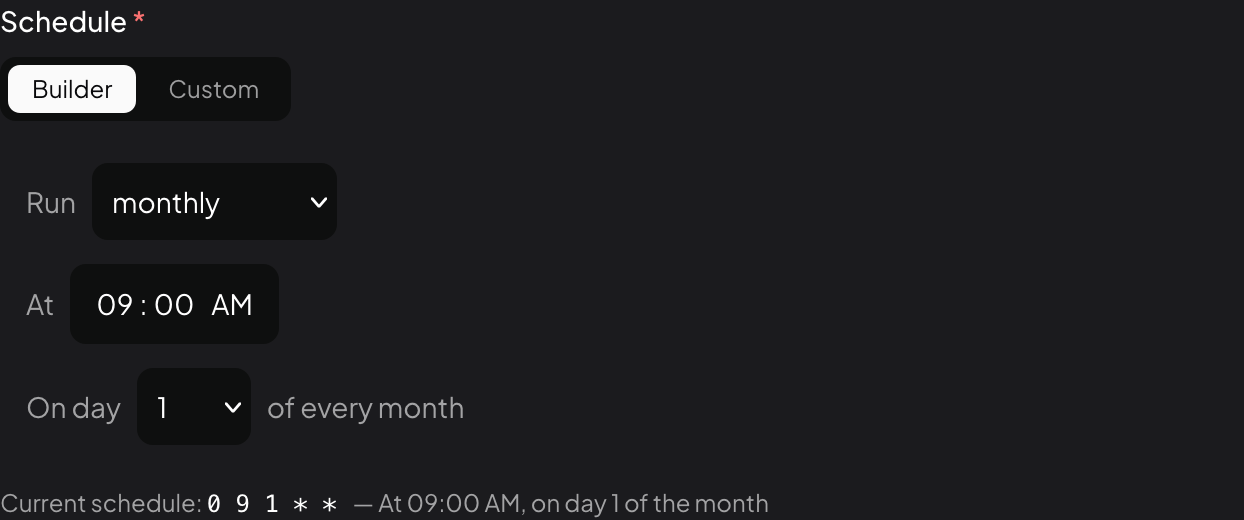
Use case: monthly reports, first-of-month cleanup, end-of-month summaries.
No matter which frequency you pick, the form shows a live, human-readable description of the schedule below the controls — for example, "At 09:00 AM, only on Monday". Confirm this matches what you want before saving.
Custom cron expressions
If you know exactly what you want, switch to Custom cron and type an expression directly. AnythingLLM uses the standard 5-field cron format:
┌───────────── minute        (0–59)
│ ┌─────────── hour          (0–23)
│ │ ┌───────── day of month  (1–31)
│ │ │ ┌─────── month         (1–12)
│ │ │ │ ┌───── day of week   (0–6, Sunday = 0)
│ │ │ │ │
* * * * *
The input validates the expression as you type. If it's invalid, you'll see an error; if it's valid, you'll see the same plain-English description you get from the Cron Builder.
Common cron patterns
| Goal | Cron expression |
|---|---|
| Every 5 minutes | */5 * * * * |
| Every hour on the hour | 0 * * * * |
| Every 6 hours | 0 */6 * * * |
| Every day at 9:00 AM | 0 9 * * * |
| Every weekday at 8:00 AM | 0 8 * * 1-5 |
| Every Monday at 9:00 AM | 0 9 * * 1 |
| Every Friday at 4:00 PM | 0 16 * * 5 |
| First day of every month at midnight | 0 0 1 * * |
| 15th of every month at noon | 0 12 15 * * |
| Every Sunday at 11:30 PM | 30 23 * * 0 |
Field reference
| Field | Allowed values | Notes |
|---|---|---|
| Minute | 0–59 | |
| Hour | 0–23 | 24-hour clock |
| Day of month | 1–31 | Use * when you want "every day" |
| Month | 1–12 | Use * when you want "every month" |
| Day of week | 0–6 | Sunday = 0, Saturday = 6 |
Special characters
| Symbol | Meaning |
|---|---|
* | Every value in this field |
, | List of values — 1,3,5 |
- | Range of values — 1-5 |
/ | Step values — */10 means every 10 |
Schedules run in your server's local time zone — whatever time zone the machine running AnythingLLM is set to. "9:00 AM" means 9:00 AM on the server, not 9:00 AM for whoever is viewing the job.
When the next run is calculated
When you save or enable a job, AnythingLLM calculates the next run time from your schedule and displays it on the job row. If the server restarts, next run times are recalculated on boot — you won't miss the start of a window just because the machine was down.
If the server is off when a scheduled time passes (for example, your laptop was asleep), that specific firing is missed. The next run will still happen at the following scheduled time.
Tips
- Avoid too-frequent schedules. Jobs that run every minute or every five minutes pile up fast and can burn through LLM credits. Start with hourly or daily.
- Offset overlapping jobs. If two jobs both run "every hour on the hour", they'll both try to start at the same time. Stagger them (e.g.,
0 * * * *vs15 * * * *) so they don't compete for resources. - Use the builder to prototype. Even if you want to end up with a custom cron, the Cron Builder is the fastest way to sketch out a schedule — switch to Custom afterward if you need to fine-tune it.