The Desktop Assistant is only available in AnythingLLM Desktop v1.11.0 and later for supported platforms.
In general, anything you can do in the main AnythingLLM UI you can do in the Desktop Assistant - chat with documents, agents, MCPs, and more.
Chat with any open application
Not supported on Linux: Application capture is unavailable on Linux. The Desktop Assistant on Linux cannot capture individual applications for screenshots.
By default, the Desktop Assistant is able to chat with any open application using the full context of any application (Chrome, Slack, VS Code, etc.).
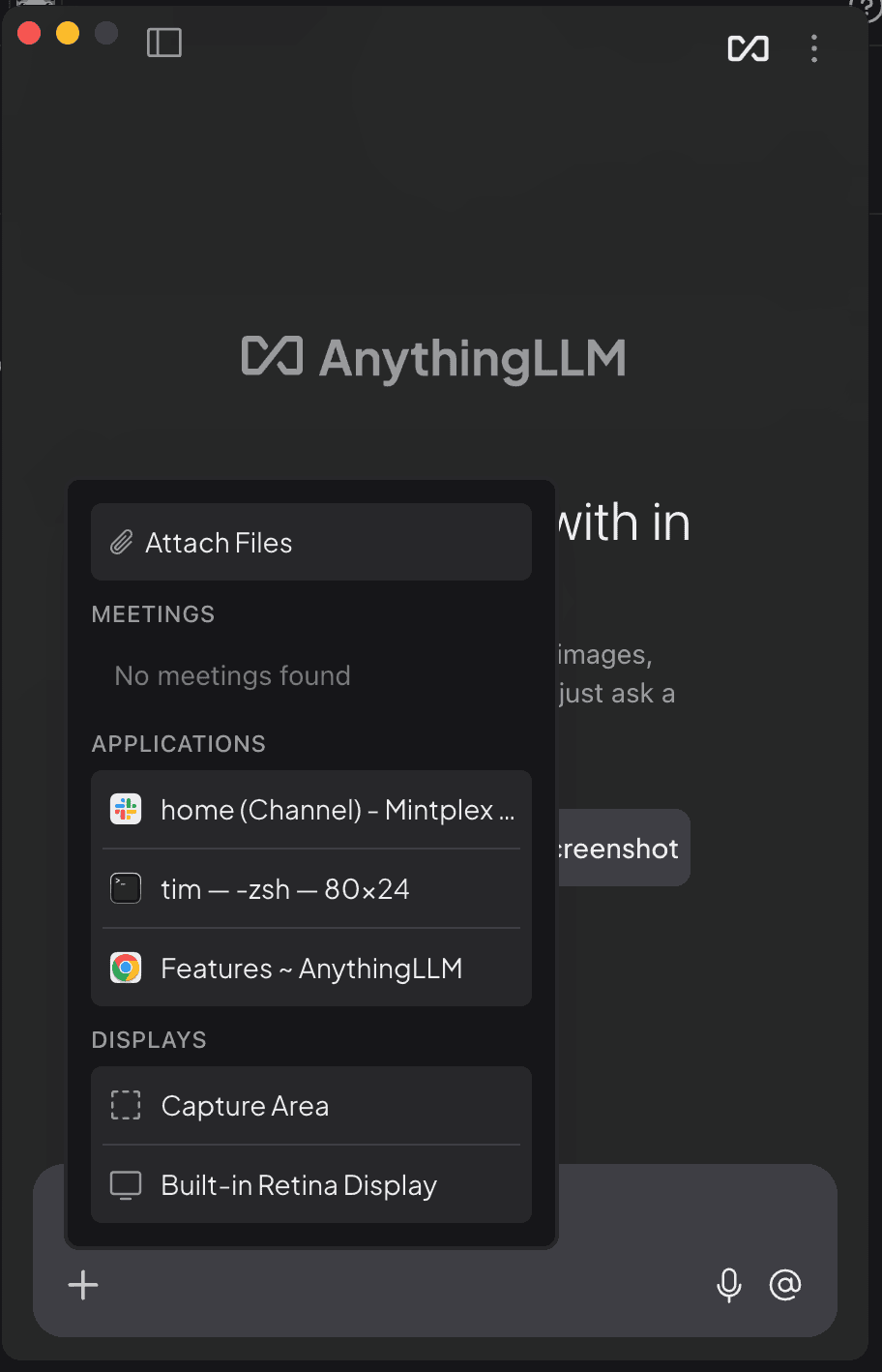
You can select the current active application suggestion in the chat window or click the "+" icon show all available applications.
This takes a screenshot of the current active application and uses that to answer your questions. It does not access the application's raw data or files - it can only see what is on the screen.
Full screen & area capture
Not supported on Linux: Full display and area capture are unavailable on Linux. The Desktop Assistant on Linux cannot capture displays or screen regions for screenshots.
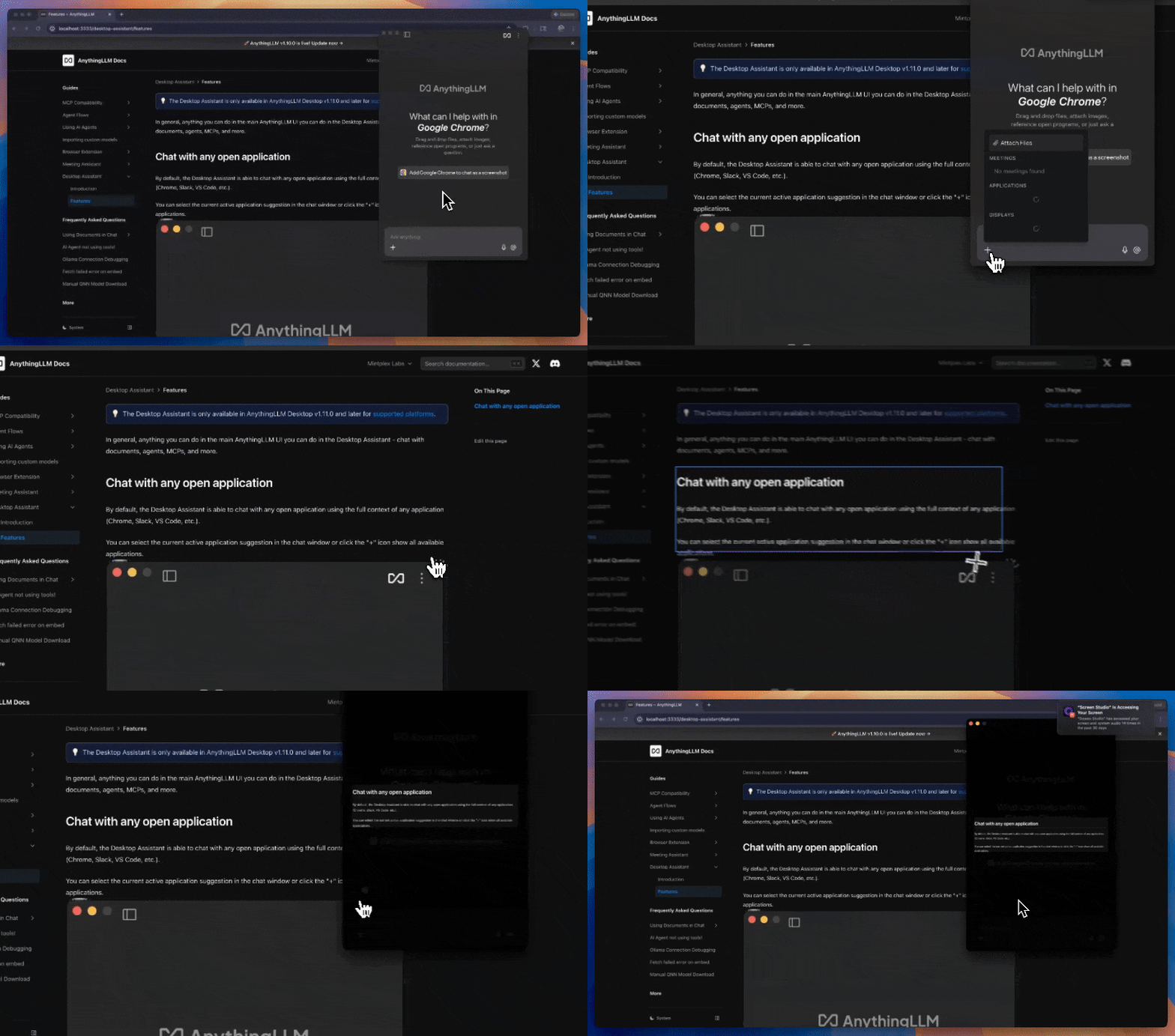
In the "+" menu, you can select "Area Capture" to capture a specific area of the screen or select a display to capture the full screen of that display.
Settings & Keyboard Shortcuts
By default, the Desktop Assistant is bound to the
CMD+/(MacOS) orCTRL+/(Windows/Linux) keyboard shortcut. You can change this in the settings.
You can customize the Desktop Assistant by clicking the "Desktop Assistant Settings" in the 3-dot menu in the top right corner of the Desktop Assistant.
You can also customize the Desktop Assistant by clicking the "Settings" > "Desktop Assistant" in the main AnythingLLM menu.
Open thread behavior
The "Open thread behavior" setting determines what happens when the Desktop Assistant is opened.
- Open a new thread (default)
- Open the previous thread
All threads created in the Desktop Assistant are saved to the "Assistant Chat" workspace in AnythingLLM so you can interact with them in the main AnythingLLM UI.
Chat functionality
All chat functionality in the Desktop Assistant is the same as in the main AnythingLLM UI. You can use the same tools and features to chat with the Desktop Assistant.
- Drag and drop documents into the chat window
- Attach images to the chat
- Use agent skills and MCPs to perform tasks and answer questions (using
@agent) - Use custom Slash Commands
- Set the system prompt for the Desktop Assistant and even embed documents like you would in the main AnythingLLM UI