The Telegram Bot connector is available on Docker and Desktop (Mac, Windows, Linux) in AnythingLLM >v1.11.2.
Telegram Bot
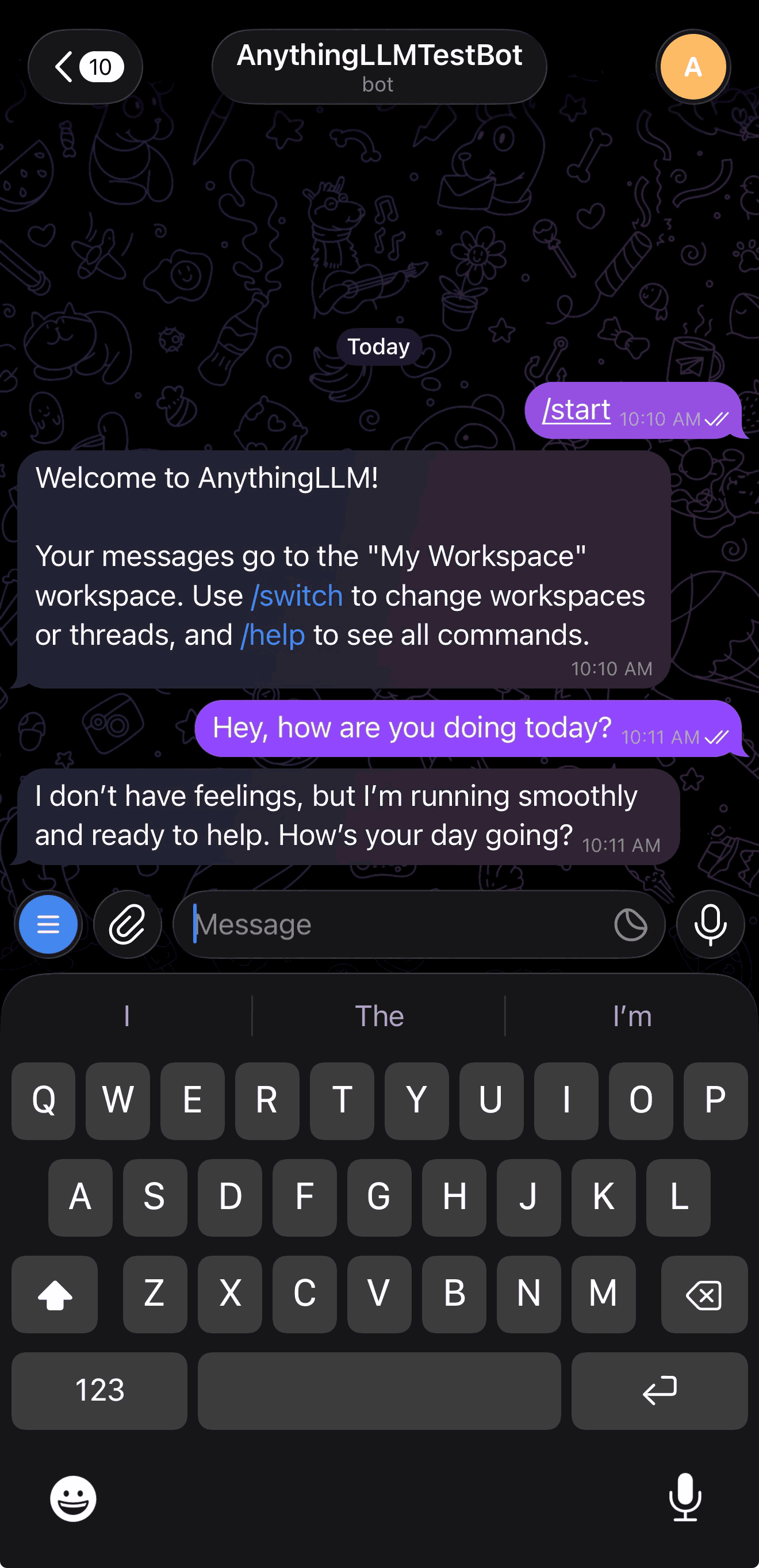
Connect your AnythingLLM instance to Telegram so you can chat with your workspaces from any device. Send text, images, and voice messages directly through Telegram and get responses powered by your configured LLM, complete with document context and agent capabilities.
Setup
The Telegram Bot connector only works in single-user mode (or single-user with password protection) on Docker. Enabling multi-user mode will automatically disconnect the bot.
Step 1: Create your Telegram bot
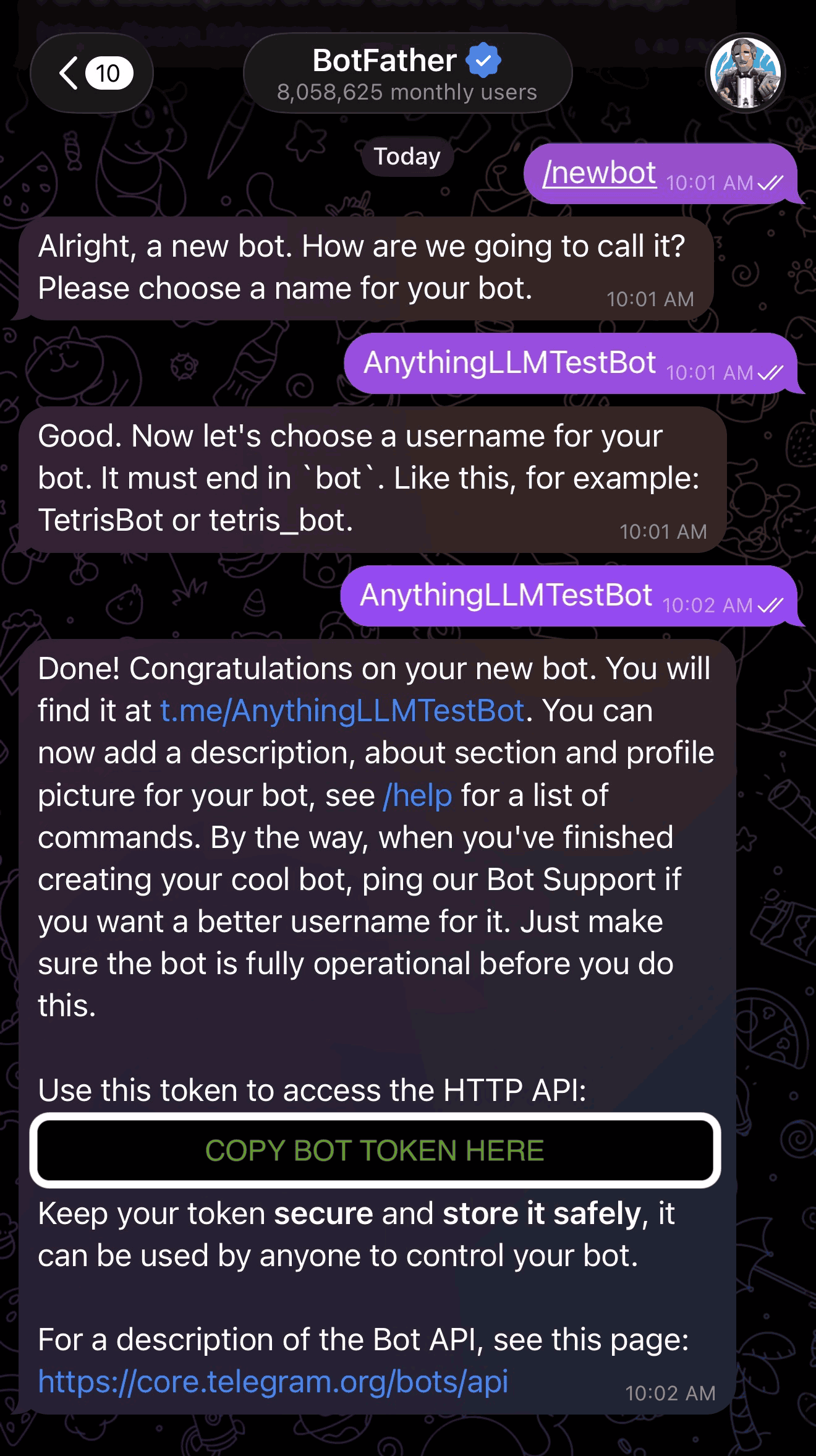
- Open BotFather (opens in a new tab) in Telegram (or scan the QR code shown in the setup screen)
- Send
/newbotto @BotFather - Choose a name and username for your bot
- Copy the API token you receive
Step 2: Connect your bot
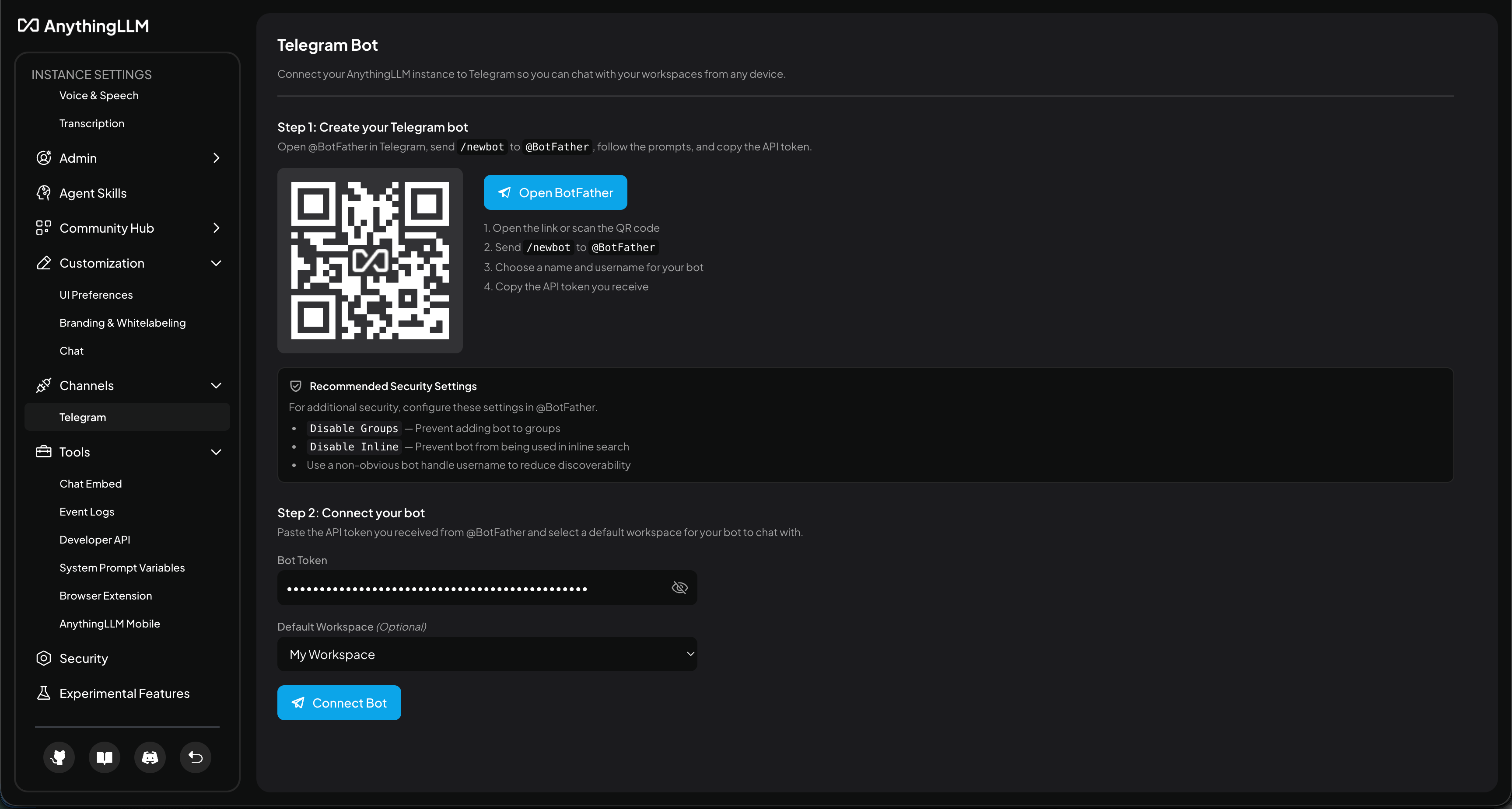
- Navigate to Settings > Channels > Telegram in AnythingLLM
- Paste the API token from BotFather
- Click Connect Bot
Step 3: Verify users
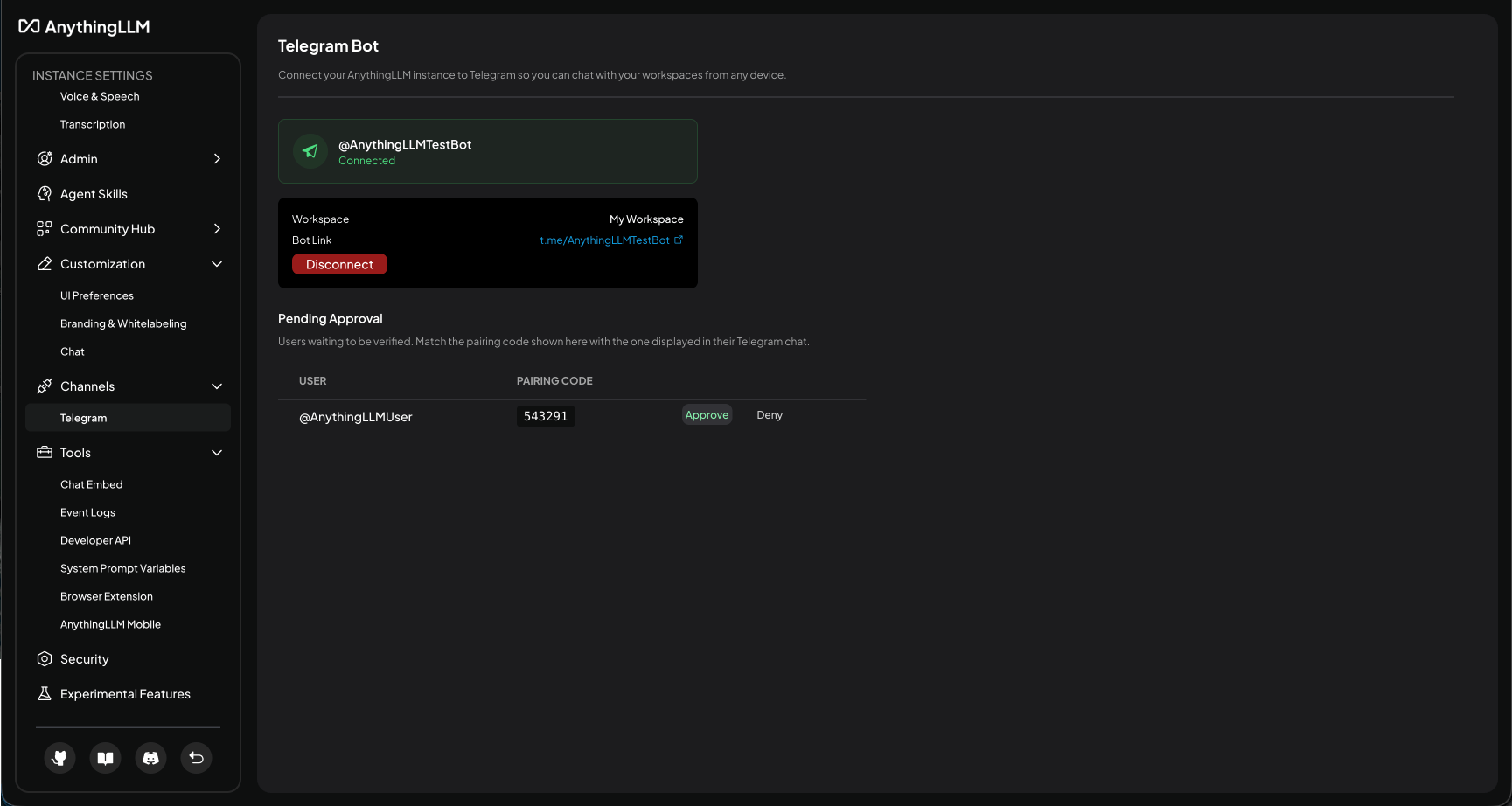
When someone messages your bot for the first time, they'll receive a pairing code. You'll see their request in the Users section of the Telegram settings page. Match the pairing code displayed in their Telegram chat with the one shown in AnythingLLM and click the check mark to grant access.
Recommended security settings
For additional security, configure these settings in @BotFather:
- Disable group joins — Prevents the bot from being added to group chats
- Disable inline mode — Prevents the bot from being used in inline search
- Use a non-obvious username — Reduces discoverability of your bot
Capabilities
Text chat
Send any message to your bot and it will respond using the connected workspace's LLM provider and model, including any embedded document context.
Image understanding
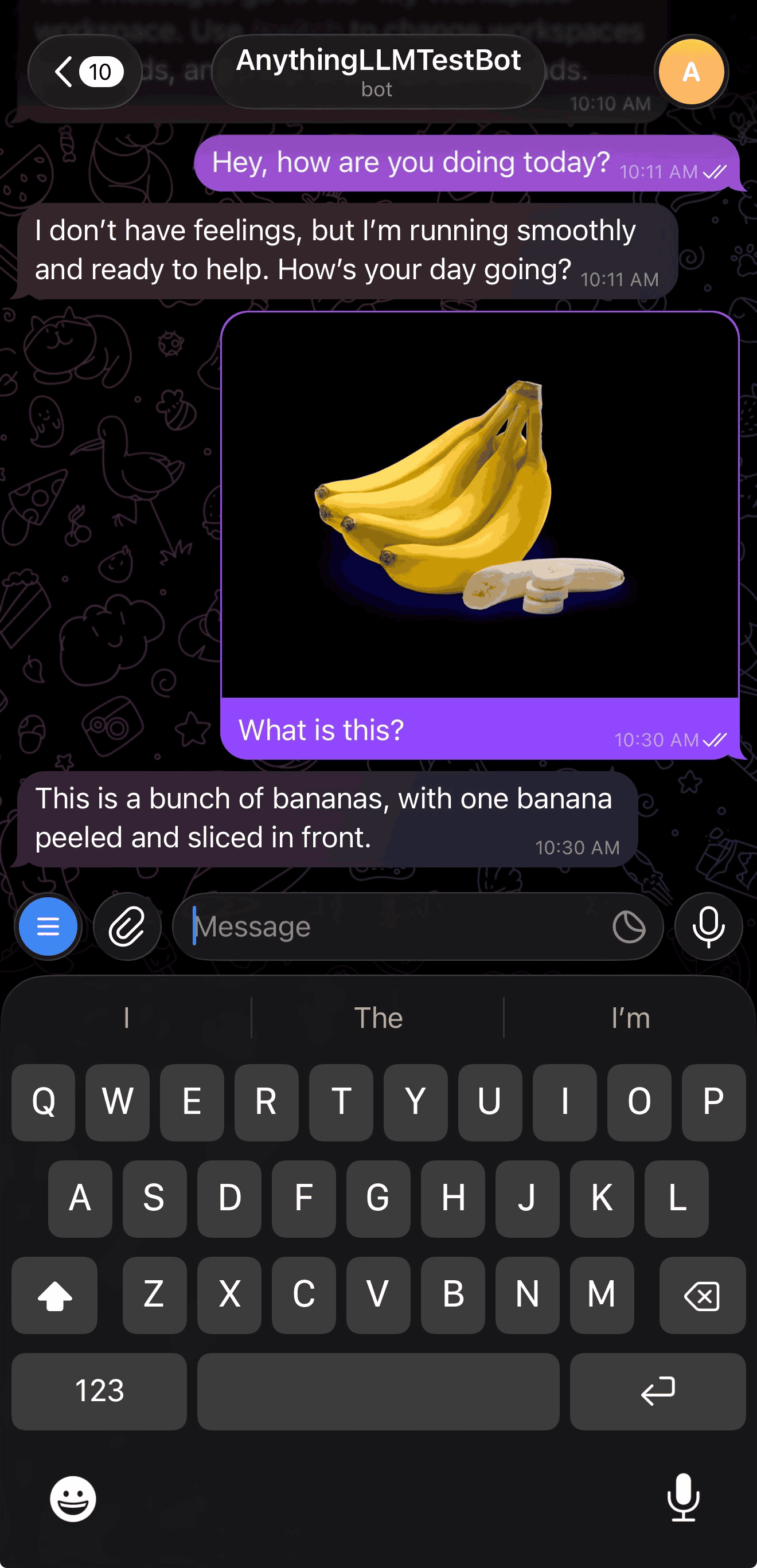
Send photos to your bot and it will analyze them using your configured vision-capable LLM. Great for asking questions about screenshots, diagrams, or any visual content.
Voice messages
Send voice messages to your bot and it will transcribe and respond to them.
Automatic mode and @agent support
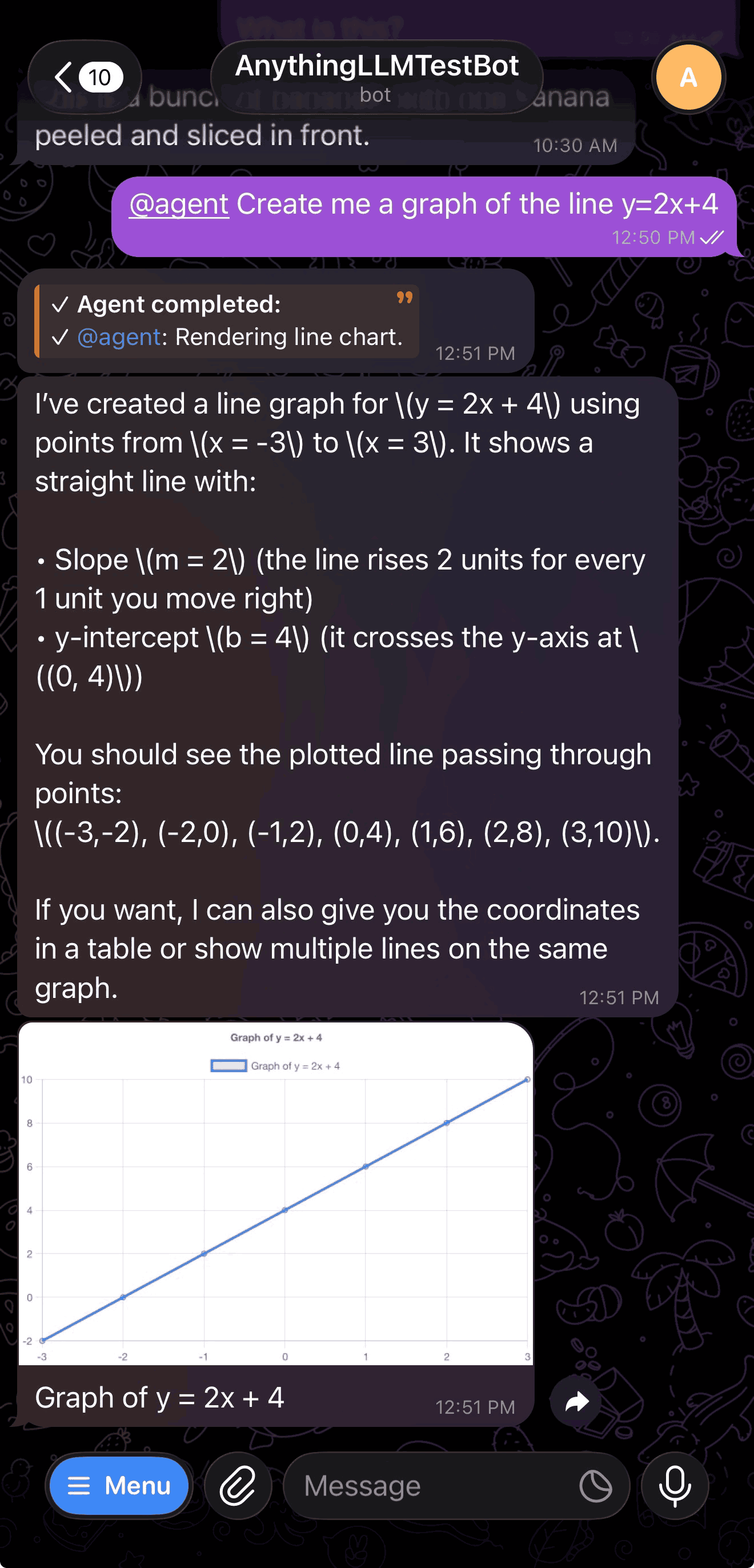
The Telegram bot supports Automatic mode for native tool calling when your model and provider support it. You can also use @agent to invoke agent skills directly from Telegram, including the chart renderer which generates and sends PNG charts directly in chat.
Workspace and thread management
Switch between workspaces and threads, start new conversations, and manage your chat context all from within Telegram using slash commands.
Citations
Use the /proof command after a response to see the document sources that were used to generate the answer.
Telegram commands
| Command | Description |
|---|---|
/start | Welcome message with current workspace info |
/switch | Switch workspace or thread |
/new | Start a new thread in the current workspace |
/history [count] | Show recent messages (default 10, max 50) |
/status | Show current workspace, thread, provider, and model |
/reset | Clear chat history context (messages stay visible but are not used as context) |
/proof | Show citations from the previous response |
/model | Select a different model mid-chat |
/help | Show available commands |
Managing your connection
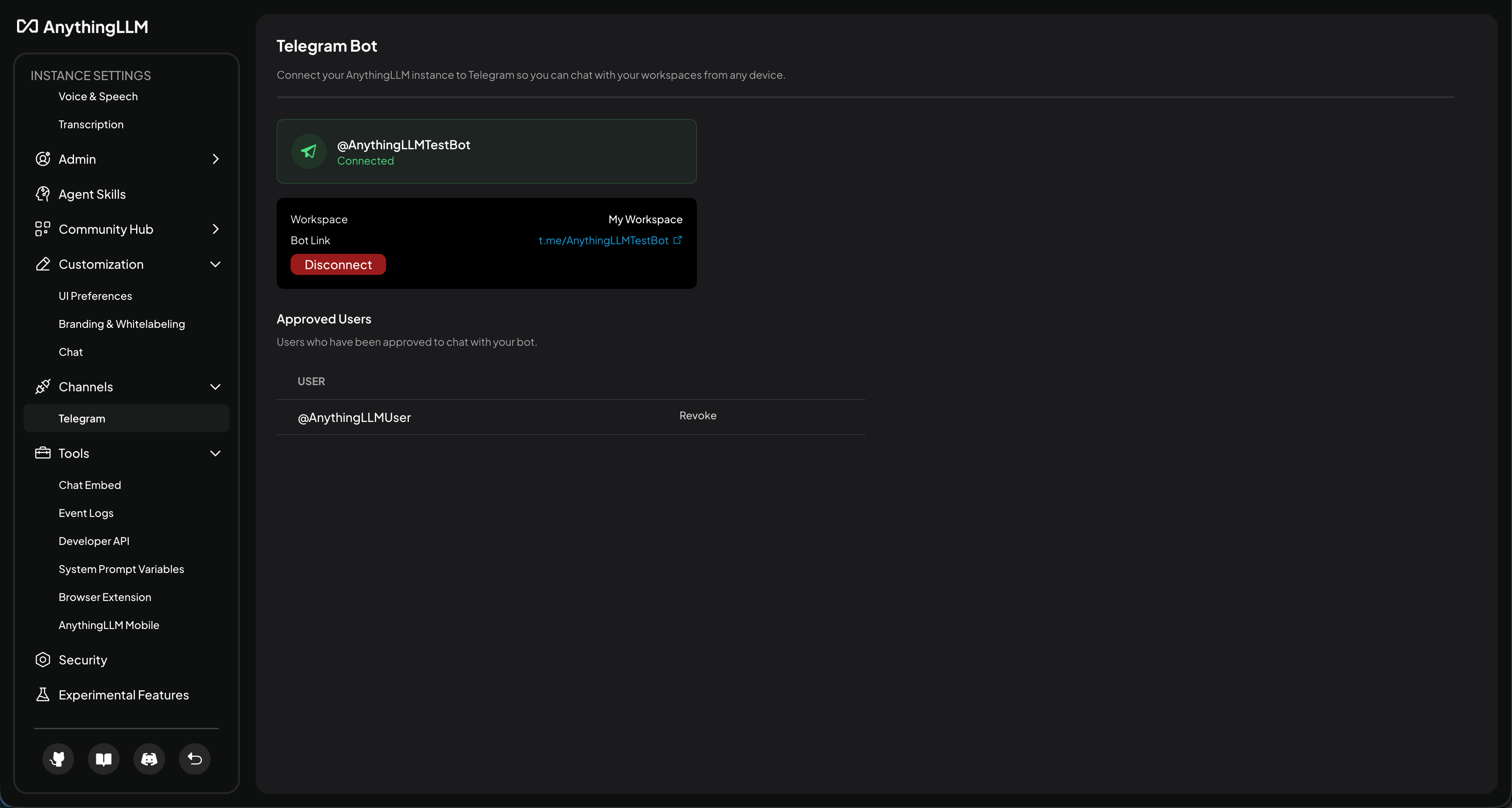
Once connected, the Telegram settings page shows your bot's status, a direct link to your bot, and the list of approved users. From here you can:
- Reconnect if the bot token expires or becomes invalid
- Disconnect the bot entirely
- Approve or deny pending user requests
- Remove access for previously approved users
Limitations
- Requires your instance to be running — If you shut down your computer, put it to sleep, or your Docker container stops, the bot will not respond until the instance is back online.
- Single-user mode only — The bot is automatically disconnected when multi-user mode is enabled. It works in single-user and single-user with password protection modes.
- One bot per instance — Each AnythingLLM instance supports a single Telegram bot connection.