Outlook Agent
This agent skill is only available in AnythingLLM v1.12.1 and later.
This skill is only available in single-user mode. It will not be visible in multi-user mode.
Tip: Any read-only actions will not ask for approval, but any actions that could potentially modify your mailbox in any way will ask for approval so nothing can be modified without your explicit permission.
Any skill below that has the ✏️ icon next to it will ask for approval before performing the action.
The Outlook Agent skill allows your LLM to interact with your Microsoft Outlook account. It can search emails, read messages and threads, compose and send emails, manage drafts, and view mailbox statistics.
Before you start
- This guide only supports Single user mode in AnythingLLM.
- You should be familiar with Azure/Entra as their UI is complex and not easily understandable for non-technical users.
- If you encounter any issues with this integration, AnythingLLM core-team is not able to help you with the integration. We will close any support tickets related to this integration that are not bugs for non-Enterprise users.
Prerequisites
- Admin account with access to Microsoft Entra admin center (opens in a new tab)
Create an Entra Application
- Navigate to the Microsoft Entra admin center (opens in a new tab) and sign in with your admin account.
- Click on "App registrations" in the left sidebar.
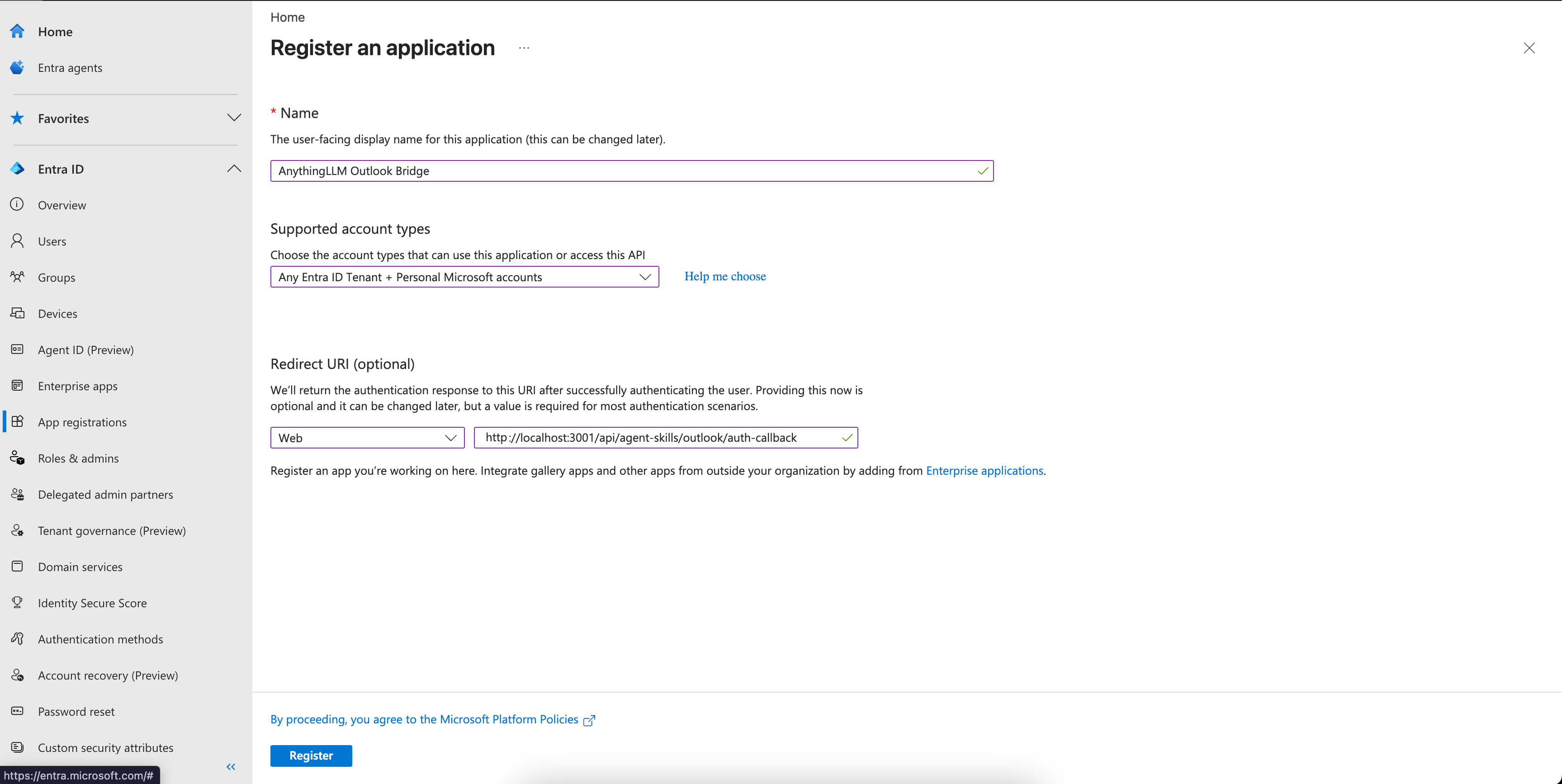
- Click on "+ New registration" button.
- Enter a name for your application, select the appropriate "Supported account types" (we recommend "Accounts in this organizational directory only" for single-tenant applications)
- For the "Redirect URI", use the Web option and enter the following URL:
Configure API Permissions
While on your application's overview page, click on the "API permissions" tab.
You will need to add the following permissions:
- Mail.Read
- Mail.ReadWrite
- Mail.Send
- offline_access
- User.Read
You must add all of these permissions for the agent to work correctly.
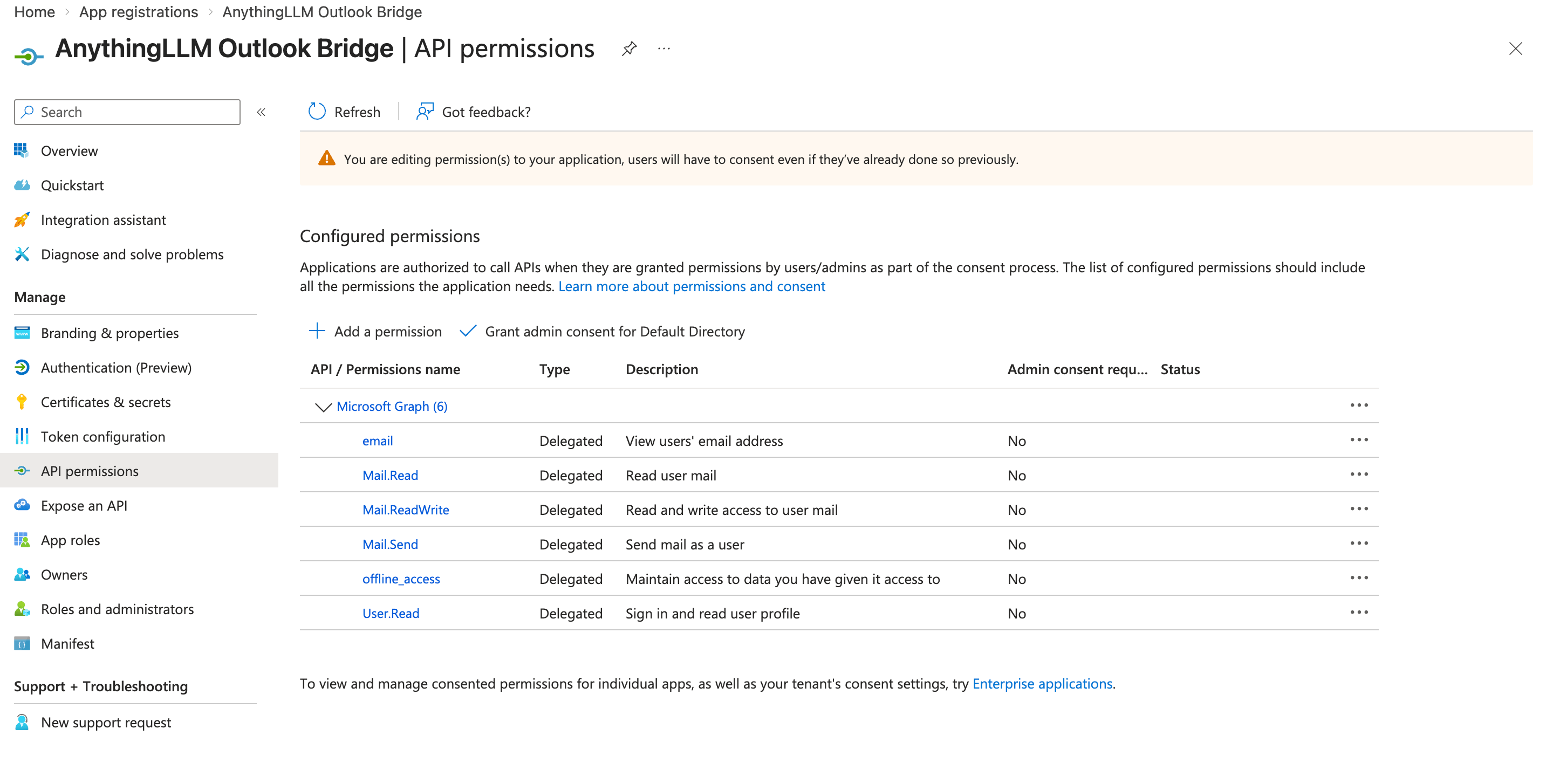
Save these changes.
Get the Client Secret (Docker only)
Desktop users: You can skip this section. The Desktop app uses PKCE (Proof Key for Code Exchange) authentication which does not require a client secret.
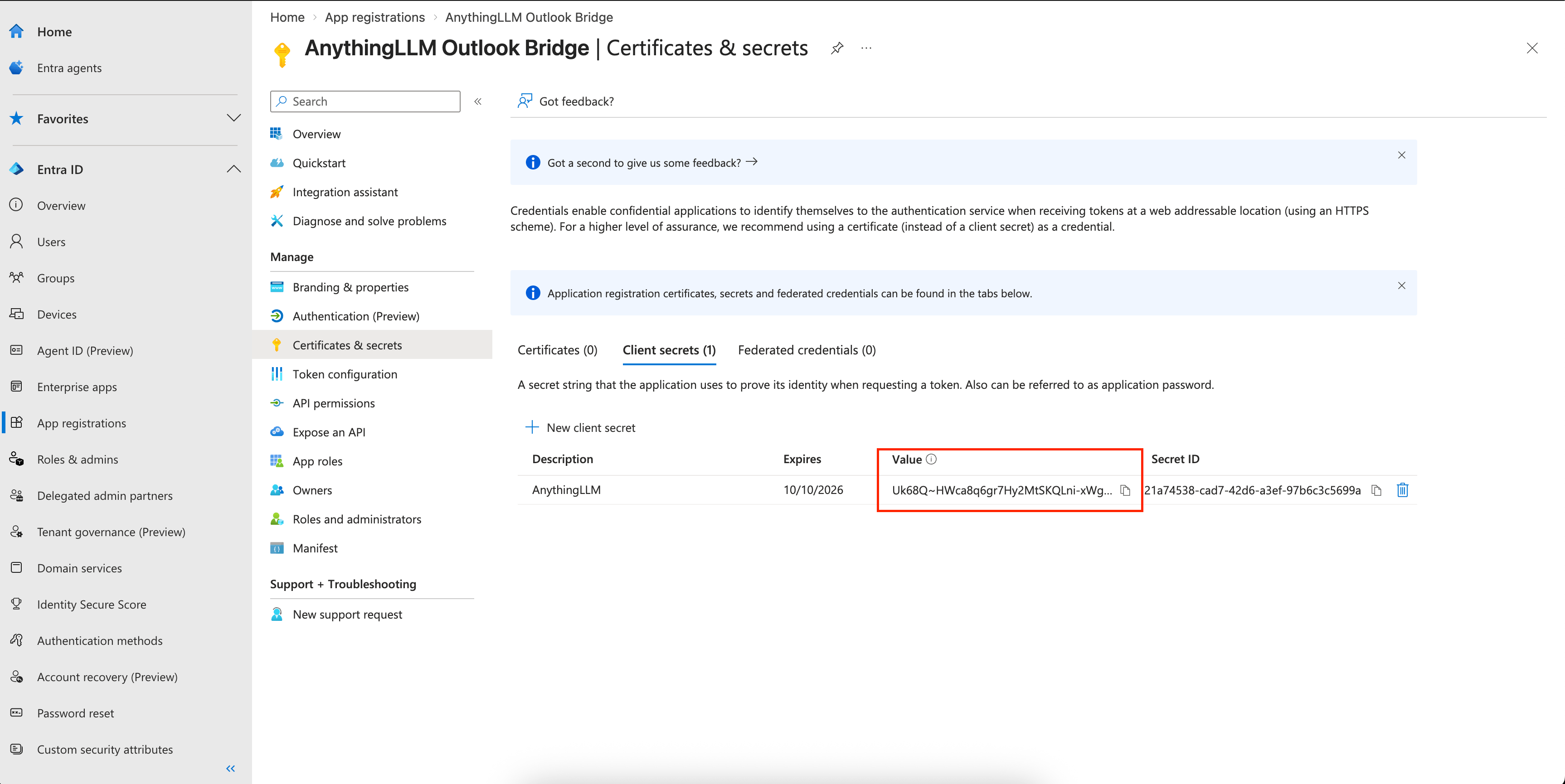
- Navigate to your application's overview page and click on the "Certificates & secrets" tab.
- Click on "+ New client secret" button.
- Enter a name for your client secret and assign a reasonable expiration date for your use.
- Click on the "Add" button to create the client secret.
- Copy the client secret and paste it into the "Client Secret" field in the AnythingLLM configuration page. Copy the Value Field, not the Id
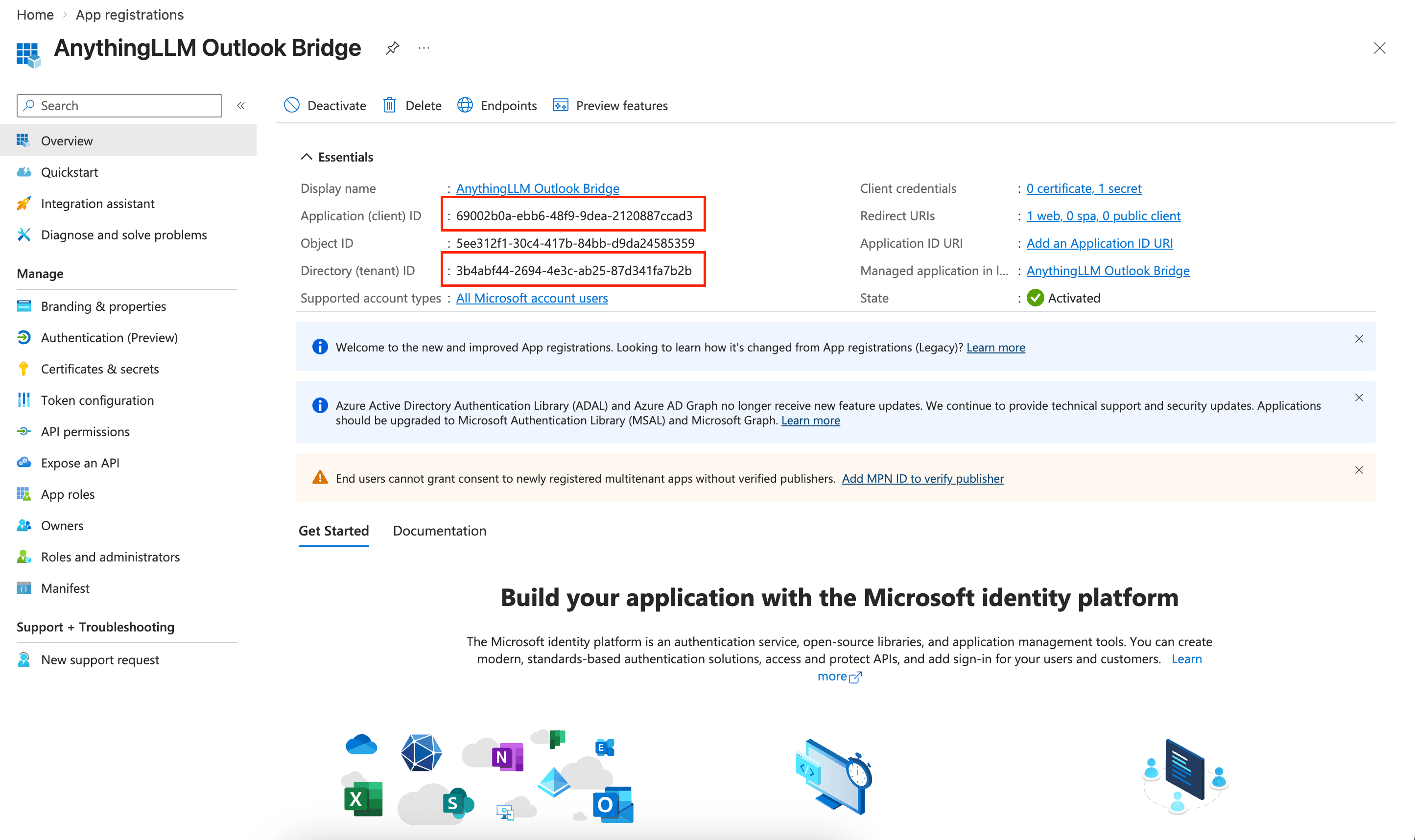
Copy other credentials
Depending on your application type, you may need to copy other credentials. They can be found in the "Overview" tab of your application.
Configure AnythingLLM
- Navigate to the
Settings > Agent Skillspage and click on the "Outlook Agent" skill. - Select the appropriate Application Type, and paste in the credentials you obtained earlier.
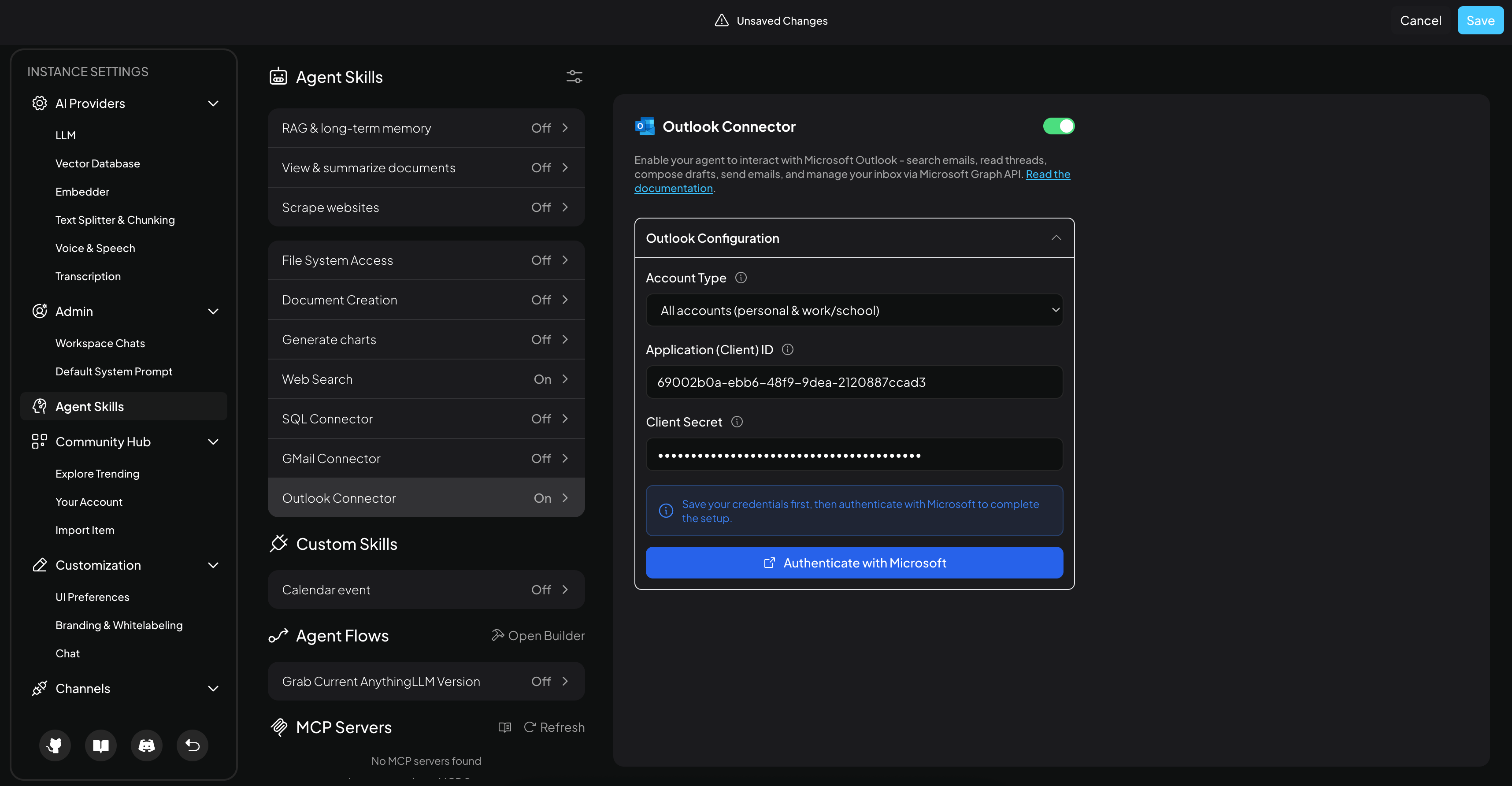
- Click "Authenticate with Microsoft" button to start the authentication flow.
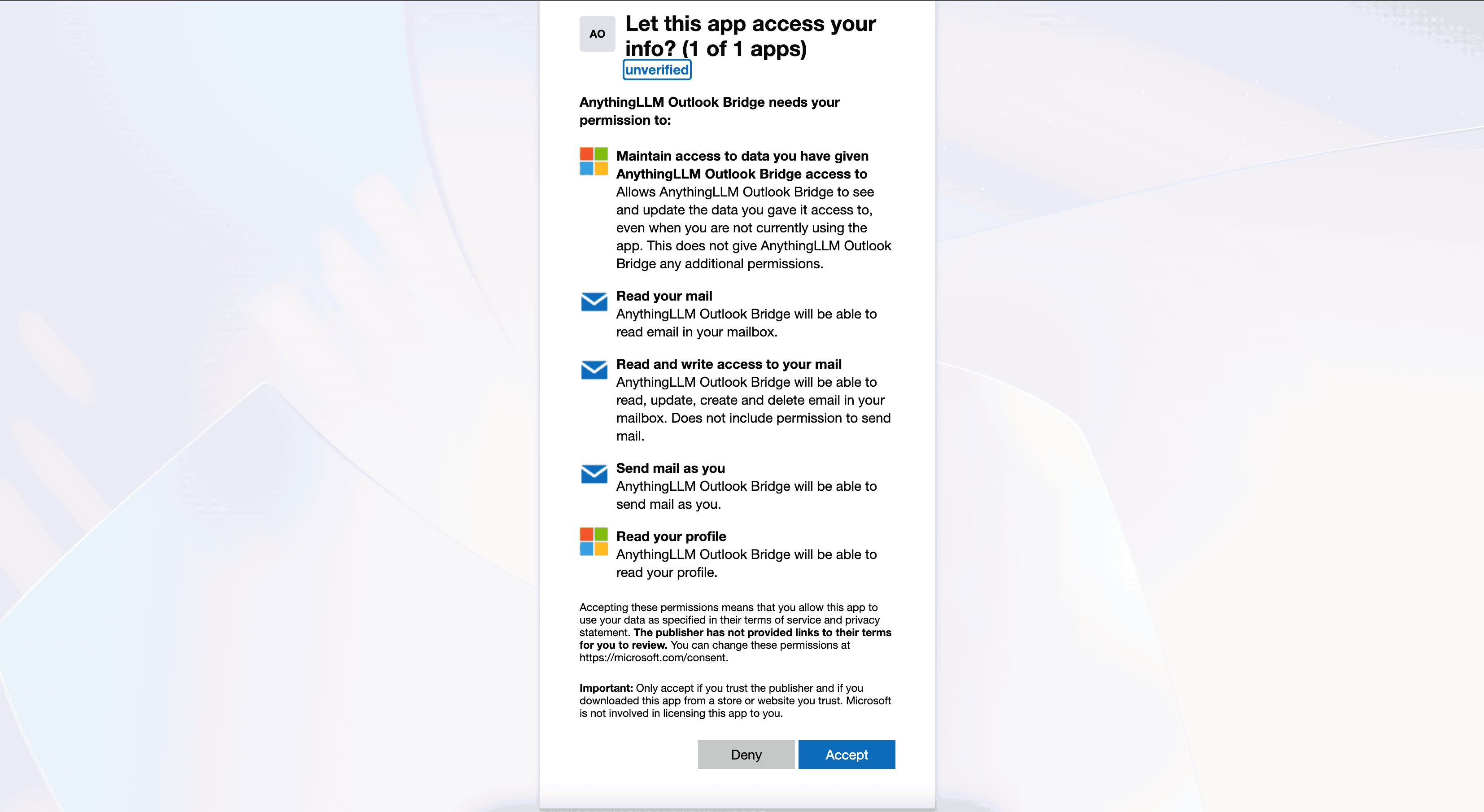
You will be redirected back to your instance of AnythingLLM and you should see the "Outlook Agent" skill enabled and ready to use.
Capabilities
The Outlook Agent provides a comprehensive set of tools organized into the following categories:
Search & Read
These tools allow the agent to search and read your emails without making any changes.
A note on attachments
If your email has attachments, the agent will be able to download the attachments and use them in context. You will be asked before the agent downloads any attachments so you can curate which attachments are used in context.
Outlook Get Inbox
Get recent emails from your Outlook inbox. Returns a list of recent messages with subject, sender, date, and read status.
Example: @agent show me my recent emails or @agent what's in my inbox?
Outlook Search
Search emails using Microsoft Search syntax. Supports searching by keywords, sender, subject, and more. Common search terms include:
from:email- emails from a specific sendersubject:word- emails with a specific word in the subjecthasAttachments:true- emails with attachments
The agent can combine search terms, e.g., from:[email protected] project update finds emails from John containing "project update".
Example: @agent search for emails about the project or @agent find emails from [email protected]
Outlook Read Thread
Read a full email conversation thread by its conversation ID. Returns all messages in the thread including sender, recipients, subject, body, date, and attachment information. Use this after searching to read the full conversation.
Example: Can you read the email about the project update? -> will find thread by search and read it.
Drafts
These tools allow the agent to create, manage, and send draft emails.
Create Draft ✏️
Create a new draft email in Outlook. The draft will be saved but not sent. Supports:
- Multiple recipients (To, CC, BCC)
- Plain text and HTML body content
- File attachments
Can also create a draft reply to an existing message by providing a reply-to message ID, with the option to reply all.
Example: @agent create a draft email to [email protected] about the meeting tomorrow
Example (reply): @agent create a draft reply to the last email thanking them for the update
Update Draft ✏️
Update an existing draft email with new content. You can modify the recipients, subject, body, or CC fields.
Example: @agent update the draft to change the subject to "Updated: Meeting Tomorrow"
List Drafts
List all draft emails in your Outlook account. Returns a summary of each draft including ID, subject, recipients, last modified date, and a preview.
Example: @agent list my email drafts
Delete Draft ✏️
Permanently delete a draft email. This action cannot be undone.
Example: @agent delete the draft about the meeting
Send Draft ✏️
Send an existing draft email immediately. This removes the draft and sends the email. This action cannot be undone.
Example: @agent send the draft I just created
Send & Reply
These tools send emails immediately without creating drafts first.
Send Email ✏️
Send an email immediately through Outlook. Supports:
- Multiple recipients (To, CC, BCC)
- Plain text and HTML body content
- File attachments
For composing emails that need review before sending, use the Create Draft tool instead.
Example: @agent send an email to [email protected] about the project update
Reply to Thread ✏️
Reply to an existing email thread immediately. You can choose to reply to just the sender or reply all. Supports file attachments.
Example: @agent reply to the last email saying I agree with the proposal
Example (reply all): @agent reply all to the team thread confirming the meeting time
Account
These tools provide information about your Outlook account.
Get Mailbox Stats
Get Outlook mailbox statistics including folder counts and user profile information. Returns the total and unread counts for:
- Inbox
- Drafts
- Sent Items
- Deleted Items
Example: @agent how many unread emails do I have?
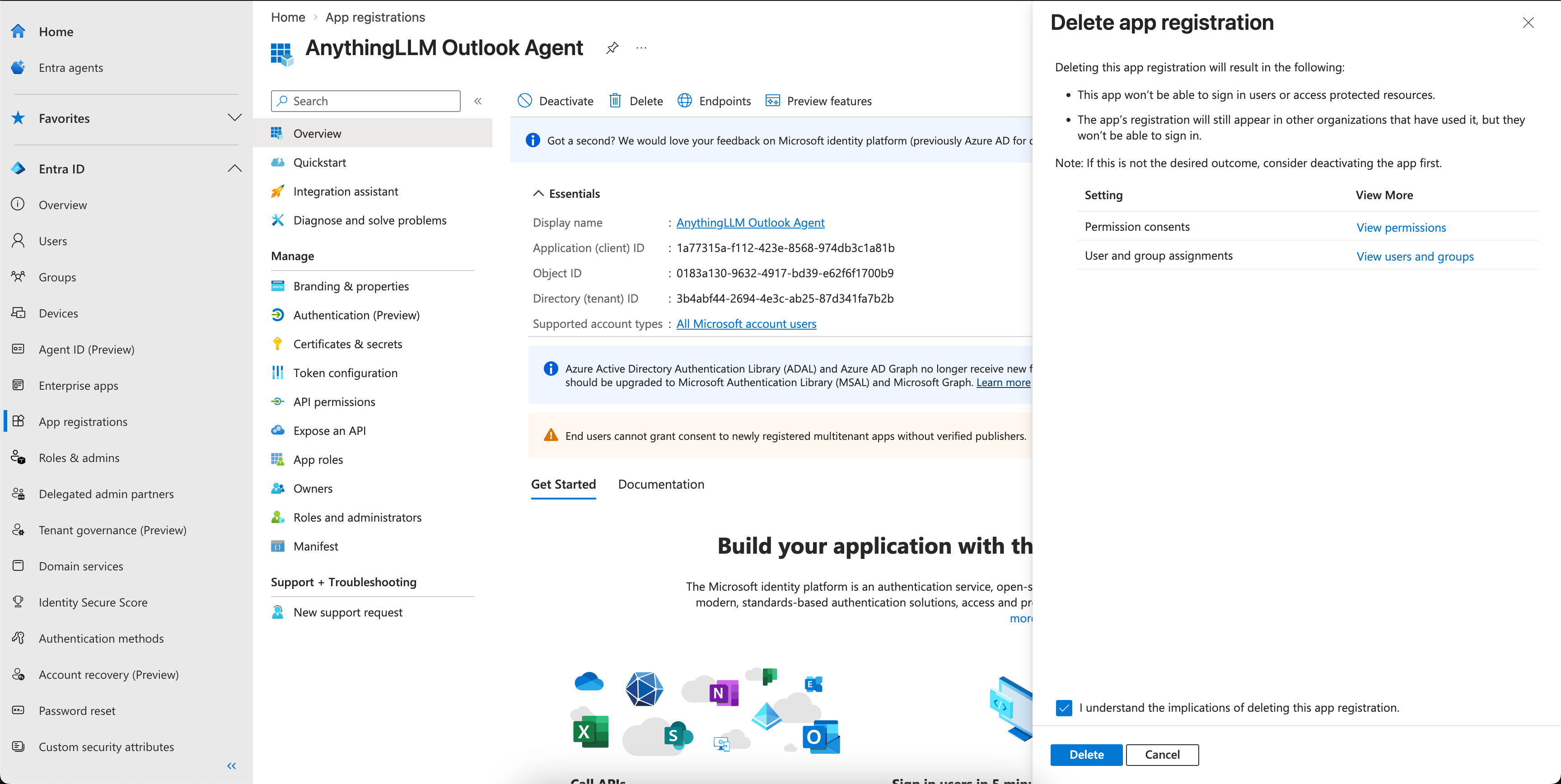
Delete the app connection
If you ever need to delete the app connection, you can do the following after disabling the skill in AnythingLLM.
- Navigate to the Microsoft Entra admin center (opens in a new tab) and sign in with your admin account.
- Click on "App registrations" in the left sidebar.
- Click on your application and then click on the "Overview" tab.
- Click on the "Delete" button to delete the application.
- Click on the "Delete" button to confirm the deletion.