Chroma Cloud Vector Database
Chroma Cloud (opens in a new tab) is the fully managed version of Chroma (opens in a new tab). It is the same database as the open-source version, but hosted and scaled for you, so there is no server to run yourself.
If you would rather host Chroma on your own machine, see Chroma instead.
Connecting to Chroma Cloud
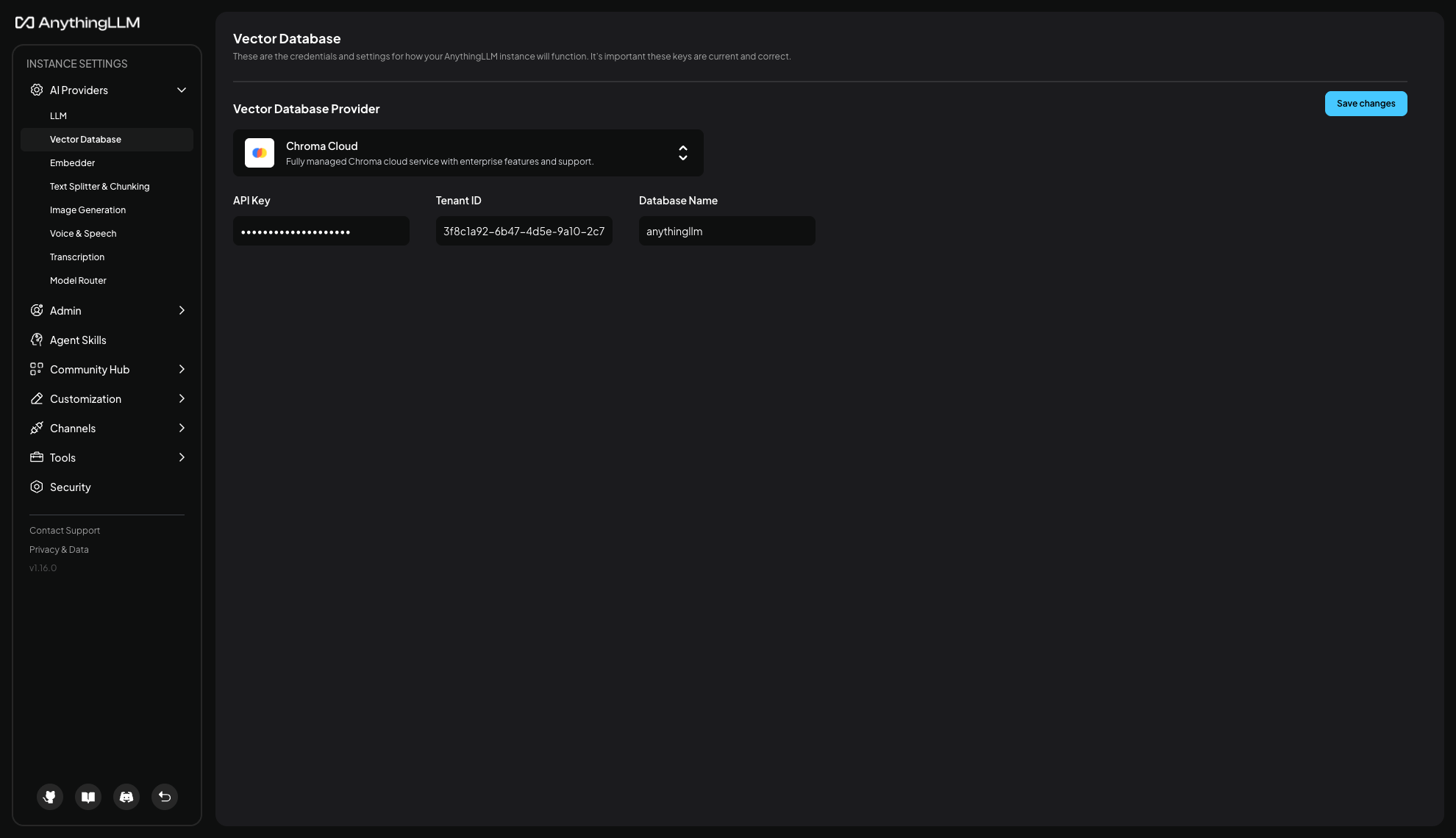
You will need three values from your Chroma Cloud account, all available from the Chroma Cloud dashboard (opens in a new tab):
| Field | What it is |
|---|---|
| API Key | Your Chroma Cloud API key. It starts with ck-. |
| Tenant ID | The tenant your database belongs to, shown as a UUID. |
| Database Name | The name of the database in that tenant you want AnythingLLM to use. |
Enter them under Settings > AI Providers > Vector Database and select Chroma Cloud as the provider.
AnythingLLM embeds your documents with the embedding model you have configured and stores the resulting vectors in Chroma Cloud. It does not use Chroma's own embedding functions, even if your database has one set.
Account limits
Chroma Cloud enforces limits that self-hosted Chroma does not. AnythingLLM works within them automatically - large uploads are split into batches rather than being rejected - but they are worth knowing about:
| Limit | Default value |
|---|---|
| Embedding dimensions | 4,096 |
| Document size | 16,384 bytes |
| Metadata size | 4,096 bytes |
| Records per write | 300 |
If a document chunk or its metadata exceeds these, AnythingLLM logs a warning and the write to Chroma Cloud may fail. Reducing your chunk size is the usual fix.
See Chroma's quotas and limits (opens in a new tab) for the current values and any limits specific to your plan.
Caution!
Switching vector databases does not move your existing embeddings. If you change to Chroma Cloud from another provider, you will need to delete and re-embed every document in each workspace.