Memories & Personalization
Memories let AnythingLLM remember useful facts about you (your name, preferences, ongoing projects, communication style, etc.) and use them to give more personalized responses.
There are two kinds of memories:
- Workspace memories only affect chats inside a single workspace. Up to 20 per workspace.
- Global memories apply to every workspace you use. Up to 5 total.
Memories are always tied to your user account. In multi-user mode, every user has their own separate memories. No one else can see yours.
Enabling Personalization
Memories are off by default. An admin (or the single user on a non multi-user instance) has to turn the feature on before any memories are created or used.
- Open any workspace and start a chat.
- Click the settings icon in the top right of the chat window.
- Choose Memories from the menu to open the Memories sidebar.
- Toggle Enable Personalization on.
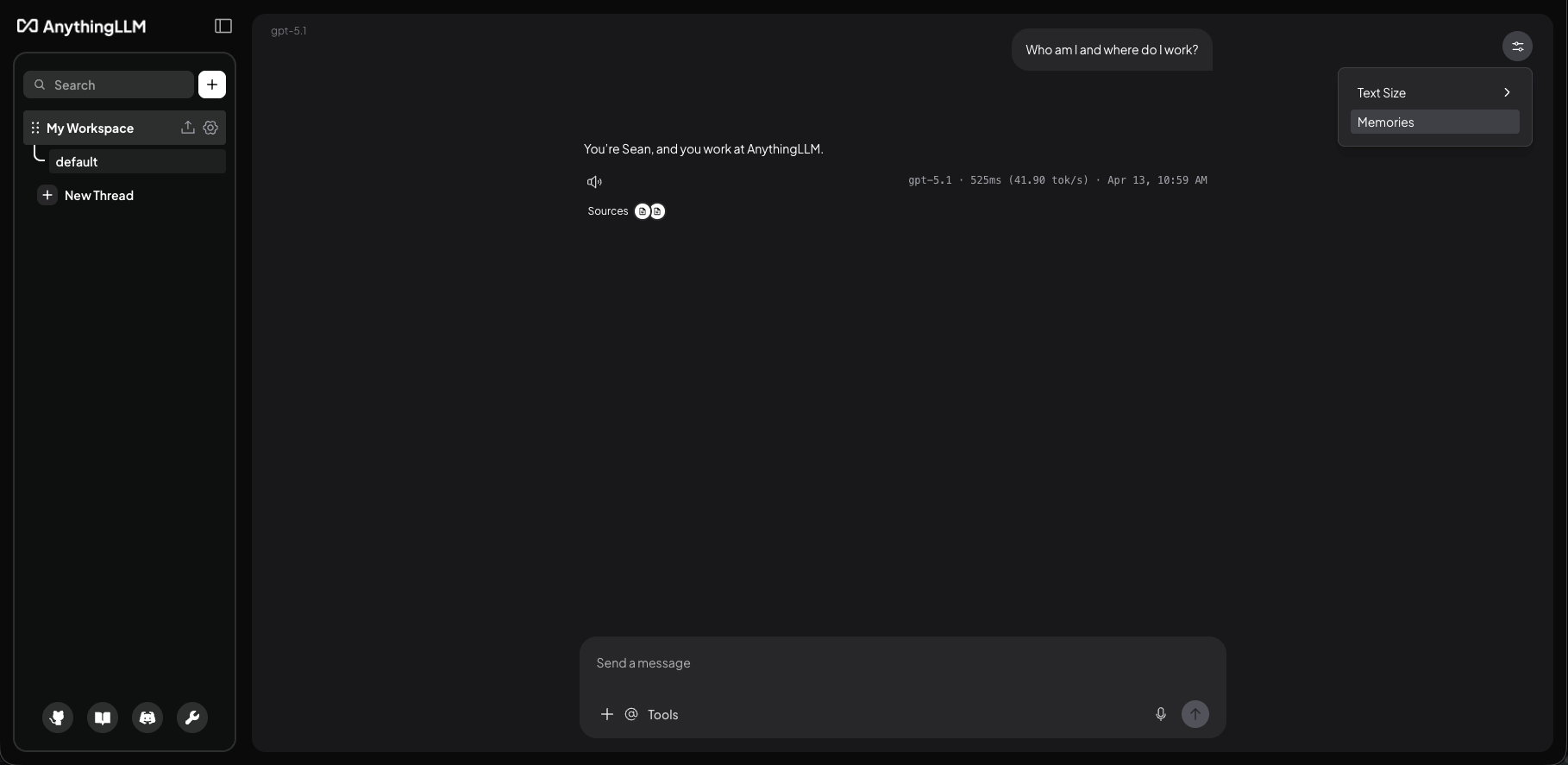
Once it's on, the Memories sidebar will show the workspace and global tabs. In multi-user mode, non-admin users can still open the sidebar and manage their own memories, but only an admin can turn the feature on or off.
Managing memories manually
From the Memories sidebar you can add, edit, delete, and move memories between scopes.
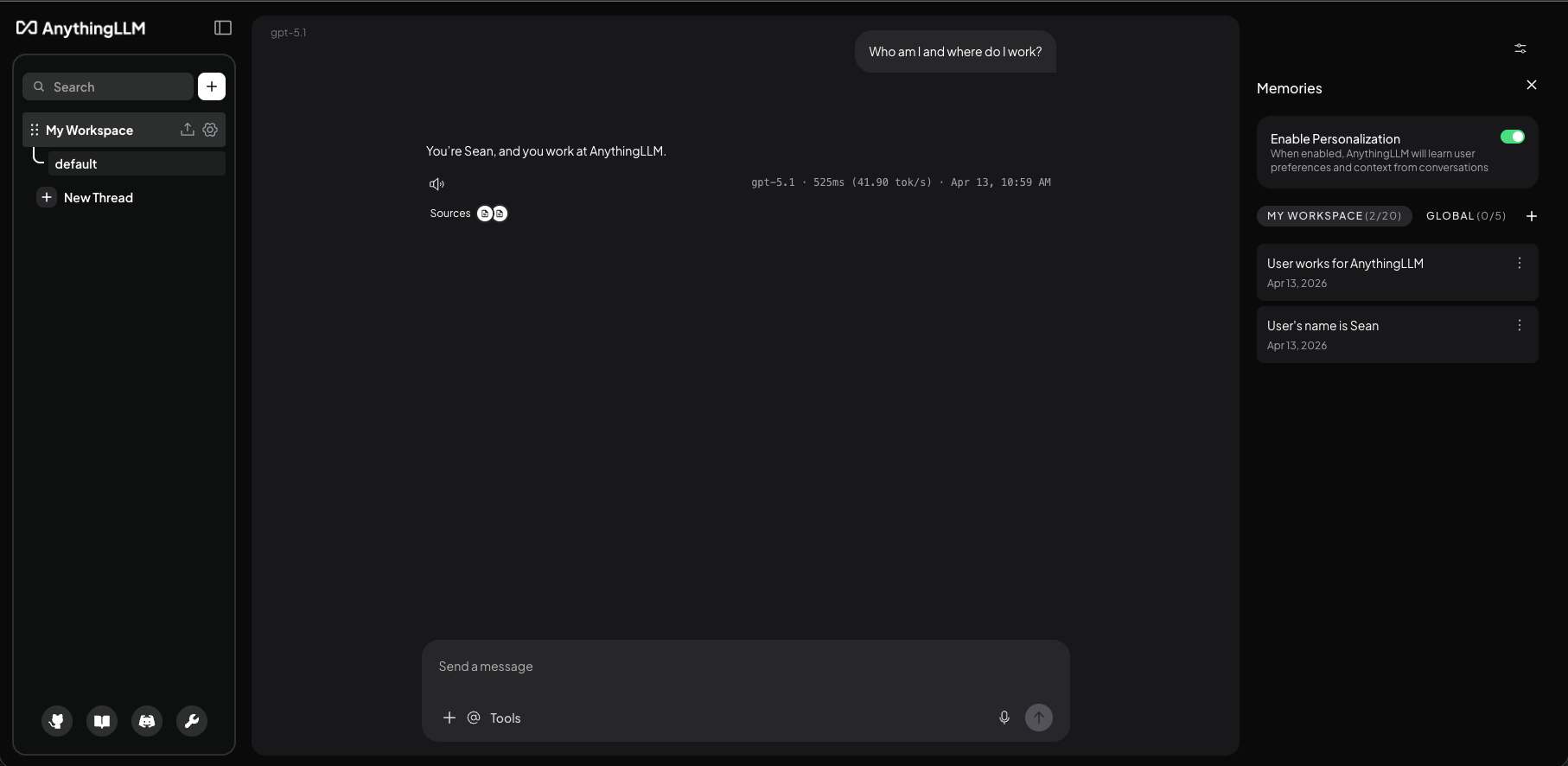
- Add: Click the + button in the tab header and write a single-sentence fact (for example, "User prefers Python over JavaScript").
- Edit: Open a memory's menu (the three-dot icon on the card) and choose Edit.
- Delete: Open the memory's menu and choose Delete.
- Move to global: From a workspace memory's menu, choose Move to global to make it apply everywhere.
- Move to workspace: From a global memory's menu, choose Move to workspace to scope it back to just the current workspace.
Each tab shows how many memories you have versus the limit (like 3/20 for workspace or 1/5 for global). If the destination is already full, adding or moving a memory will fail. Delete or move another memory out of that scope to make room.
Automatic memory extraction
AnythingLLM can build memories for you automatically by reviewing your recent chats and extracting useful facts — your name, what you're working on, your preferences, and so on.
Automatic extraction is a separate toggle from Personalization itself. You can keep Personalization on (so manually created memories are still injected into chats) while turning automatic extraction off if you prefer to manage memories entirely by hand.
To toggle automatic extraction, open the Memories sidebar and look for the Automatic Memory Extraction toggle below the main Personalization toggle. It is on by default when Personalization is enabled.
How extraction works
Extraction uses a two-phase Observer/Reflector pipeline:
-
Observer — Reviews your recent conversations and identifies candidate facts (up to 3 per run). Each candidate includes a confidence rating. The Observer is deliberately selective: it looks for things like your name, role, what you're working on, and stated preferences. It skips assistant opinions, emotional assessments, and conversational filler.
-
Reflector — Reviews the Observer's candidates against your existing memories. For each candidate it:
- Classifies scope: Would this fact be useful in a completely different workspace? If yes, it becomes a global memory. If it's specific to the current project, it becomes a workspace memory.
- Deduplicates: Drops candidates that overlap with existing memories, even if worded differently.
- Consolidates: If a candidate updates an existing workspace memory, the existing memory is revised rather than creating a duplicate.
- Filters: Drops low-confidence candidates unless they are clear identity facts.
This two-phase approach means the system is conservative about what it saves and accurate about scope. A conversation about a specific project will produce workspace memories, while your name or communication preferences become global memories.
When it runs
- On a schedule (default: every 3hours).
- Only when your workspace has been idle (defined by
MEMORY_IDLE_THRESHOLD_MSwhich defaults to 20 minutes). If you've chatted in a given workspace within the idle threshold, extraction for that workspace is skipped that round so it doesn't process a conversation that's still going. Other users and workspaces aren't affected. - Only when both Personalization and Automatic Memory Extraction are turned on. Default is both are enabled if you have Personalization turned on.
- Only when there are at least 5 unprocessed chats in a workspace — short exchanges are skipped since they are not likely to contain useful information.
You can change the schedule and idle window with the environment variables listed in this document in the instance/installation .env
Model requirements
Automatic extraction uses the workspace's configured chat model (falling back to the agent model, then the system default). The model must support tool calling — if the model can't produce structured tool calls, extraction will log a warning and skip the run. Most modern models (OpenAI, Anthropic, Ollama, LM Studio, etc.) support this.
How memories are used in chat
When Personalization is on and you send a message, AnythingLLM adds a short ## Things I Remember About You section to the end of the workspace's system prompt before sending it to the model.
That section includes:
- All of your global memories (up to 5).
- Your top 5 workspace memories for the current workspace.
If you have more than 5 workspace memories, AnythingLLM scores them against your current message and recent chat history and picks the 5 most relevant. If that scoring step fails for any reason, it falls back to the 5 most recently created memories.
This happens for regular chats, streamed chats, agent chats, and chats made through the API.
Memory content is sent to your LLM provider as part of the system prompt. If you're using a third-party provider, assume they can see it. Don't store passwords, API keys, or sensitive personal information as memories.
Single-user vs. multi-user mode
Memories work the same way in both modes. A few things to know:
- Single-user mode: All memories belong to the one local user. Enabling Personalization and managing memories are done by the same person.
- Multi-user mode: Memories are always tied to the user who created them. Only admins can turn Personalization on or off, but every user can view and manage their own memories from the Memories sidebar. No user can see, edit, move, or delete another user's memories.
- Switching from single-user to multi-user: When you turn on multi-user mode on an existing instance, any memories created beforehand are reassigned to the new admin account so nothing is lost.
Configuration
These environment variables control the background extraction job. All are optional.
| Variable | Default | Description |
|---|---|---|
MEMORY_EXTRACTION_INTERVAL | 3hr | How often the extraction job runs. |
MEMORY_IDLE_THRESHOLD_MS | 1200000 | How long (in milliseconds) a user's workspace has to be idle before its chats are processed. Default is 20 minutes. |
Limits
| Scope | Limit per user |
|---|---|
| Global memories | 5 |
| Workspace memories | 20 (per workspace) |
| Memories injected per chat | All global + top 5 workspace |
| Candidates per extraction | 3 (per run, per workspace) |