Clarifying Questions
When an agent receives an ambiguous or incomplete prompt, it typically has to guess at the missing details. The Clarifying Questions skill gives your agent a structured way to pause mid-turn and ask the user for the information it needs before continuing — no need to restart the conversation.
This opt-in agent skill presents an interactive survey card directly in the chat. The agent decides when to invoke it and what to ask, then resumes with the user's answers fully in context.
Why use Clarifying Questions?
- More accurate results — Instead of guessing, the agent gets the exact details it needs before acting.
- Fewer back-and-forth messages — The agent can batch multiple independent questions into a single survey card.
- Structured input — Supports free-form text, URLs, numbers, dates, emails, and single/multi-select choice lists so answers are clean and unambiguous.
- Persistent context — Answers are saved with the chat history, so both the agent and normal chat can reference them in follow-up turns.
This skill is off by default and must be enabled by an admin. It only works in the desktop/browser UI (websocket sessions) — it is not available for API or programmatic agent runs.
Enabling the Skill
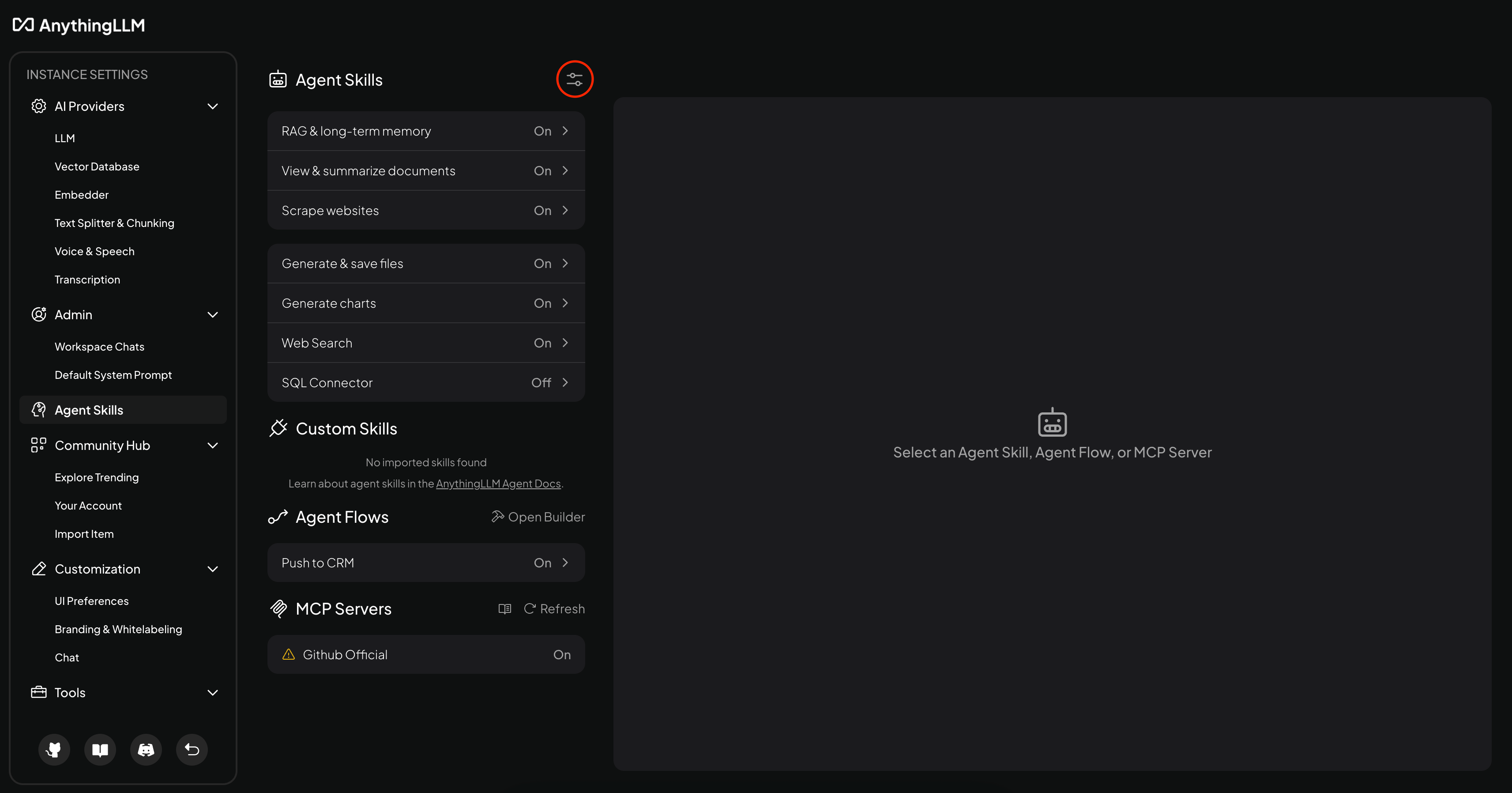
- Navigate to Settings → Agent Skills in the admin sidebar.
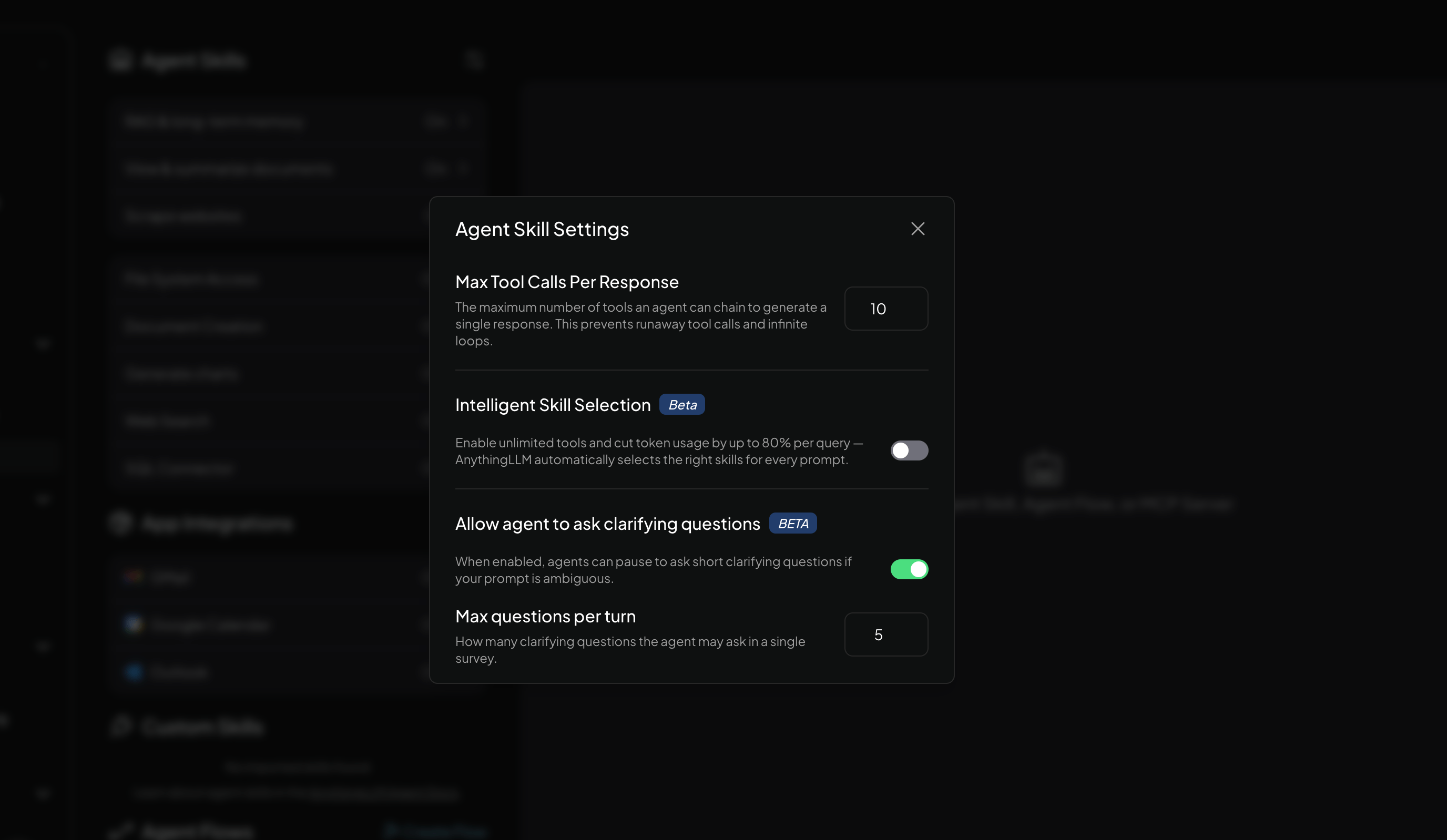
- Under agent skills, click on the slider icon in the top right corner to open agent skill settings modal.
- Toggle on Allow agent to ask clarifying questions to enable the skill.
- Set the Max questions per turn (1–10, default 3). This caps how many questions the agent can ask in a single invocation.
This skill is model-dependent. Smaller or less capable models may not reliably choose to call the tool, even when clarification would be helpful. For best results, use a capable model as your agent LLM.
How It Works
Once enabled, the agent has access to a tool that lets it present questions to the user. The agent autonomously decides when clarification is needed based on the prompt it received.
Question Types
| Type | Description |
|---|---|
| Text input | Free-form text, URL, number, date, or email fields |
| Single-select choice | Pick one option from a list |
| Multi-select choice | Pick one or more options from a list |
Choice questions can optionally include an "Other" field so the user can provide a custom answer that wasn't in the original list.
User Experience
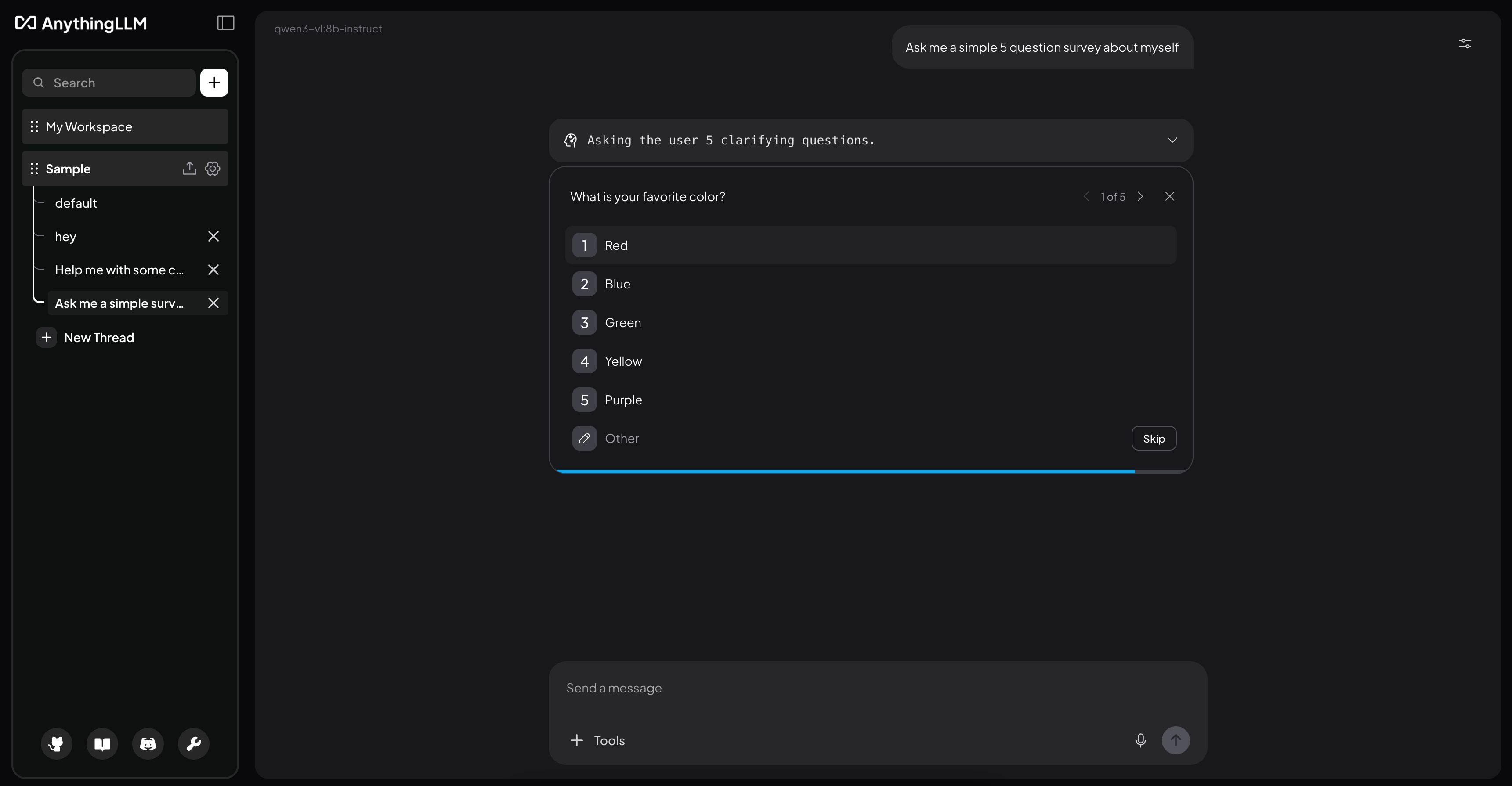
When the agent asks questions, the user sees an interactive card in the chat:
- Single question — A simple form with the question and input or choices.
- Multiple questions — A paginated card the user can navigate through.
- Skip — Users can skip individual questions or dismiss the entire survey if they'd rather let the agent proceed on its own.
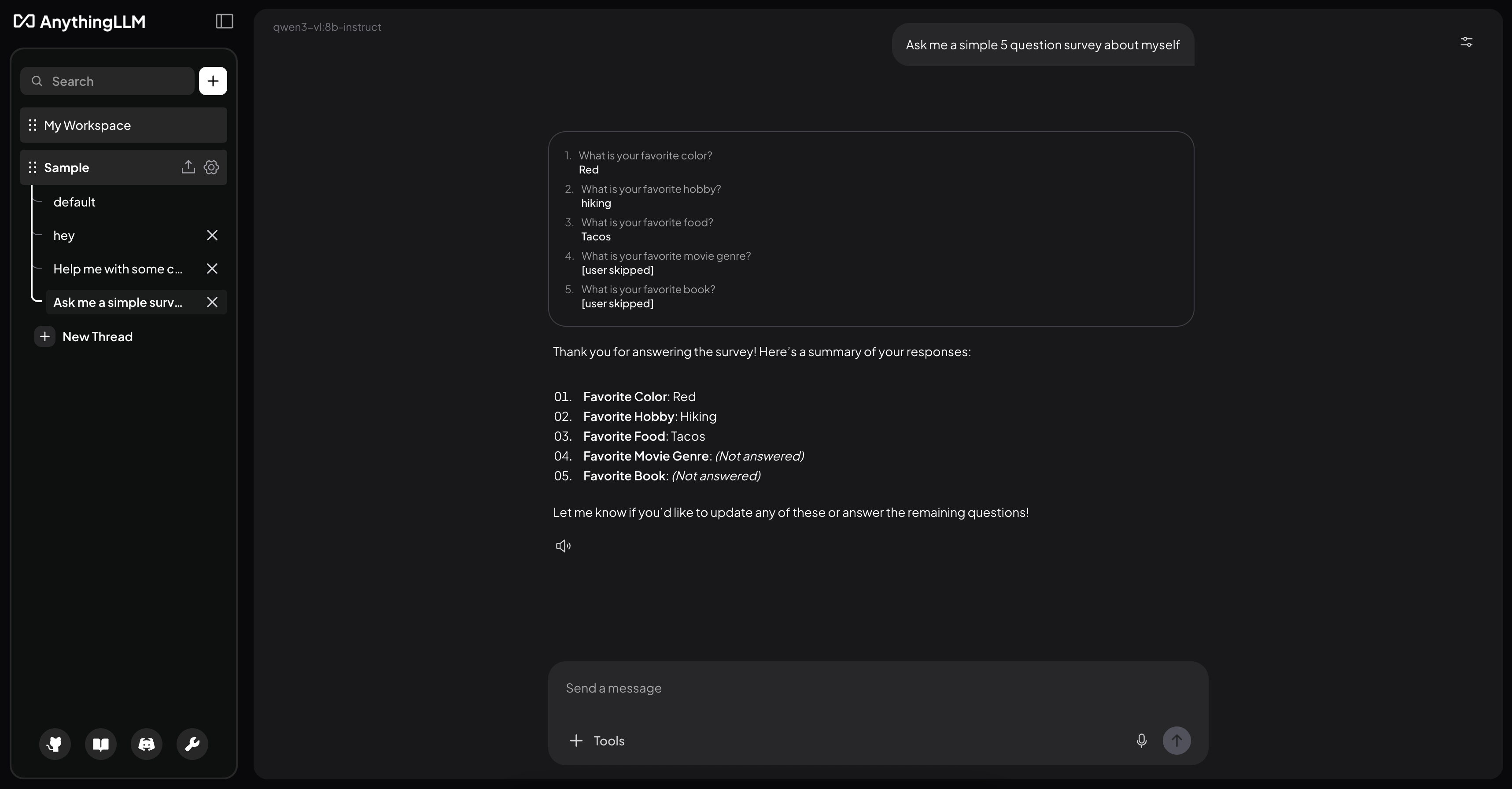
After the user responds (or skips/times out), the agent receives the answers and continues its task with that information in context.
Persistence
Completed surveys are saved alongside the chat message. When you reload a conversation, surveys render as read-only cards showing the questions and answers that were provided. The Q&A transcript is also injected into prompt history, so the agent retains awareness of what was discussed in future turns.