
How to use AI Agents?
Note
Before you use AI Agents, you have to configure your AI Agents by following our Agent Setup Guide
When in the main chat UI, check to see if the @ symbol is present in the prompt input.
If this symbol is present, you must mention the agent by @agent to start an agent session to use tools.
If this symbol is not present, you are automatically in agentic chat mode with every chat.
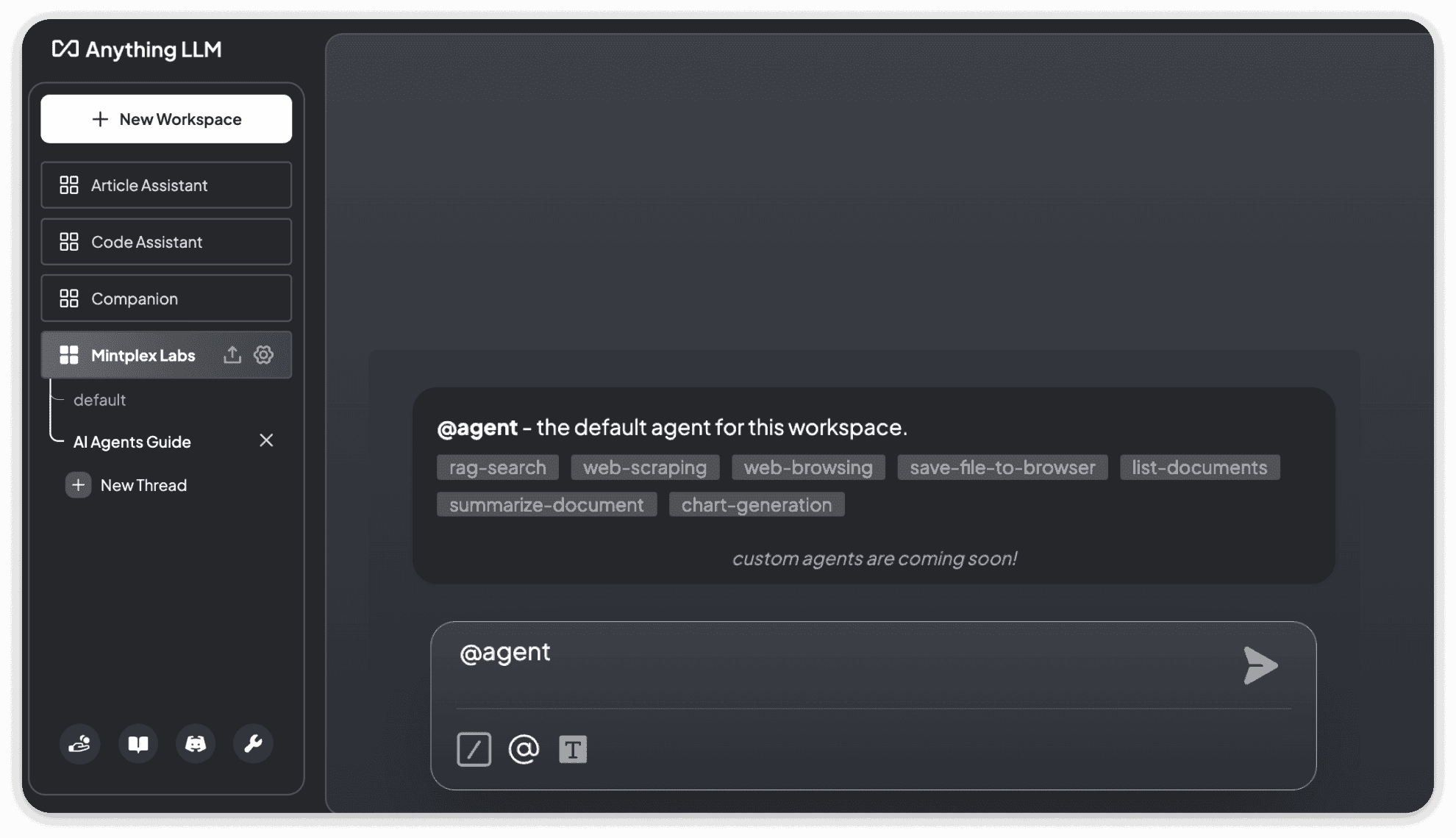
When you mention the agent, you will see a popup with the tools enabled for the agent on the workspace.
Agents have access to the following tools:
We will explained the intended use case of each tool below.
What is RAG Search and how to use it?
RAG search allows the agent to check what are the things the agent already know about a specific topic (requires some data to be embedded in workspace)
You can use RAG search by asking the agent something like @agent can you check what you already know about AnythingLLM?
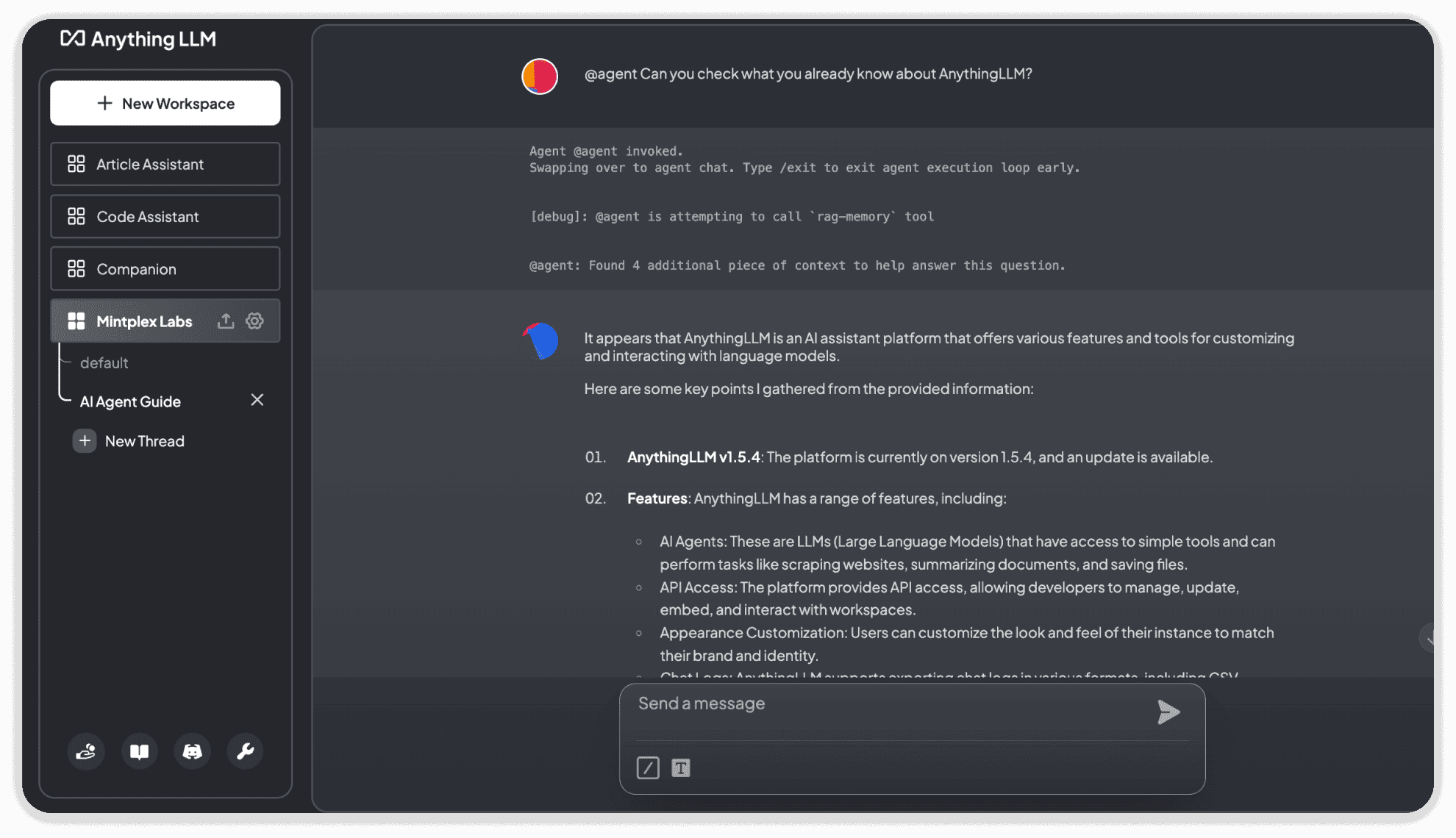
RAG search can update agent's own memory and that can be later used for recall in agent or regular chat. This embeds a virtual document you cannot manage.
Example: Ah, great point. Can you summarize and save that summary for later to your memory
What is Web Browsing and how to use it?
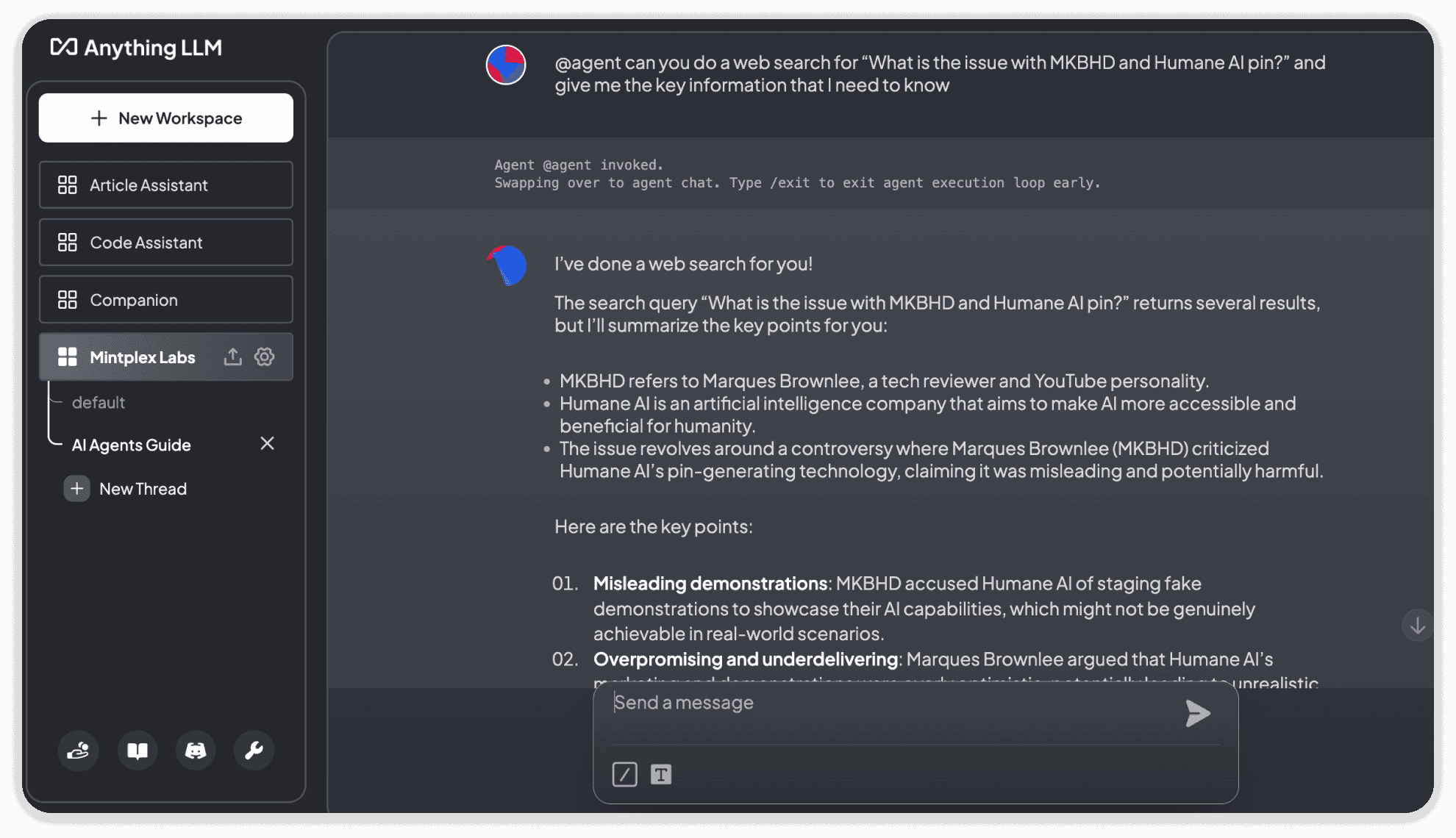
Web Browsing tool allows the agent to search on internet and give you answer for your questions. This basically gives LLM the ability to access internet.
Example: @agent can you do a web search for "What is the issue going on with MKBHD and Humane AI Pin?" and give me the key information that I need to know
What is Web Scraping and how to use it?
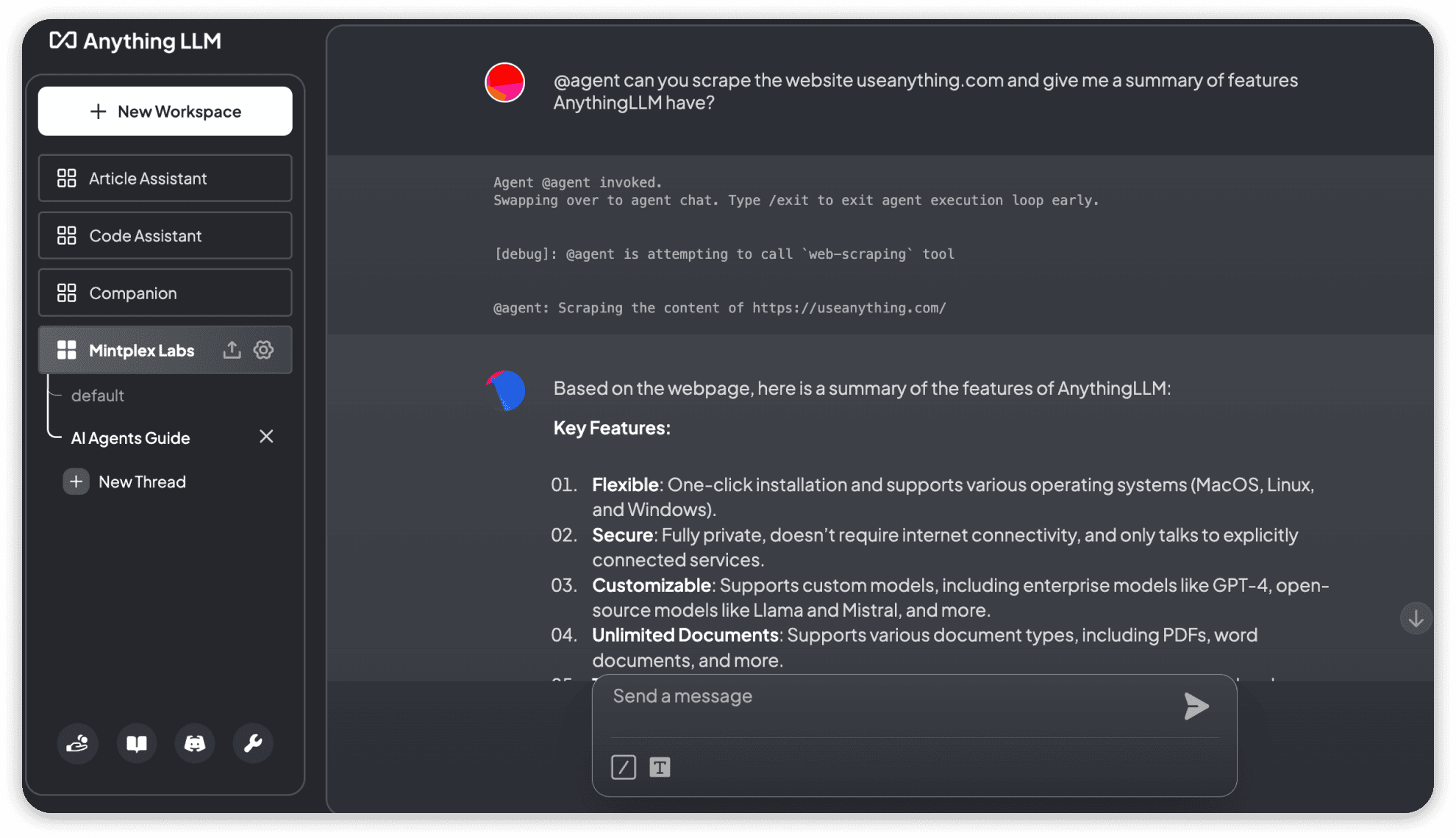
Web Scraping tool allows the agent to scrape a website and give you answer for your questions. This embeds a website's content into the workspace and asking question to the LLM to respond based on the content on the embedded website, with agent you don't have to manually embed the website -- the agent will do it automatically for you.
Example: @agent can you scrape the website anythingllm.com and give me a summary of features AnythingLLM have?
What is Save Files and how to use it?
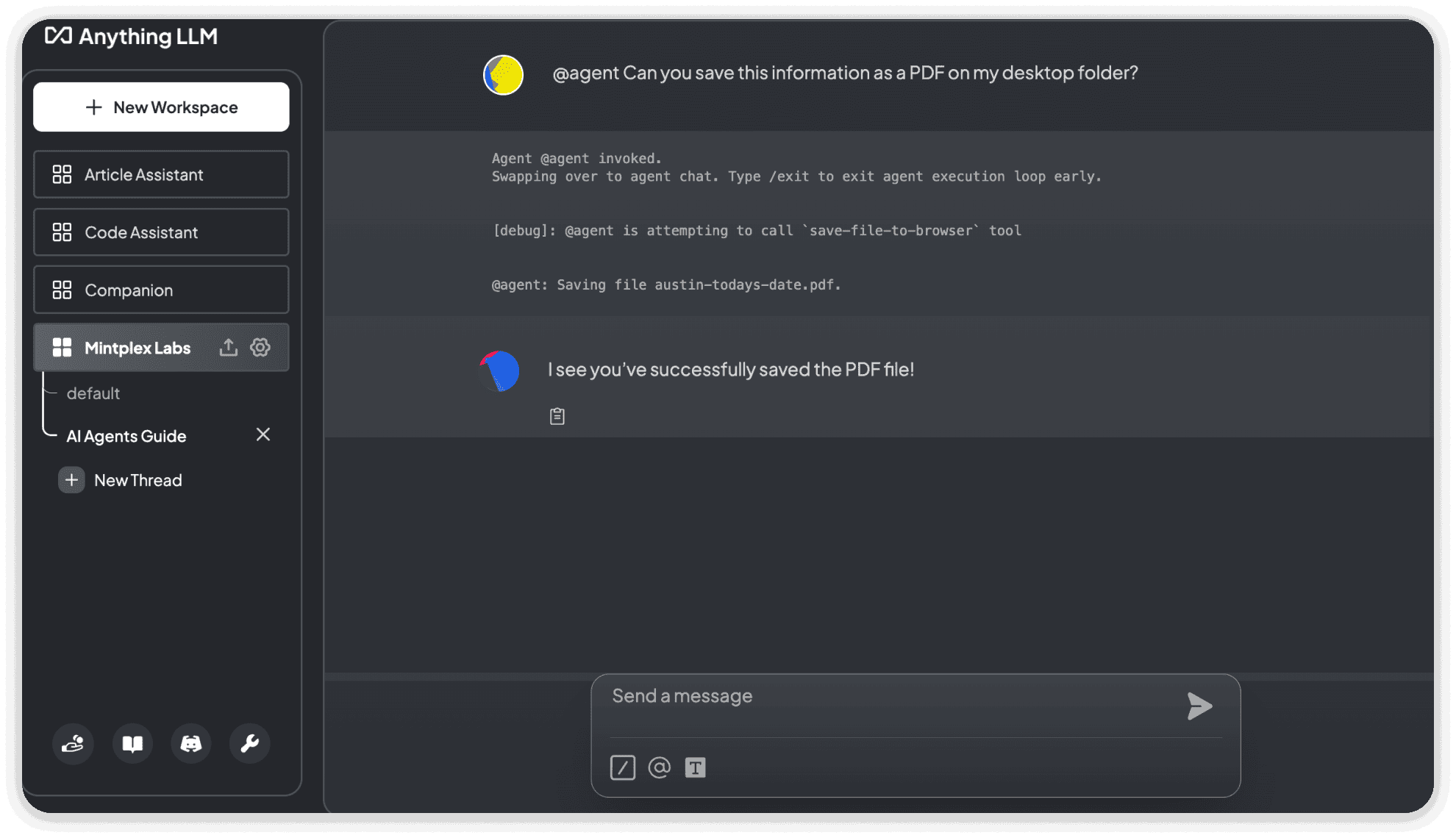
Save Files tool allows the agent to save any information into a file on your local machine.
Example: @agent can save this information as a PDF on my desktop folder?
Note
AnythingLLM will show you an popup to choose the file location and file name to save the file.
What is List Documents and how to use it?
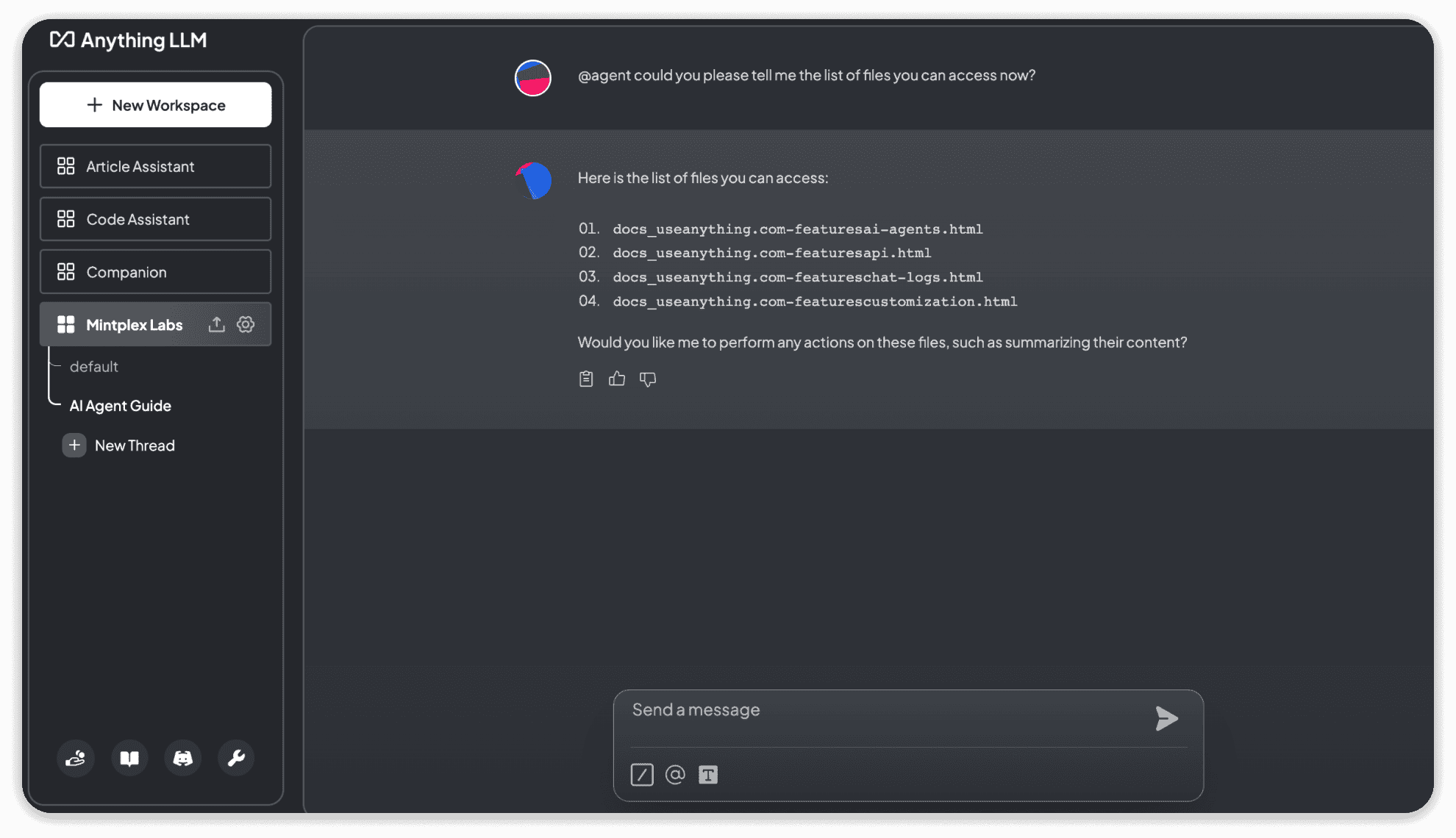
List Documents tool allows the agent to see and tell you all the documents it can access (documents that are embedded in the workspace)
Example: @agent could you please tell me the list of files you can access now?
What is Summarize Documents and how to use it?
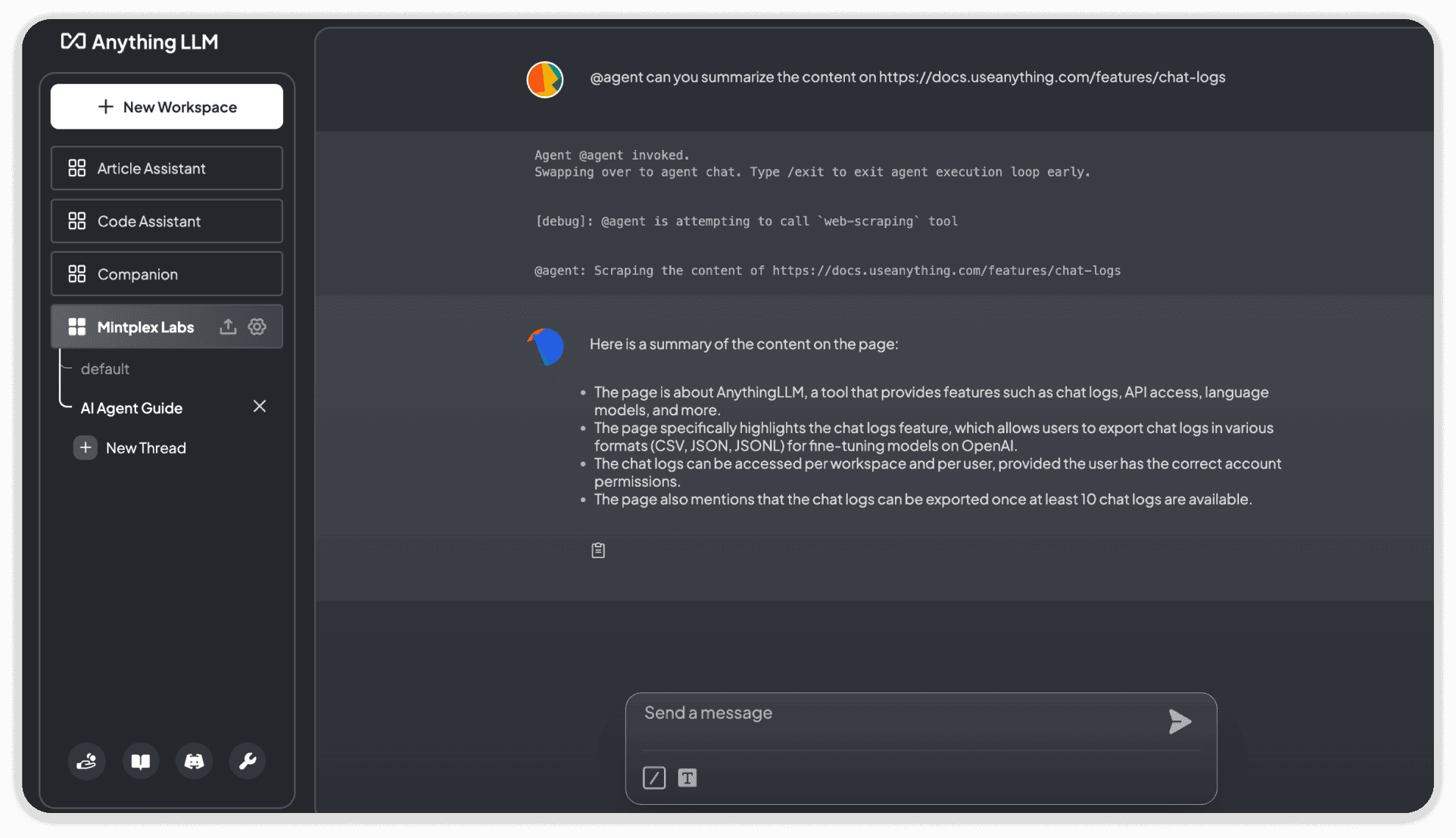
Summarize Documents tool allows the agent to give you a summary of a document.
Example: @agent can you summarize the content on https://docs.anythingllm.com/features/chat-logs
What is Chart Generation and how to use it?
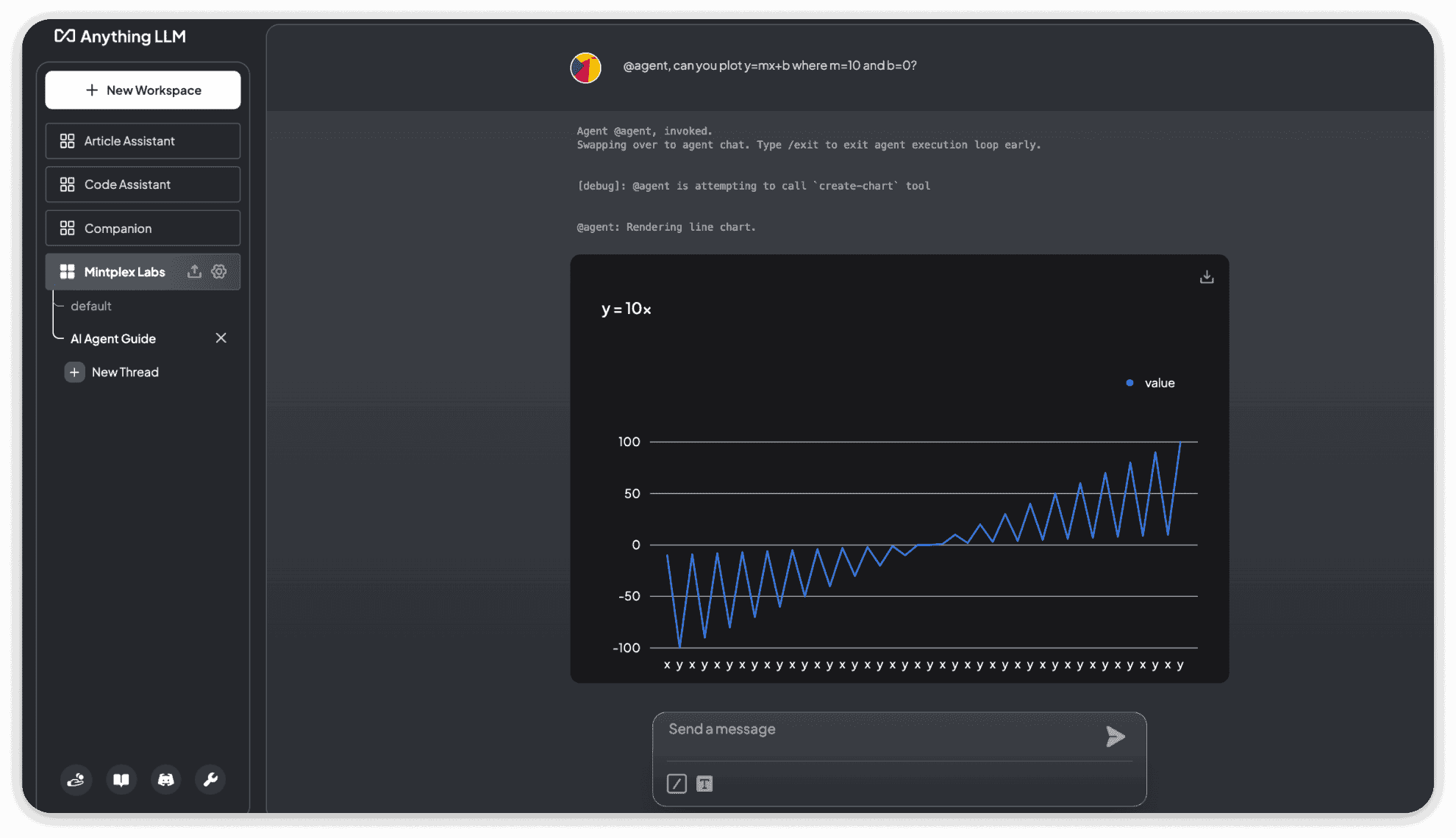
Chart Generation tool allows the agent to create charts based on the given prompt/data.
Example 1: @agent can you plot y=mx+b where m=10 and b=0?
Example 2: @agent can you look at data.csv and plot that as a pie chat by age? (assuming data.csv is in the workspace)
What is SQL Agent and how to use it?
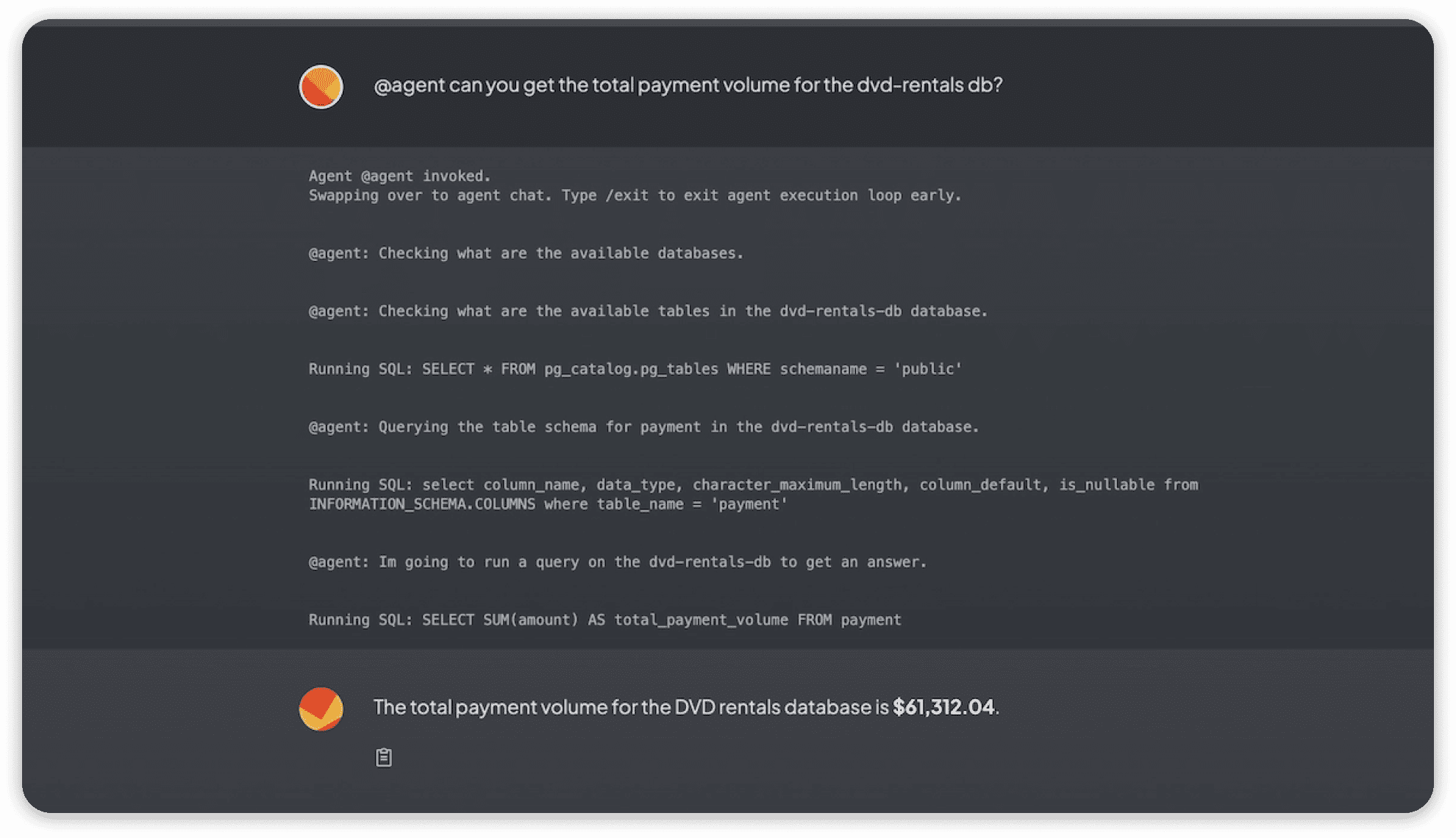
The built-in SQL agent is a skill that you can leverage to run real-time analytics and queries against a real relational database. The agent can do all of the following:
list-databases: View its current connections and sources it can leverage.list-tables: View all of the available tables within a database.check-table-schema: Check the available columns of a table for types and possible value stores.query: Run a valid SQL query on a database to product a set ofrowsthat will later be used in your answer.
Caution!
You should use the SQL agent with a read-only database user. While the agent is instructed to not provide anything other than SELECT statements, this does not prevent it from running other SQL commands that could modify your data!
Example 1:
@agent can you summarize all of the sales volume for May 2024 in the backend-office DB?
Example 2: (assuming you have the save-file skill enabled)
@agent can you grab the emails of the most recent 10 customers and save that to customer.csv?
Frequently Asked Questions
1) How can I know if the agent session is started or ended?
When a Agent session is started you will see the log Agent @agent invoked on your chat.
When a Agent session is ended you will see the log Agent session completed on your chat.
2) How can I end a Agent Session?
Simply use the slash command /exit to end a agent session
3) Do I have to always mention @agent to interact with the agent?
AnythingLLM will automatically determine if your LLM can use tools so that every chat is more intelligent. However, you can still choose to use the @agent directive at the start of your chat to start an agentic chat session.
Not all providers allow AnythingLLM to automatically determine if your LLM can use tools so you may need to use the @agent directive at the start of your chat to start an agentic chat session.
You will notice the @ symbol in the prompt input if you are required to use the @agent directive at the start of your chat to start an agentic chat session.
If this symbol is not present, you are automatically in agentic chat mode with every chat.